Intermediate IT Support and Troubleshooting
Advanced Troubleshooting Techniques
Tackling Hardware Conflicts
When a piece of hardware misbehaves, Device Manager is your command center. Beyond simply listing devices, it flags problems with specific error codes and symbols. You're likely familiar with the yellow exclamation mark indicating a driver issue, but deeper problems often involve resource conflicts.
A red 'X' over a device icon means it's been disabled. A yellow '!' indicates a problem, often with the driver. A blue '?' signifies that the correct driver isn't installed and the device is unidentified.
Older hardware sometimes clashes over Interrupt Requests (IRQs) or Direct Memory Access (DMA) channels. While modern systems manage this automatically, conflicts can still arise. In Device Manager, you can investigate this by opening a device's properties, navigating to the 'Resources' tab, and checking the 'Conflicting device list'.
Resolving these conflicts might involve updating the driver, which can reconfigure resource allocation. In rare cases, you might need to manually assign resources, though this should be a last resort. Another effective step is to uninstall the problematic device (and its drivers), then restart the computer to let Windows rediscover it and attempt a fresh installation.
Decoding Update Failures
Windows Update is crucial for security and stability, but it can be notoriously stubborn. When updates repeatedly fail, the issue often lies with corrupted system files or problems with the update service itself.
Before diving deep, running the built-in Windows Update Troubleshooter can solve common problems. If that fails, it's time for more powerful command-line tools. The System File Checker (SFC) scans for and repairs corrupted Windows system files. For more severe corruption, the Deployment Image Servicing and Management (DISM) tool can repair the core Windows image that SFC uses for its repairs. Always run DISM before SFC for best results.
# First, run DISM to repair the Windows component store
DISM /Online /Cleanup-Image /RestoreHealth

# After DISM completes, run SFC to repair system files
sfc /scannow
If updates still fail, you may need to manually reset the Windows Update components. This involves stopping the update services, renaming the folders where updates are downloaded (SoftwareDistribution and catroot2), and then restarting the services. This forces Windows to create fresh folders and redownload the necessary files.
Navigating the Registry
The Windows Registry is a massive database of settings for the operating system and installed applications. While powerful, it's also fragile. Editing it incorrectly can cause serious system instability, so always back it up before making changes. You can do this from within the Registry Editor (regedit) by exporting the entire registry or the specific key you plan to modify.
Registry-related troubleshooting often involves removing leftover entries from uninstalled software that cause conflicts, or tweaking a specific value to fix a niche problem. For example, some program errors can be traced to a corrupted registry key. Online forums and official support documentation will often point to a specific key that needs to be deleted or modified to resolve the issue.
Never delete or modify registry keys unless you are certain what they do and have a backup. A wrong move here can require a full system reinstall.
Advanced Network Diagnostics
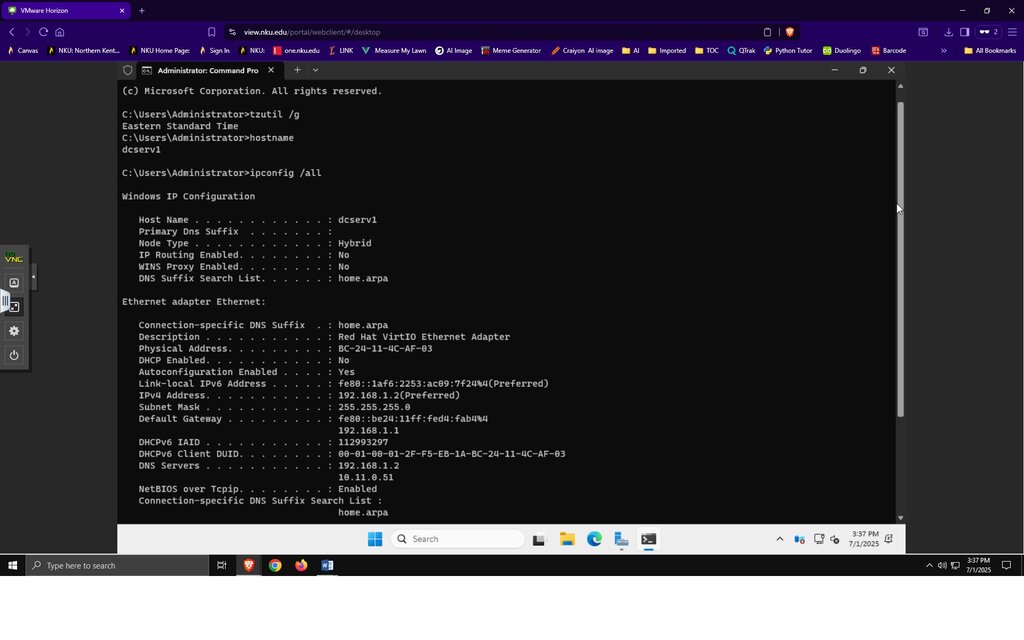
When ipconfig isn't enough to solve a network issue, you need to dig deeper. The command line offers a suite of tools for advanced network troubleshooting. These tools can help you understand the path your data takes and where it's getting stuck.
The ping command is a basic connectivity test, but adding flags can make it more useful. For instance, ping -t [address] will ping a target continuously until stopped, which is useful for checking intermittent connection drops.
tracert (Trace Route) maps the journey your packets take to a destination, showing each 'hop' along the way. If you can't reach a website, tracert can reveal if the problem is on your local network, with your ISP, or further down the line.
For more detailed information, pathping combines the functionality of ping and tracert. It sends packets to each router on the way to a destination and analyzes the results, providing details on packet loss at each hop. This is incredibly useful for pinpointing exactly where a network slowdown is occurring.
# Ping google.com until you manually stop it (Ctrl+C)
ping -t google.com

# Trace the route to google.com
tracert google.com

# Run a detailed path analysis to google.com
pathping google.com
These advanced techniques provide the tools to diagnose and resolve a wider range of complex issues. By understanding how to use them, you can move beyond simple fixes and tackle the root cause of system problems.