Intermediate Excel for Data Analysis
Logical Decision Making
Automating Decisions with Logic
Spreadsheets are great for storing and calculating data, but their real power comes from making decisions. The IF function is your primary tool for this. It checks if a certain condition is true or false and then returns a value based on the outcome. Think of it as adding a simple rule to your spreadsheet: if this happens, then do that.
For example, imagine cell B2 contains a sales total. We want to know if the salesperson met their $5,000 quota. In cell C2, we could write:
=IF(B2>=5000, "Met Quota", "Did Not Meet Quota")
If the value in B2 is 6000, C2 will display "Met Quota". If it's 4500, C2 will show "Did Not Meet Quota". This simple test is built using comparison operators.
| Operator | Meaning |
|---|---|
| = | Equal to |
| > | Greater than |
| < | Less than |
| >= | Greater than or equal to |
| <= | Less than or equal to |
| <> | Not equal to |
Handling Multiple Conditions
Life is rarely simple enough for one condition. What if a sales bonus depends on two factors? That's where logical operators like AND, OR, and NOT come in. They let you combine multiple tests into one. These functions are typically used within the logical_test part of an IF statement and are rooted in Boolean logic principles.
Boolean logic
noun
A form of algebra in which all values are reduced to either TRUE or FALSE. It is fundamental to computer science and electronics.
The AND function returns TRUE only if all conditions are met. The OR function returns TRUE if any condition is met.
Let's say a bonus is awarded if sales (B2) are over $5,000 and client satisfaction (C2) is above 90%.
=IF(AND(B2>5000, C2>0.9), "Bonus", "No Bonus")
Now, what if the bonus is awarded if sales are over $5,000 or they signed more than 5 new clients (D2)?
=IF(OR(B2>5000, D2>5), "Bonus", "No Bonus")
For more complex scenarios, you might need to build a decision tree. One way to do this is with nested IF statements, where one IF function is placed inside another.
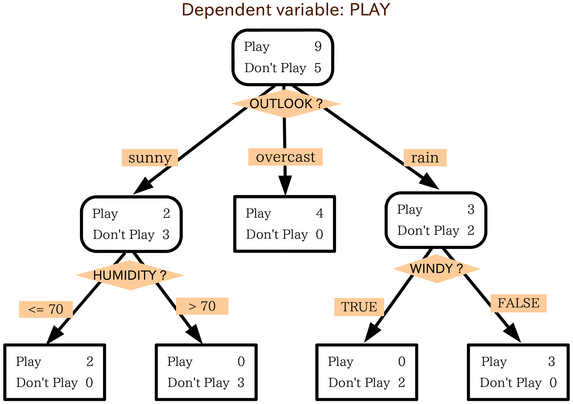
Imagine assigning letter grades based on a score in cell A1:
- 90 or above: "A"
- 80 to 89: "B"
- 70 to 79: "C"
- Below 70: "F"
A nested IF formula would look like this:
=IF(A1>=90, "A", IF(A1>=80, "B", IF(A1>=70, "C", "F")))
While powerful, nested IFs can quickly become confusing and difficult to debug. Each added condition makes the formula longer and more complex.
For this reason, newer versions of Excel introduced the IFS function as a cleaner alternative. It allows you to specify a series of conditions and their corresponding true values without nesting.
Here is the same grading logic using IFS. Notice how much easier it is to read:
=IFS(A1>=90, "A", A1>=80, "B", A1>=70, "C", A1<70, "F")
Visualizing Your Logic
Sometimes, you don't want to output a value; you just want to highlight cells that meet certain criteria. Conditional Formatting lets you apply formatting—like changing a cell's color or making text bold—based on a logical rule.
You can use the same formulas from an IF statement to drive this formatting. For example, you could create a rule to highlight any sales figures in column B that are below the $5,000 quota.
To do this, you would select the sales data, go to Conditional Formatting, choose "New Rule," and then select "Use a formula to determine which cells to format." In the formula bar, you'd enter =B2<5000. Then you'd choose your formatting, like a red fill. Excel will automatically apply this logic to every cell in your selection, visually flagging underperforming results without needing an extra column for formulas.
What is the primary purpose of the IF function in a spreadsheet?
You want to give a salesperson a bonus only if they achieve sales over $10,000 (in cell B2) AND have a client satisfaction score above 9 (in cell C2). Which formula correctly determines if they get the bonus?