Intermediate CapCut Video Editing
Precise Keyframe Animation
Beyond Presets: Manual Animation with Keyframes
You already know how to use CapCut's built-in transitions and effects. Now, it's time to take full control. The key to creating custom, professional-looking animations lies in a small but powerful tool: the keyframe diamond. Think of a keyframe as a specific instruction you give to a clip. It marks a point in time where a property—like its size, position, or rotation—has a precise value. By setting a start keyframe and an end keyframe, you tell CapCut to automatically generate all the movement in between.
Let's try a simple scale animation. Select a clip or a sticker in your timeline. Position the playhead where you want the animation to begin.
Now, look for the diamond-shaped icon with a plus sign, usually found above the timeline on the right. Tap it. The diamond will turn red, indicating you've set your first . This locks in the clip's current properties (scale, position, etc.) at this specific point in time.
Next, move the playhead forward to where you want the animation to end. Pinch to zoom in on your clip or sticker, making it larger. Notice that CapCut automatically adds a second red keyframe for you. You didn't have to tap the diamond again. This is because CapCut understands that you changed a property after setting the first keyframe, so it creates a new one to mark the end of the animation. Play it back, and you'll see your sticker smoothly grow from its original size to the new, larger size.
Controlling Speed and Motion
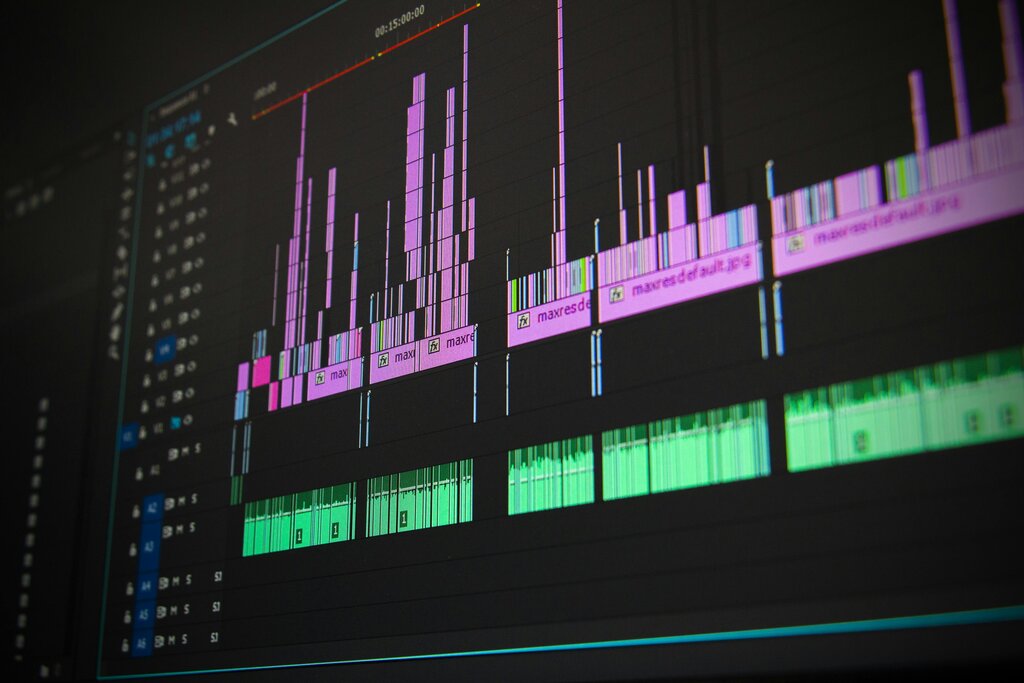
The magic of keyframing is in the timing. The distance between your keyframes on the timeline directly controls the speed of the animation. Want a slow, cinematic zoom that gradually builds tension? Place your start and end keyframes far apart. This gives the animation more time to unfold.
For a frantic, high-energy effect like a crash zoom, place the keyframes very close together. The change will happen in a fraction of a second, creating a powerful impact. This technique isn't just for size. You can create a quick slide effect by changing a clip's position with closely spaced keyframes, or a dizzying spin by animating its rotation.
Pro Tip: You can animate multiple properties at once. Add a keyframe, then move the playhead, and then change both the scale and the rotation. Both properties will animate simultaneously.
Adding Natural Easing with Graphs
By default, a keyframed animation moves at a constant speed. This is called linear motion, and it can often feel robotic and unnatural. Real-world objects don't start and stop moving instantly; they accelerate and decelerate. We can replicate this using the Graphs editor in CapCut.
After setting at least two keyframes on a clip, you'll see a new 'Graphs' option appear between them on the timeline. Tap it. This opens the Curve Editor, where you can change the timing and velocity of your animation without adding more keyframes.
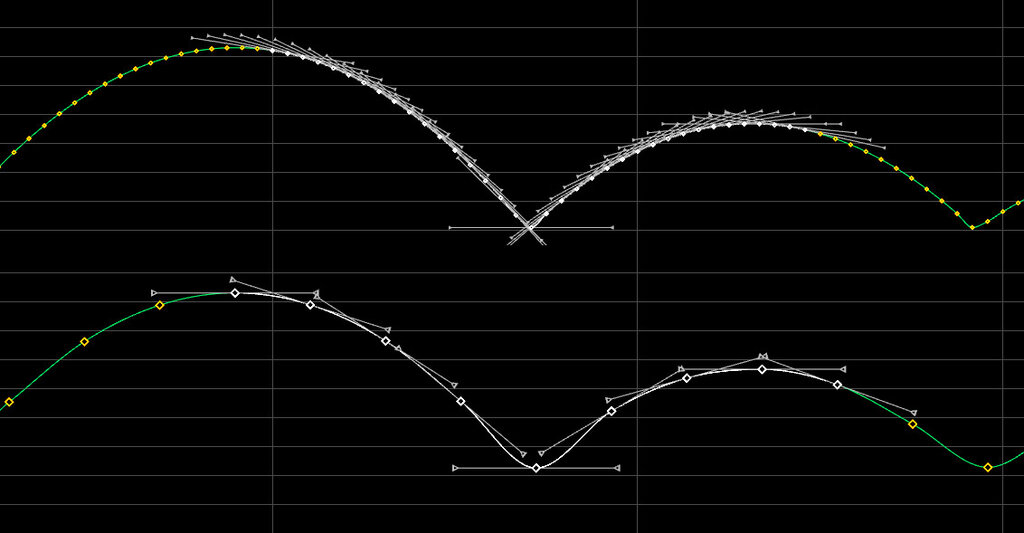
Inside the Graphs menu, you’ll find several presets. 'Ease In' will cause your animation to start slowly and then speed up. 'Ease Out' does the opposite: it starts fast and slows down to a gentle stop. These are the workhorses of smooth motion. For example, an object sliding into the frame looks much better with an Ease Out curve, as it appears to settle into place.
Don't be afraid to experiment with the other options. 'Bounce' will make an object overshoot its target and spring back, perfect for playful text or icon animations. 'Flow' curves provide even more nuanced acceleration and deceleration, creating an ultra-smooth, premium feel. Applying these is what separates amateur edits from professional-looking motion graphics.
Mastering manual keyframes and easing graphs unlocks a new level of creativity. You're no longer limited by presets; you are the animator, in complete control of every movement on screen.
What is the primary function of a keyframe in CapCut?
To create a very fast, high-energy 'crash zoom' effect, how should you place your start and end keyframes on the timeline?