Intermediate CapCut Video Editing
Advanced Timeline Management
Beyond the Basics: Streamlining Your Timeline
You’ve already mastered the art of dropping clips onto the timeline, making simple cuts, and exporting your work. Now, it’s time to level up. Professional video editing isn’t just about knowing the tools; it's about workflow efficiency. A clean, organised project saves time and helps you focus on the creative parts of storytelling.
By implementing effective organization and file management practices, you cansave time and minimize confusion, allowing you to focus more on the creativeaspects of video editing.
Let’s start with a pro technique for managing raw footage. Instead of dumping all your clips onto your main editing timeline, create a separate one just for your best takes. This is often called a 'Selects Timeline'.
To do this in CapCut (version 8.0 and later), use the Multi-Timeline feature. Create a new timeline and name it "Selects". Go through your raw footage, find the best parts of each clip, and drop them into this "Selects" timeline. Once you have all your A-roll and B-roll curated, you can create another new timeline called "Main Edit" and start building your story using only the pre-approved clips from your "Selects" timeline. This keeps your main workspace clean and focused.
Nesting for a Tidy Timeline
As your projects get more complex, your timeline can become a mess of video layers, audio tracks, text overlays, and effects. This is where Compound Clips come in handy. A Compound Clip groups multiple clips into a single, 'nested' clip on your timeline. Think of it like putting several items into a box. You can move the box around easily, and whatever you do to the box (like applying a color filter) affects everything inside it.
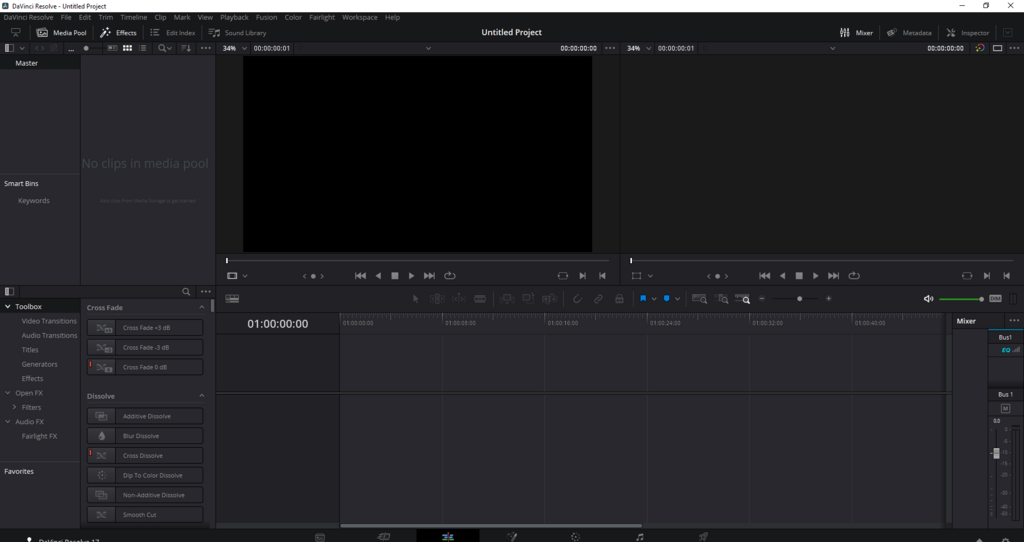
To create one, select multiple clips on your timeline (video, audio, text, etc.), right-click, and choose 'Create Compound Clip'. Now, that entire sequence is one block. This is incredibly powerful for two reasons:
- Organisation: It simplifies a busy timeline, making it easier to see the overall structure of your video.
- Grouped Effects: You can apply an effect, transition, or color grade to the Compound Clip, and it will affect all the clips within it uniformly. This is much faster than applying the same effect to each clip individually.
If you need to edit the clips inside, just right-click the Compound Clip and select 'Decompound' to unpack it.
Fly Through Your Edit
Relying on your mouse for every action slows you down. Mastering keyboard shortcuts is the single biggest step you can take towards editing faster. Let’s focus on two essential sets of shortcuts for timeline navigation and marking.
The fastest way to navigate your timeline is with J-K-L.
The J, K, and L keys are the standard for playback control in nearly all professional editing software. It’s a system called .
- L: Press once to play forward. Press it again to play at double speed, again for 4x speed, and so on.
- J: Does the same, but in reverse. It's perfect for quickly finding the start of an action.
- K: Acts as pause. You can also hold K and tap J or L to move frame-by-frame, giving you incredible precision.
Once you’ve found the exact frame where you want your clip to start or end, use In and Out points. Press 'I' on your keyboard to set the 'In' point (the start) and 'O' to set the 'Out' point (the end). This is much quicker and more precise than dragging the ends of a clip with your mouse. Use J-K-L to find your spot, then I/O to mark it.
| Key | Action | Pro Tip |
|---|---|---|
| J | Play backward | Tap multiple times to speed up rewind. |
| K | Pause / Stop | Hold K, then tap J or L to move one frame at a time. |
| L | Play forward | Tap multiple times to fast-forward through clips. |
| I | Set In Point | Marks the beginning of your selection. |
| O | Set Out Point | Marks the end of your selection. |
What is the primary purpose of creating a "Selects Timeline" in a professional video editing workflow?
You have a sequence with a background video, a text overlay, and a sound effect. You want to move all three elements together on the timeline as a single unit. What is the most efficient method?
By building these habits—organising with multiple timelines, simplifying with compound clips, and navigating with shortcuts—you'll spend less time wrestling with the software and more time crafting a compelling story.