Intermediate and Advanced Microsoft Excel
Advanced Logical Formulas
Beyond Basic Math
You've mastered summing columns and finding averages. Now it's time to teach your spreadsheets how to think. The real power of Excel isn't just calculation; it's decision-making. This is where logical formulas come in, turning your static data into a dynamic system that responds to changing conditions.
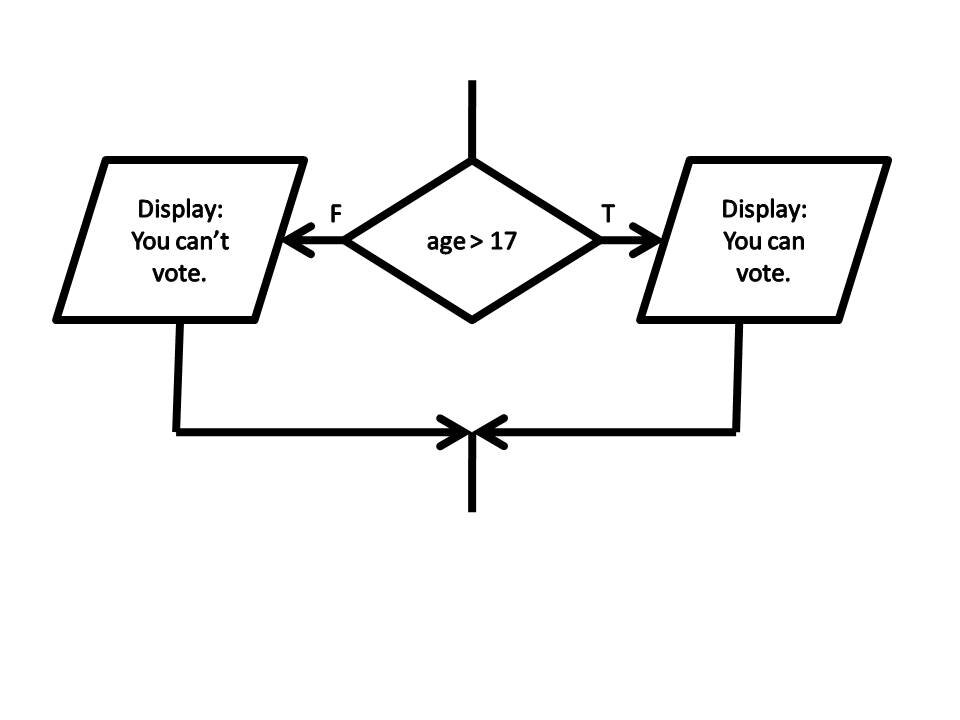
The simplest way to make a decision is with an IF statement. It checks if a condition is true or false and returns a different value for each outcome. But what if you have more than one condition? For example, a salesperson gets a bonus only if they exceed $10,000 in sales and sign at least three new clients. One simple IF won't cut it.
Combining Logic with AND, OR, XOR
To handle multiple criteria, we use logical operators like AND, OR, and XOR. These functions test several conditions at once and return a single TRUE or FALSE, which you can then feed into an IF function.
| Operator | What it does | Example (returns TRUE if...) |
|---|---|---|
AND | Checks if all conditions are true. | =AND(A2>10000, B2>=3) A2 is over 10,000 AND B2 is 3 or more. |
OR | Checks if at least one condition is true. | =OR(C2="Holiday", D2="Weekend") C2 is "Holiday" OR D2 is "Weekend". |
XOR | Checks if an odd number of conditions are true. | =XOR(E2>50, F2>50) E2 OR F2 is over 50, but not both. |
Let's apply this. Imagine we have sales data in columns A (Sales Amount) and B (New Clients). We can create a bonus calculator using IF and AND together.
# Formula to award a 💲500 bonus
=IF(AND(A2>10000, B2>=3), 500, 0)
This formula reads: If the value in A2 is greater than 10,000 AND the value in B2 is greater than or equal to 3, then return 500. Otherwise, return 0.
Handling Complex Decisions
Business rules often get more complicated. What if there are tiered bonuses? For sales over $20,000, the bonus is $1,000. For sales over $10,000, it's $500. Otherwise, it's $0. For this, you can nest IF statements inside each other.
# A nested IF for tiered bonuses
=IF(A2>20000, 1000, IF(A2>10000, 500, 0))
This formula first checks if sales are over $20,000. If true, it returns 1000 and stops. If false, it moves to the second IF statement, which checks if sales are over $10,000. This layering of conditions creates a decision tree. While powerful, nested IFs can get messy and hard to read.
For newer versions of Excel, the IFS function offers a cleaner alternative. It allows you to list pairs of conditions and values.
# The same logic using IFS
=IFS(A2>20000, 1000, A2>10000, 500, TRUE, 0)
IFS checks each condition in order. A2>20000 is first. If true, it returns 1000. If not, it checks A2>10000. The final TRUE, 0 pair acts as a default case, assigning 0 if no other conditions are met. This uses a concept from Boolean logic where TRUE always evaluates as true.
Error-Proofing Your Formulas
What happens if your formula encounters an error, like text in a cell that should be a number? Your sheet will display ugly error codes like #VALUE! or #N/A. This looks unprofessional and can break other calculations that depend on that cell.
The IFERROR function provides a clean solution. It wraps around your original formula and gives you a backup value to display if anything goes wrong.
# Original formula that might produce an error
=B2/C2

# Formula wrapped in IFERROR
=IFERROR(B2/C2, "Invalid Input")
In the second example, if C2 is 0 or contains text, the division would cause an error. Instead of displaying #DIV/0!, the cell will show the much friendlier message, "Invalid Input."
There's also a more specific version, IFNA, which only catches the #N/A error. This is common with lookup functions like VLOOKUP and is useful when you want to handle a "not found" case differently from other types of errors.
Now, let's test your understanding of these logical tools.
What is the fundamental purpose of the IF function in Excel?
A salesperson earns a bonus if their sales in cell A2 are greater than $10,000 AND they have signed at least 3 new clients (cell B2). Which formula, when placed inside an IF function's logical test, will correctly return TRUE only when both conditions are met?
By combining these logical functions, you can build sophisticated and resilient spreadsheets that automate complex rules and handle unexpected data gracefully.