Interactive Excel Financial Dashboards
Excel Basics
The Excel Workspace
When you first open Excel, you're looking at a grid of cells. This is the heart of your spreadsheet. At the top, you'll see the Ribbon, which contains tabs like 'Home,' 'Insert,' and 'Data.' Each tab holds groups of commands for different tasks, from formatting text to analyzing numbers.
Just below the Ribbon is the Formula Bar. This is where you can see and edit the contents of the currently selected cell. The main part of the screen is the worksheet itself, a grid of columns (labeled with letters) and rows (labeled with numbers).
Workbooks and Worksheets
Think of an Excel file as a digital notebook. This entire file is called a workbook. Inside this workbook, you have individual pages, and these are called worksheets (or just 'sheets').
You can see tabs for each worksheet at the bottom-left of the screen, usually named 'Sheet1,' 'Sheet2,' and so on. You can have many worksheets within a single workbook, which helps organize different sets of related data. For instance, one sheet could track January sales, another February sales, all within the same annual sales workbook.
Each worksheet is made of cells, and each cell has a unique address, or cell reference, based on its column and row. The cell in the top-left corner is A1. The cell to its right is B1, and the cell below it is A2. This grid system is how Excel keeps everything organized.
Data Entry and Formatting
To enter data, just click on a cell and start typing. You can input text, numbers, dates, or currencies. After typing, press 'Enter' to move to the cell below or 'Tab' to move to the cell to the right.
Raw data can be hard to read. That's where formatting comes in. You can change the font, size, and color of your text, make it bold or italic, or change the background color of a cell to make important information stand out. These tools are found in the 'Home' tab of the Ribbon.
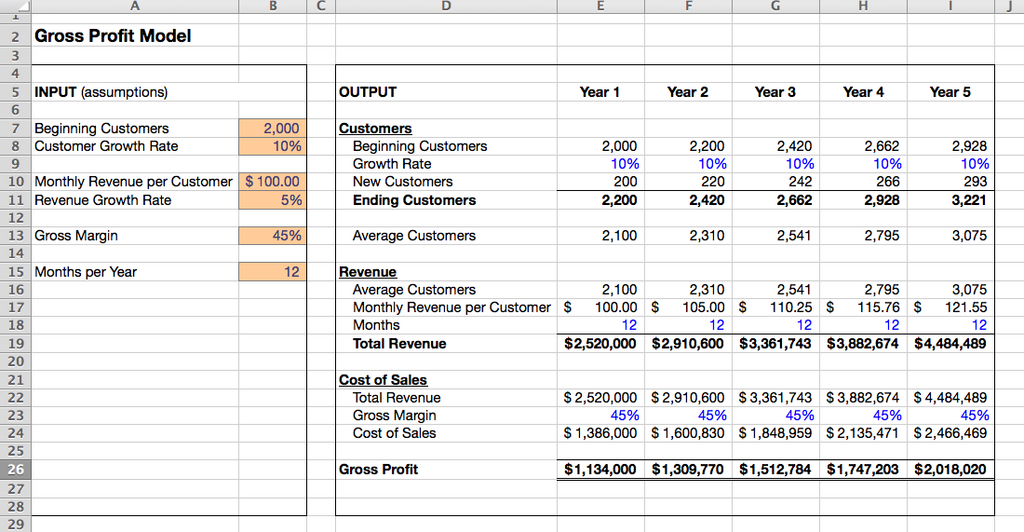
Good formatting isn't just about looks. It guides the eye and makes your spreadsheet easier for others (and yourself) to understand at a glance.
Basic Formulas and Functions
The real power of Excel comes from its ability to perform calculations. To tell Excel you want to calculate something, you always start by typing an equals sign () in a cell.
For basic math, you can use standard operators. For example, to add the numbers in cells A1 and B1, you would type this into another cell:
=A1+B1
If you change the value in A1 or B1, the result of your formula will update automatically. This is what makes spreadsheets dynamic.
Excel also has built-in formulas called functions that perform common calculations. Instead of typing =A1+A2+A3+A4, you could use the SUM function to add a range of cells.
=SUM(A1:A4)
The part in the parentheses, A1:A4, is a cell range. It tells Excel to include all the cells from A1 down to A4 in the calculation. Functions like SUM, AVERAGE, MIN, and MAX are fundamental tools for analyzing data.
With these basics, you can start organizing data and performing simple calculations. Let's review what we've covered.
What is an entire Excel file, which can contain one or more individual sheets, called?
To tell Excel that you are about to enter a formula into a cell, you must always begin with which symbol?