Interactive 3D Brain Infinite Scroll with Neovim
Introduction to Neovim and Kickstart
What is Neovim?
Neovim is a modern text editor built on the principles of the classic editor, Vim. It's fast, efficient, and highly customizable. Think of it as a powerful engine for writing code, prose, or anything else you can type. Unlike many graphical editors, Neovim runs in your terminal, which means it's lightweight and works seamlessly whether you're on your local machine or connected to a remote server.
Neovim is a hyperextensible text editor based on Vim's philosophies.
Its main advantages are speed, a keyboard-centric workflow that keeps your hands on the home row, and an enormous ecosystem of plugins for adding new features. Because it's modal, you have different modes for different tasks, like navigating text versus inserting it. This might feel strange at first, but it quickly becomes a very efficient way to work.
Getting Neovim Installed
First, you need to install Neovim itself. The process varies slightly depending on your operating system. Open your terminal and run the command that matches your system.
# For macOS using Homebrew
brew install neovim

# For Windows using Winget
winget install Neovim.Neovim

# For Debian/Ubuntu using APT
sudo apt-get update
sudo apt-get install neovim
These commands use package managers—Homebrew for macOS, Winget for Windows, and APT for Debian-based Linux—to download and install Neovim for you. Once the command finishes, you can verify the installation by typing nvim in your terminal and hitting Enter. You should see the Neovim welcome screen.
Your First Configuration with Kickstart
A fresh Neovim installation is very minimal. To turn it into a powerful code editor, you need to configure it. This can be a complex process, but fortunately, there are starter configurations that handle the heavy lifting for you. We'll use one called Kickstart.nvim.
Kickstart provides a solid, pre-configured setup with essential features like code completion, file browsing, and syntax highlighting. It makes Neovim accessible without needing to spend hours on setup.
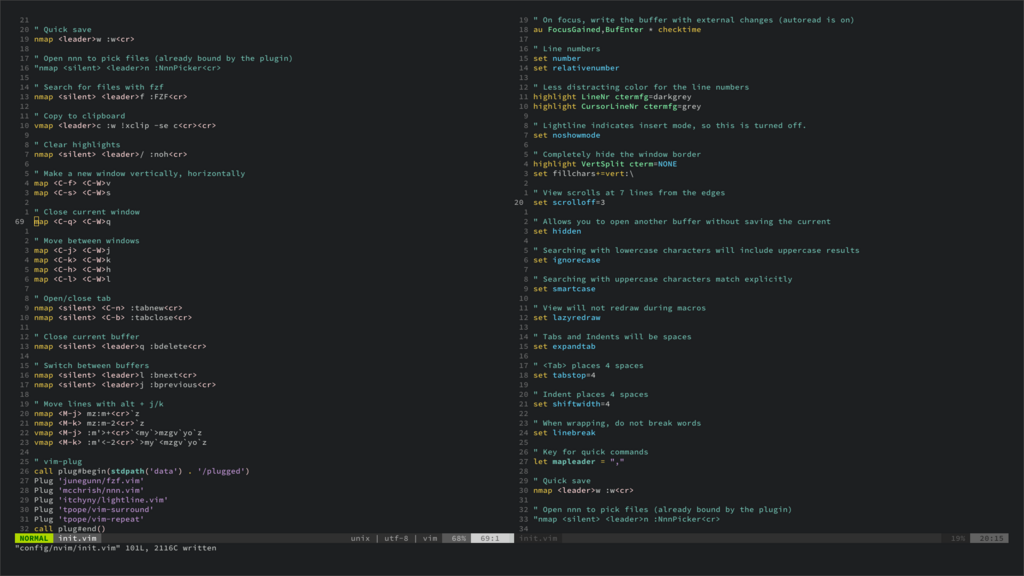
To set up Neovim with Kickstart, follow these two steps. First, if you have any old Neovim configurations, it's a good idea to back them up. The configuration files are typically stored in a .config/nvim directory in your user's home folder.
Run this command in your terminal to back up your existing configuration (if any) by renaming it. Don't worry if it gives an error saying the file doesn't exist—that just means you have nothing to back up.
mv ~/.config/nvim ~/.config/nvim.bak
Next, you'll clone the Kickstart repository directly into the configuration path. This command uses Git to download the Kickstart files and place them where Neovim can find them.
git clone https://github.com/nvim-lua/kickstart.nvim.git ~/.config/nvim
Now, open Neovim by running nvim. The first time you launch it, Kickstart will automatically install all the plugins it comes with. This might take a minute or two. Once it's done, you'll be greeted by your new, fully-featured editor.
Basic Navigation
Neovim is a modal editor, meaning you switch between different modes to perform actions. The two most important modes for a beginner are Normal mode and Insert mode.
- Normal Mode: This is the default mode. You use it for navigating, deleting text, and running commands. You can't type text directly here.
- Insert Mode: This is for typing text, just like in a traditional editor. You enter it by pressing
iwhile in Normal mode.
To get back to Normal mode from any other mode, just press the Esc key. Here are the most essential commands to get you started:
| Key(s) | Mode | Action |
|---|---|---|
h | Normal | Move cursor left |
j | Normal | Move cursor down |
k | Normal | Move cursor up |
l | Normal | Move cursor right |
i | Normal | Enter Insert mode |
Esc | Insert | Return to Normal mode |
:w | Normal | Save the current file |
:q | Normal | Quit Neovim |
:wq | Normal | Save the file and quit |
Getting used to modes and keyboard commands is the biggest hurdle for new users. Don't worry about memorizing everything at once. Just practice moving around and switching between Normal and Insert modes. With Kickstart installed, you have a powerful foundation to build on as you become more comfortable.
What is the primary characteristic of Neovim's user interface, as described in the text?
You are in Neovim's Normal mode. What key do you press to switch to Insert mode so you can begin typing text?
You now have a fully functional Neovim environment. Take some time to open a file and practice the basic navigation. The efficiency you'll gain is well worth the initial learning curve.