HubSpot CRM for Sales Onboarding
HubSpot CRM Basics
Getting Around HubSpot
Think of your Customer Relationship Management (CRM) system as your digital command center for sales. It’s where you keep track of every lead, every conversation, and every deal. We'll be using HubSpot, a powerful tool designed to make this process smooth and efficient.
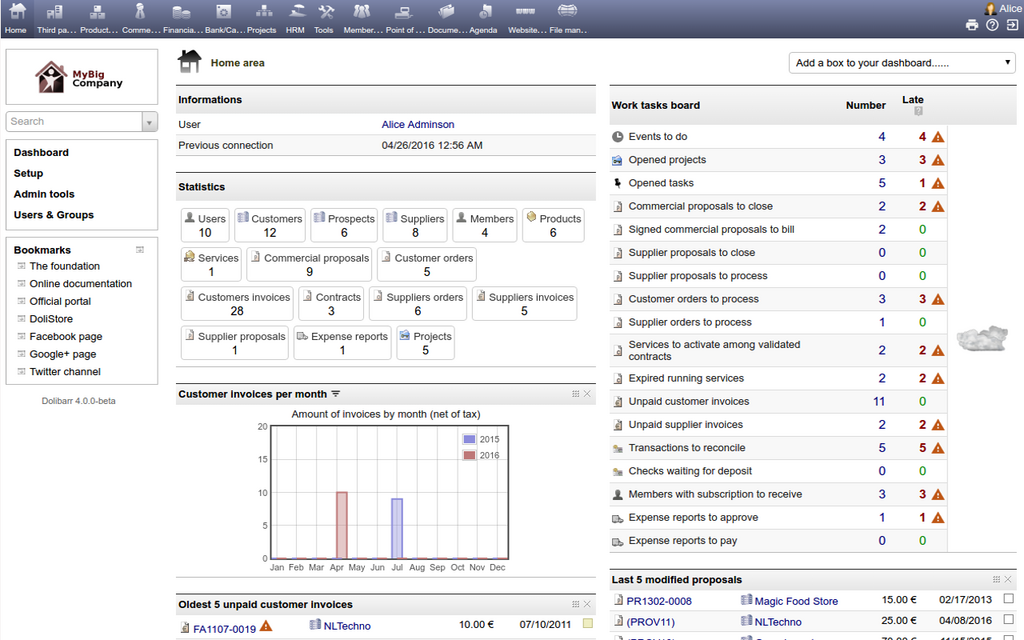
When you first log in, you'll land on your dashboard. This is your mission control, giving you a quick look at your most important metrics. You can see things like your current deal progress, tasks for the day, and recent activity from your contacts. The navigation bar at the top is your primary tool for moving around. You'll see links to Contacts, Companies, Deals, and other key areas.
Businesses of all sizes may utilize CRM software to manage client contacts, streamline procedures, and enhance customer service thanks to pre-built templates, automated workflows, and drag-and-drop interfaces.
The dashboard isn't set in stone. You can customize it to show the reports that matter most to you. Want to see your monthly sales goal progress? Add that report. Need to track calls made this week? Add that one, too. Spend some time arranging your dashboard to fit your workflow. A well-organized dashboard saves you time and keeps you focused on what's important.
Contacts and Companies
The core of any CRM is its database of people and organizations. In HubSpot, these are separated into Contacts and Companies. A contact record is the profile for an individual person, containing their name, email, phone number, and a timeline of every interaction you've had with them.
Think of a contact record as a living document. Every email, call, and meeting note you log adds to their story and helps you build a stronger relationship.
Company records work similarly, but they group contacts together. If you're talking to three different people at the same organization, they can all be associated with a single company record. This gives you a complete picture of your relationship with the entire business, not just one person.
Both contact and company records have "properties," which are just fields for storing information. While HubSpot comes with standard properties like 'First Name' and 'Job Title,' you can create custom ones to track data specific to our business, such as 'Product Interest' or 'Last Demo Date.'
Managing Your Sales Pipeline
Your sales pipeline is a visual representation of your sales process, showing you where prospects are in their journey from lead to customer. In HubSpot, this is managed through the Deals board. Each deal gets its own card, which you move from one stage to the next as it progresses.
Our standard deal stages reflect the key milestones in our sales cycle. When you create a new deal, you'll place it in the first stage. As you complete certain actions, like qualifying the lead or sending a contract, you'll drag the deal card to the next column. This keeps everyone on the team aligned and provides an accurate forecast of potential revenue.
| Stage | Description |
|---|---|
| New Lead | A new potential opportunity has been identified. |
| Qualified | You've confirmed the lead is a good fit and has a real need. |
| Demo Scheduled | A product demonstration or deep-dive call is on the calendar. |
| Proposal Sent | We've sent a formal proposal or quote. |
| Closed Won / Lost | The deal is finalized, either as a success or a loss. |
It's critical to keep your deals updated. A pipeline that doesn't reflect reality is useless. Make it a habit to review your deals board at the start and end of each day.
Personalize Your Settings
Finally, take a moment to personalize your HubSpot account. In the settings, you can connect your email inbox and calendar. This is a game-changer. It allows you to log emails automatically, track opens, and schedule meetings without ever leaving the CRM.
You can also set up your email signature, create email templates for common messages, and configure your notification preferences. Do you want an alert every time a prospect opens your email? You can set that up. Prefer a daily summary? That's an option too.
Investing a little time to configure these settings will save you countless hours in the long run. It makes the CRM work for you, not the other way around.
Ready to test your knowledge?
What is the primary function of the HubSpot dashboard?
In HubSpot, a single Company record can be associated with multiple Contact records.
Now that you're familiar with the basics of HubSpot, you have the foundation needed to manage your sales process effectively. The key is consistent use and keeping your data clean.