HTML, CSS, and Tailwind Fundamentals
Introduction to HTML
The Skeleton of the Web
Every webpage you visit, from a simple blog post to a complex news site, is built on a foundation of HTML. Think of HTML as the skeleton of a webpage. It provides the essential structure that holds everything together. Before any colors, fonts, or interactive elements are added, HTML is there to define what each piece of content is—a heading, a paragraph, a list, or an image.
HTML stands for HyperText Markup Language. "HyperText" refers to the links that connect web pages to one another. "Markup Language" means it's a language that uses tags to describe the content.
An HTML document is a plain text file with a series of tags. These tags are keywords surrounded by angle brackets, like <html>. They usually come in pairs: an opening tag (<p>) and a closing tag (</p>). Everything between the opening and closing tag is considered the content of that element.
Every HTML page has the same basic structure. It tells the browser that it's an HTML document and separates the invisible metadata from the visible content.
<!DOCTYPE html>
<html>
  <head>
    <!-- Metadata goes here, like the page title -->
    <title>My First Webpage</title>
  </head>
  <body>
    <!-- Visible page content goes here -->
  </body>
</html>
Let's break that down:
<!DOCTYPE html>: This is a declaration. It tells the web browser that the document is an HTML5 page.<html>: This is the root element. All other elements are nested inside it.<head>: This contains meta-information about the page, like the title that appears in your browser tab. This content isn't displayed on the page itself.<body>: This is where the magic happens. All the visible content—text, images, links, and everything else you see—goes inside the<body>tag.
Adding the Content
With the basic structure in place, we can start adding content using different HTML elements. The most common elements are for text, lists, links, and images.
For text, you'll primarily use headings and paragraphs. Headings are created with
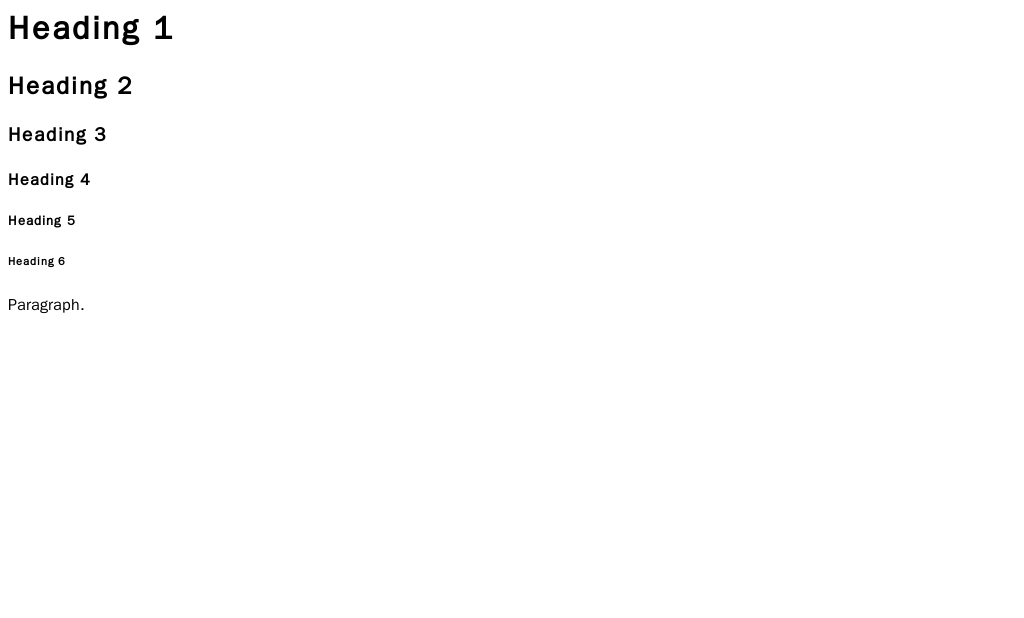
<h1>through<h6>tags.<h1>is the most important heading, like a book title, while<h6>is the least important. Paragraphs are created with the<p>tag.
<h1>This is the main heading</h1>
<p>This is a paragraph of text. It introduces the topic.</p>
<h2>This is a subheading</h2>
<p>This is another paragraph, providing more detail under the subheading.</p>
When rendered by a browser, these tags create a clear visual hierarchy.
What if you need to list items, like ingredients in a recipe? HTML has two types of lists. Unordered lists (<ul>) are for bullet points, and ordered lists (<ol>) are for numbered items. Inside both, each item is wrapped in a list item tag (<li>).
<ul>
  <li>Apples</li>
  <li>Oranges</li>
  <li>Bananas</li>
</ul>

<ol>
  <li>First, do this.</li>
  <li>Then, do that.</li>
  <li>Finally, do this.</li>
</ol>
The web wouldn't be a web without links. The anchor tag, <a>, creates hyperlinks. The href attribute specifies the destination URL. To display an image, you use the <img> tag with the src attribute pointing to the image file. Note that <img> is a self-closing tag; it doesn't need a separate closing tag.
<a href="https://www.wikipedia.org">Visit Wikipedia</a>

<img src="images/logo.png" alt="A company logo">
The alt attribute in the <img> tag provides alternative text for screen readers or if the image fails to load. It's crucial for accessibility.
Giving Content Meaning
In the early days of the web, developers used generic tags like <div> to group content. While this works, it doesn't tell the browser or search engines anything about what the content is. This is where semantic HTML comes in.
Semantic HTML refers to the use of meaningful, descriptive tags like
, , , and
Using semantic tags gives your content context. A screen reader can tell a user, "You are now in the main navigation," and a search engine can better understand the structure of your page. This improves both accessibility and SEO.
Common semantic elements include:
<header>: Introductory content for a page or section, like a logo and site name.<nav>: A block of navigation links.<main>: The primary, unique content of the page.<article>: A self-contained piece of content, like a blog post or news story.<section>: A thematic grouping of content within an article or page.<footer>: Closing content, such as copyright information or contact links.
Collecting User Input
HTML also allows you to collect information from users through forms. The <form> element acts as a container for different types of input fields. It defines where and how to send the collected data.
Inside a form, you use various <input> elements. The type attribute determines what kind of input it is. Common types include text for single-line text, email for email addresses, password for secure text entry, and submit for a button that sends the form data.
<form action="/submit-data" method="post">
  <label for="username">Username:</label><br>
  <input type="text" id="username" name="username"><br>

  <label for="password">Password:</label><br>
  <input type="password" id="password" name="password"><br><br>

  <input type="submit" value="Log In">
</form>
The <label> element is important for accessibility. It associates a text label with an input field, which helps screen reader users understand what information is being requested. The for attribute of the label should match the id of the input.
By combining these elements, you can build the structure for any webpage, from a simple personal page to a complex application. This HTML foundation is the first and most important step in web development.
Quiz Questions 1/6
What is the primary role of HTML in web development?
Quiz Questions 2/6
In an HTML document, all visible content like text, images, and links should be placed inside which tag?