HTML and JavaScript Fundamentals
HTML Basics
The Skeleton of the Web
Every website you visit, from a simple blog to a complex news site, is built on a foundation of HTML. HTML stands for HyperText Markup Language, and it's the standard language used to create web pages. Think of it like the skeleton of a body; it provides the fundamental structure for all the content.
HTML, or HyperText Markup Language, provides the skeleton for your web content.
HTML works by using special keywords called tags to define different types of content. Most tags come in pairs: an opening tag like <p> and a closing tag like </p>. Everything between these two tags is considered a single HTML element. For example, <p>This is a paragraph.</p> is a paragraph element.
Every HTML document has a basic structure that tells the web browser how to interpret it. It starts with a <!DOCTYPE html> declaration, followed by an <html> element that wraps everything. Inside, you'll find a <head> section for metadata (like the page title) and a <body> section for the actual content that users see.
<!DOCTYPE html>
<html>
<head>
  <title>My First Web Page</title>
</head>
<body>

  <!-- All visible content goes here -->

</body>
</html>
Structuring Your Content
Once you have the basic document structure, you can start adding content using different tags to give it meaning and hierarchy. The most common tags are for headings, paragraphs, and lists.
Headings are used to create an outline for your page. There are six levels, from <h1> (the most important) to <h6> (the least important). Using headings correctly helps both users and search engines understand the structure of your content.
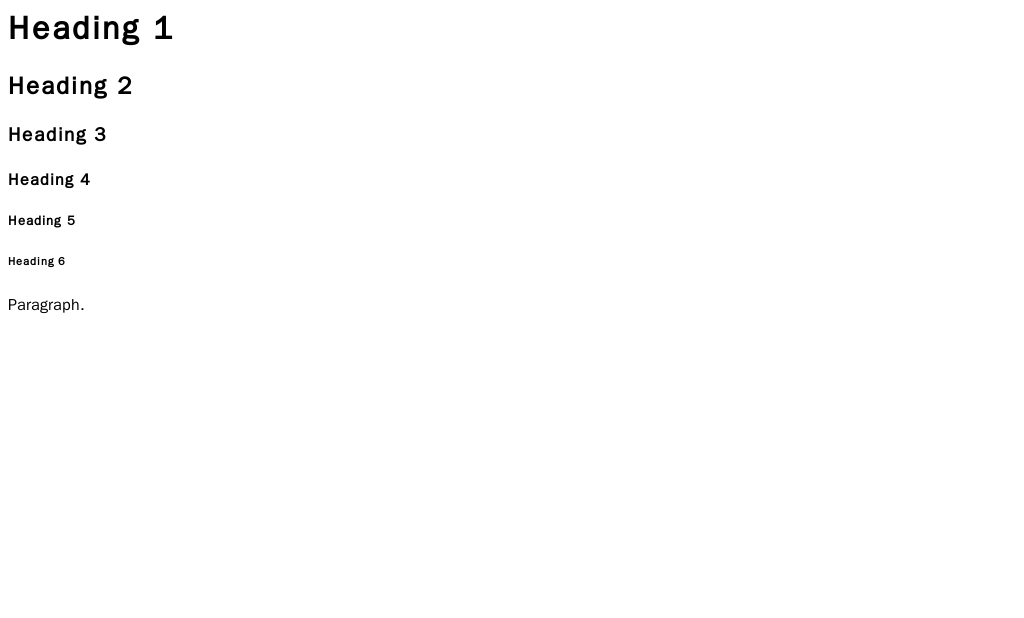
For regular blocks of text, you'll use the paragraph tag, <p>.
<h1>This is the main title</h1>
<p>This is an introductory paragraph explaining what the page is about.</p>

<h2>This is a subtitle</h2>
<p>Here is some more detailed text under the subtitle.</p>
To organize information into lists, HTML provides two options. Unordered lists, created with <ul>, use bullet points. Ordered lists, created with <ol>, use numbers. In both cases, each item in the list is wrapped in an <li> (list item) tag.
<!-- An unordered list -->
<ul>
  <li>Apples</li>
  <li>Oranges</li>
  <li>Bananas</li>
</ul>

<!-- An ordered list -->
<ol>
  <li>First step</li>
  <li>Second step</li>
  <li>Third step</li>
</ol>
Adding Links and Images
The "hypertext" in HTML is what makes the web a web. It refers to the ability to link from one document to another. We create these links, or hyperlinks, using the anchor tag <a>.
The anchor tag is different because it requires an attribute to work. Attributes provide extra information about an element and are always placed inside the opening tag. For a link, the href (hypertext reference) attribute specifies the destination URL.
<p>You can learn more on the <a href="https://www.wikipedia.org/">Wikipedia</a> website.</p>
Images are another key part of most web pages. We embed them using the <img> tag. This is a special type of tag called a self-closing or empty tag, as it doesn't need a closing tag.
The <img> tag requires two attributes: src and alt.
- The
src(source) attribute points to the URL of the image file. - The
alt(alternative text) attribute provides a text description of the image. This text is crucial for accessibility, as it's read aloud by screen readers for visually impaired users, and it's displayed if the image fails to load.
<img src="https://upload.wikimedia.org/wikipedia/commons/6/63/Wikipedia-logo.png" alt="The Wikipedia logo, a globe made of puzzle pieces.">
Let's review the main ideas we've covered.
What is the primary purpose of the <body> tag in an HTML document?
Which attribute is essential for an <a> tag to function as a hyperlink?
With these basic building blocks—headings, paragraphs, lists, links, and images—you have everything you need to structure a simple web page.