HTML and CSS Certification Mastery
HTML Basics
The Skeleton of the Web
Every webpage you see is built on a foundation called HTML, which stands for HyperText Markup Language. Think of it like the skeleton of a human body. It doesn't determine the skin color or the clothes, but it provides the essential structure that holds everything together.
HTML uses special markers called tags to define different parts of a page, like headings, paragraphs, and images. Your web browser reads this HTML file and renders it into the visual page you interact with. Let's look at the basic structure every HTML document needs.
<!DOCTYPE html>
<html>
  <head>
    <!-- Meta-information goes here, like the page title -->
    <title>My First Webpage</title>
  </head>
  <body>
    <!-- The actual content of the page goes here -->
    <h1>Hello, World!</h1>
  </body>
</html>
Let's break that down:
<!DOCTYPE html>: This tells the browser that the document is an HTML5 page.<html>: This is the root element that wraps everything else.<head>: This contains information about the page, like the title that appears in your browser tab. This content isn't displayed on the page itself.<body>: This holds all the content that you actually see, such as text, images, and links.
Most HTML elements have an opening tag (like <body>) and a closing tag (like </body>). The content goes between them. Some tags also have attributes, which provide extra information. We'll see some soon.
Giving Content Meaning
The most common use for HTML is to structure text. You don't just paste a wall of text into the <body>; you give it hierarchy and meaning.
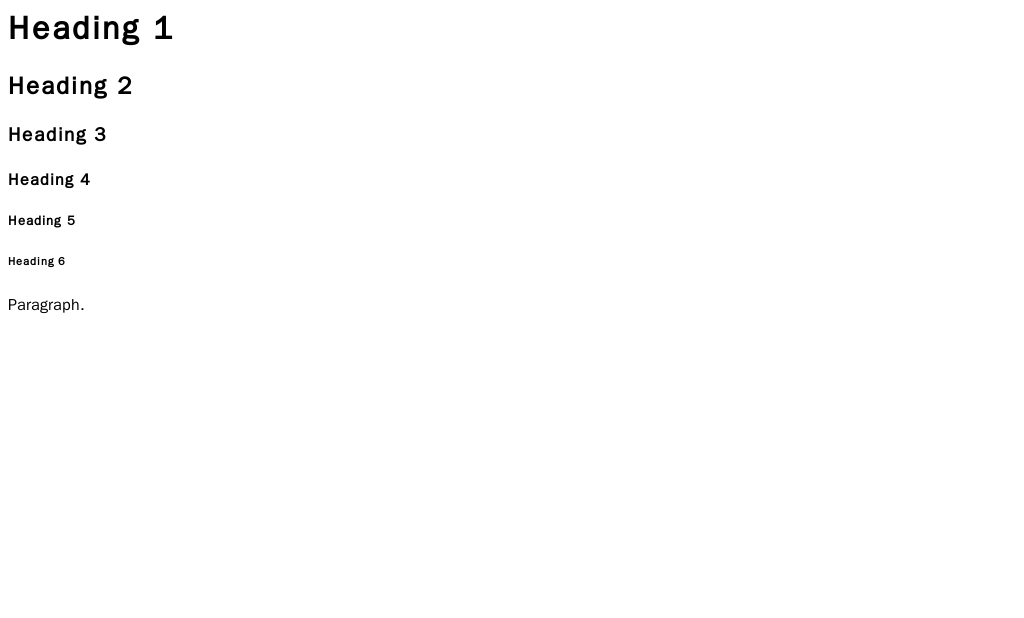
The most important text elements are headings and paragraphs. Headings are created with <h1> through <h6> tags. <h1> is the most important heading, typically the main title of the page, while <h6> is the least important. These tags aren't just for making text big or small; they tell search engines and screen readers about the structure of your content.
For regular blocks of text, you use the paragraph tag, <p>.
<h1>This is the main title</h1>
<p>This is a paragraph of text. It introduces the topic.</p>
<h2>This is a subtitle</h2>
<p>This paragraph provides more detail under the subtitle.</p>
To organize items, you can use lists. There are two main types: unordered lists for bullet points and ordered lists for numbered items.
An unordered list uses the <ul> tag. Each item within it is marked with an <li> (list item) tag.
A ordered list uses the <ol> tag, but the items inside still use <li>.
<ul>
  <li>Apples</li>
  <li>Oranges</li>
  <li>Bananas</li>
</ul>

<ol>
  <li>First, do this.</li>
  <li>Second, do that.</li>
  <li>Third, you're done.</li>
</ol>
Connecting Pages and Media
The web wouldn't be a web without links. To create a link, or hyperlink, you use the anchor tag, <a>. The destination of the link is specified in the href attribute, which stands for "hypertext reference."
<a href="https://www.wikipedia.org">Go to Wikipedia</a>
To insert an image, you use the <img> tag. This tag is self-closing, meaning it doesn't need a separate closing tag. It requires two key attributes:
src: The source attribute, which is the path or URL to the image file.alt: The alternative text attribute, which provides a description of the image. This text is crucial for accessibility, as it's read aloud by screen readers for visually impaired users. It also displays if the image fails to load.
<img src="images/cat.jpg" alt="A fluffy orange cat sleeping on a sofa">
Organizing Data in Tables
For displaying data in rows and columns, HTML provides the <table> element. A table has a few key parts. The <table> tag wraps the entire structure. Inside, <tr> defines a table row. Within each row, you use <th> for a header cell and <td> for a regular data cell.
<table>
  <tr>
    <th>Name</th>
    <th>Role</th>
  </tr>
  <tr>
    <td>Alice</td>
    <td>Developer</td>
  </tr>
  <tr>
    <td>Bob</td>
    <td>Designer</td>
  </tr>
</table>
This code creates a simple two-by-three table. The first row contains the headers, and the subsequent rows contain the data.
Now, let's test your understanding of these fundamental HTML elements.
Which section of an HTML document contains the content that is visually displayed to the user, such as text, images, and links?
What is the primary purpose of using <h1> through <h6> tags in HTML?
With these building blocks, you have the power to structure any web content. You've learned how to create text, lists, links, images, and tables—the core components of almost every page on the internet.