Google Sheets Start Menu
Introduction to Google Sheets
Your First Spreadsheet
Google Sheets is a free, web-based spreadsheet program. It's a powerful tool for organizing data, tracking projects, creating budgets, and much more. Think of it as a digital grid of cells where you can enter text, numbers, and formulas. Because it lives in the cloud, your work is saved automatically, and you can easily share it with others to collaborate in real time.
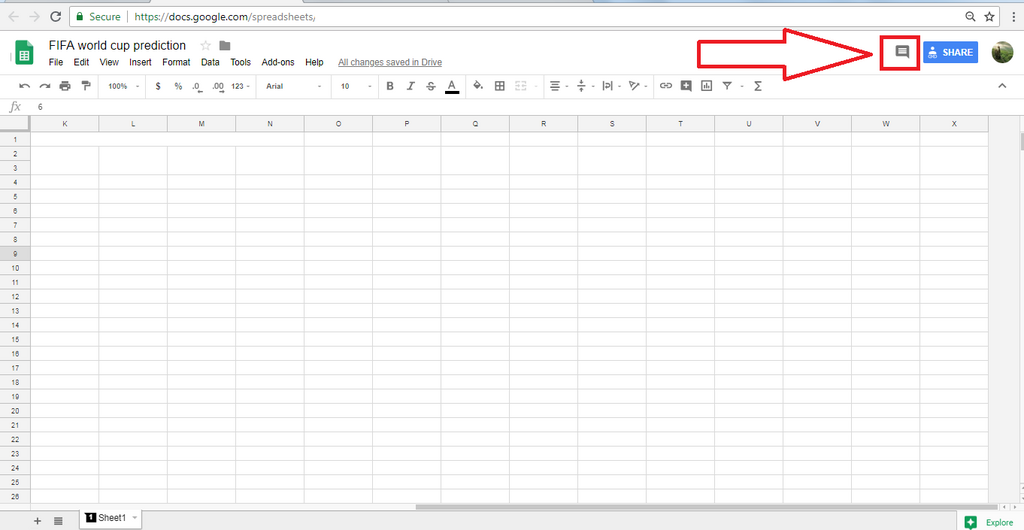
The fastest way to create a new spreadsheet is by simply typing sheets.new into your web browser's address bar. When you do, you'll see a clean grid. Let's break down what you're looking at.
The Lay of the Land
The Google Sheets interface is organized into a few key areas. At the very top, you'll find the Menu Bar, with options like 'File,' 'Edit,' and 'View.' This is where you'll find all the commands you can use.
Below that is the Toolbar, which contains icons for common actions like undo, print, bold, and text alignment. It's a shortcut for the most frequently used tools.
The main part of the screen is the Grid, made up of columns (labeled with letters) and rows (labeled with numbers). Each rectangle is a cell, and it has a unique address, like A1, B2, or C15. The cell you've selected is called the Active Cell, and it's highlighted with a blue border.
One of the best features of Google Sheets is that it saves your work to Google Drive constantly. You never have to remember to hit a save button.
Working with Sheets
A single Google Sheets file is officially called a spreadsheet, but inside that file, you can have multiple pages, which are called sheets. Think of it like a binder (the spreadsheet) with different tabs of paper inside (the sheets).
You can see your sheets as tabs at the bottom-left of the screen. By default, you start with one sheet named "Sheet1." To add another, just click the plus (+) icon. You can also right-click on a sheet tab to rename it, duplicate it, or change its color for better organization.
Using multiple sheets is a great way to keep related information together in one file without cluttering a single page. For example, you could have one sheet for your monthly budget, another for tracking expenses, and a third for financial goals.
What is the primary advantage of Google Sheets being a web-based application?
What is the unique address for the cell located in the fifth column and the tenth row?
That covers the essentials of the Google Sheets environment. You now know how to get around, create files, and organize your work across multiple sheets.