Google Sheets Asana Slack Mastery
Google Sheets Basics
Getting Started with Sheets
Google Sheets is a spreadsheet application that lives in the cloud. Think of it as a digital grid of rows and columns where you can organize, calculate, and analyze information. Since it's online, you can access your spreadsheets from any device with an internet connection, and you can easily share them with others to work on together in real time.
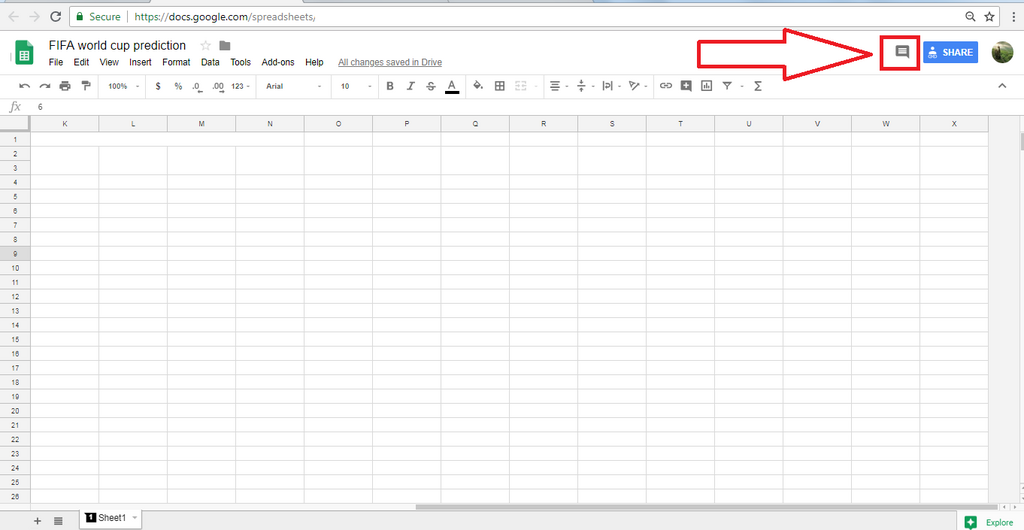
We'll start with the essentials: finding your way around the interface, entering data, performing simple calculations, and making it all look clean and organized.
The Lay of the Land
When you open a new sheet, you'll see a grid of boxes. Each box is called a cell, and it's the fundamental building block of any spreadsheet. Every cell has a unique address, which is a combination of its column letter and row number, like A1, B2, or C15.
Cell
noun
A single box within a spreadsheet grid, identified by its column letter and row number, used to hold data such as text, numbers, or formulas.
Let's break down the main parts of the screen.
The Menu Bar and Toolbar give you access to most of Sheets' features. The Formula Bar, marked with an symbol, is where you can see and edit the contents of the selected cell. This is especially useful when a cell contains a formula, but only shows the result in the grid. The Active Cell is the one you've currently selected, highlighted with a border.
Your First Spreadsheet
Let's create a simple grocery list to see how everything works. To start, click into a cell, like A1, and type a header like "Item". Press Enter or Tab to move to the next cell. You can use the arrow keys to navigate around the grid.
In column A, list your grocery items. In column B, list their prices.
Tip: To rename your spreadsheet, just click on "Untitled spreadsheet" at the top left of the page and type a new name.
Now, let's add up the total cost. This is where formulas come in. A formula is an instruction that tells Sheets to perform a calculation. All formulas in Google Sheets start with an equals sign (=).
Formula
noun
An expression that calculates the value of a cell. It always begins with an equals sign (=) and can include functions, cell references, and operators.
To get the total, click an empty cell below your prices (say, B5) and type =SUM(B2:B4). This formula tells Sheets to sum the values in the range of cells from B2 to B4. When you press Enter, the cell won't show the formula you typed; it will show the calculated result.
The SUM function is just one of many built-in formulas. Some other basic ones include AVERAGE to find the average of a range of numbers, and COUNT to count how many cells in a range contain numbers.
Formatting for Clarity
Raw data can be hard to read. Formatting helps organize your sheet and make it easier to understand at a glance. You can change fonts, add colors, and create borders using the tools in the toolbar.
Let's clean up our grocery list:
| Action | How to do it |
|---|---|
| Make headers bold | Select the header cells (A1 and B1) and click the B icon in the toolbar. |
| Format prices as currency | Select the cells with prices and click the $ format button. |
| Add a border | Select your total cell (B5) and use the Borders tool to add a top border to separate it. |
These small changes make a big difference. Good formatting guides the eye and clearly communicates what the data represents. You can also change the background color of cells to highlight important information, like making your total stand out with a light yellow fill.
If you're new to Google Sheets, functions are some of the essential things you should aim to learn as they are powerful, predefined formulas that allow you to perform calculations in your spreadsheet.
You've now covered the fundamentals of Google Sheets. Ready to test your knowledge?
What is the unique address of a cell in Google Sheets determined by?
What is the primary function of the Formula Bar (marked with an fx symbol)?
With these basics, you're ready to start organizing data, managing projects, and collaborating more effectively.