Google Drive Sync Low Storage Solutions
Google Drive Basics
Your Digital Backpack
Think of Google Drive as a secure backpack for your digital life. Instead of carrying around a physical drive, you store your files—documents, photos, videos, and more—on the internet. This is called cloud storage. The biggest advantage is that you can access these files from any computer, tablet, or phone, as long as you're connected to the internet.
This means you can start writing a report on your laptop at home, review it on your phone during your commute, and make final edits on a computer at work without ever needing to email files to yourself or carry a USB stick. Your files are simply there when you need them.
Adding Files to Drive
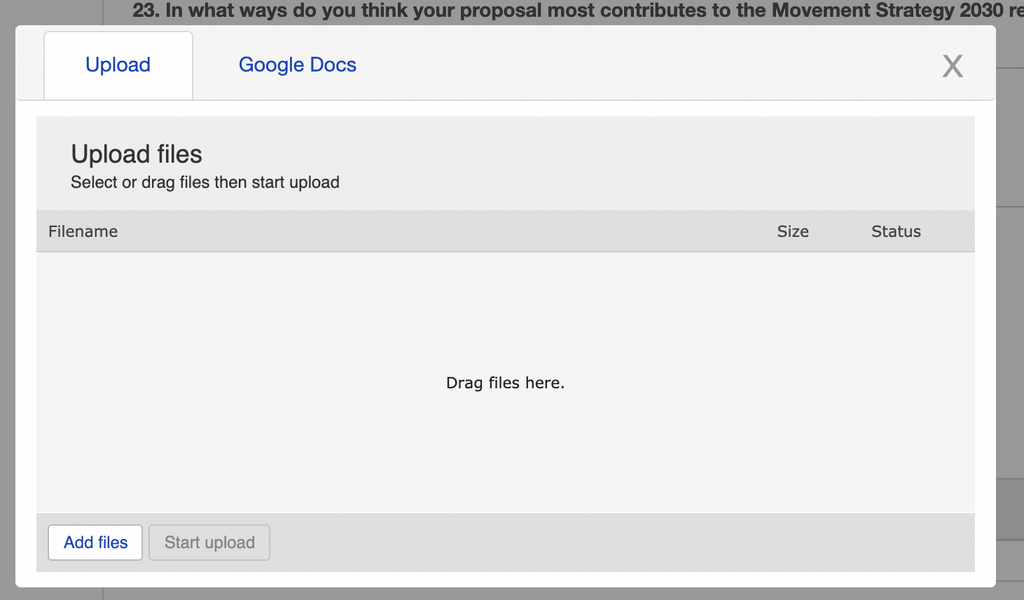
Getting your files into Google Drive is straightforward. The process is called uploading. You're essentially making a copy of a file from your computer and placing it in your cloud storage.
To upload, just go to drive.google.com, click the big "+ New" button, and choose either "File upload" or "Folder upload." From there, you just select the items you want to add from your computer. You can also simply drag and drop files from your desktop directly into your browser window.
Creating Order
Just like with a physical filing cabinet, things can get messy without organization. Google Drive uses folders to keep your files tidy. You can create folders for different projects, subjects, or time periods—whatever system works for you. To create one, click "+ New" and select "New folder."
Once you have folders, moving files into them is easy. You can click and drag a file directly onto a folder. Or, right-click on a file, select "Organize," and then "Move" to choose its new home. A little organization goes a long way in helping you find what you need later.
Sharing and Permissions
One of the most powerful features of Google Drive is how easy it is to share files with others. You can give a colleague access to a work document or share a folder of vacation photos with your family, all with a few clicks.
When you share something, you control what the other person can do with it. You can let them just look at the file, suggest changes, or have full editing power. This is managed through permissions.
| Permission | What They Can Do |
|---|---|
| Viewer | Can only see the file. They can't change it or share it with others. |
| Commenter | Can view and add comments, but can't change the actual content. |
| Editor | Can make changes, accept or reject suggestions, and share the file with others. |
To share a file or folder, select it, click the "Share" button, and enter the email addresses of the people you want to share with. Then, just choose their permission level from the dropdown menu before sending the invitation.
This is the core of modern collaboration. Multiple people can work on the same document at the same time, without creating confusing duplicates or worrying about who has the latest version.
What is the primary benefit of using a cloud storage service like Google Drive?
The process of copying a file from your computer to your Google Drive is called ________.
Now you have a solid foundation for using Google Drive to store, organize, and share your files from anywhere.