Google Docs Sharing and Privacy
Introduction to Google Docs
Getting Started with Google Docs
Google Docs is a word processor that lives on the internet. Instead of saving a file to a specific computer, your documents are stored in the cloud. This means you can access and work on them from any device with an internet connection, and you never have to worry about hitting 'Save'—it does it for you automatically.
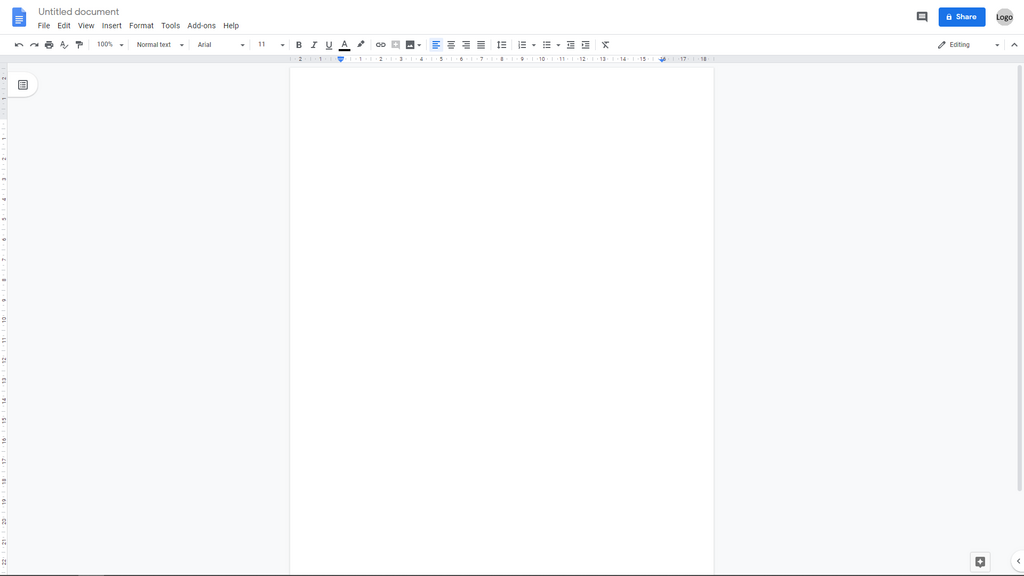
When you open a new document, you'll see a clean, white page ready for your ideas. At the top, you'll find the menu bar with options like File, Edit, and Insert. Just below that is the toolbar, which holds the most common tools for formatting your text. This is where you'll find buttons for bolding text, changing font sizes, and creating lists.
Creating and Formatting Text
To start a new document, you simply open Google Docs and click on the blank template. Once you're in, you can start typing immediately.
Formatting helps make your document easier to read. You can change the look of your text using the toolbar. Highlight a word or sentence, then click the B to make it bold, the I for italics, or the U to underline it. You can also change the font, adjust the text size, and align your paragraphs to the left, center, or right.
Use bulleted or numbered lists to organize information and break up long blocks of text. This makes your document scannable and helps readers digest the key points quickly.
Adding More Than Words
Documents often need more than just text. To add an image, go to Insert > Image from the menu bar. You can upload a photo from your computer or search the web directly from Google Docs.
You can also add hyperlinks to send readers to a website. To do this, highlight the text you want to turn into a link, then click the link icon (it looks like a chain link) in the toolbar. Paste the web address into the box that appears, and you're done.
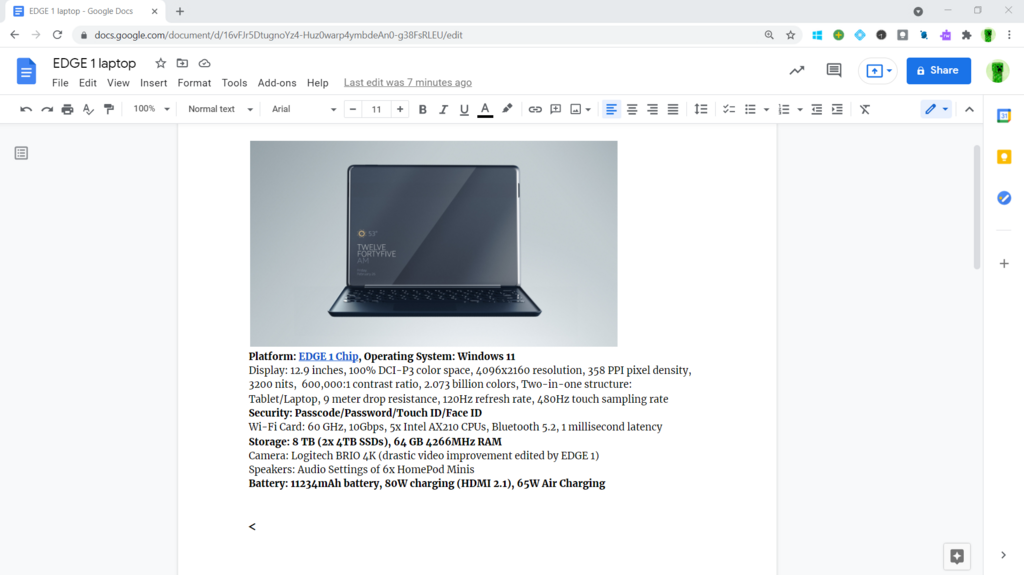
As you type, Google Docs automatically checks for spelling and grammar mistakes, underlining them in red or blue so you can easily correct them. If you make a mistake, don't worry. The undo and redo arrows at the far left of the toolbar let you step backward or forward through your changes.
What is the primary benefit of Google Docs storing documents in the cloud?
In Google Docs, you need to manually click 'Save' every few minutes to avoid losing your work.