Godot Engine Fundamentals
Introduction to Godot
Getting Started with Godot
Godot is a powerful game engine that's completely free and open-source. This means anyone can use it to create games without paying fees or royalties. It's developed by a worldwide community of contributors, so it's always evolving.
One of Godot's best features is its simplicity. The entire engine is a single, lightweight executable file. You don't need to run a complex installer. Just download it, unzip it, and you're ready to go.
To get started, head to the official Godot Engine website and download the latest stable version. You'll likely see a 'Standard version' and a '.NET version'. For now, stick with the Standard version. It's simpler and perfect for learning the ropes.
Your First Look
When you first launch Godot, you won't see the game editor immediately. Instead, you'll be greeted by the Project Manager. This is your hub for creating, organizing, and opening all of your game projects.
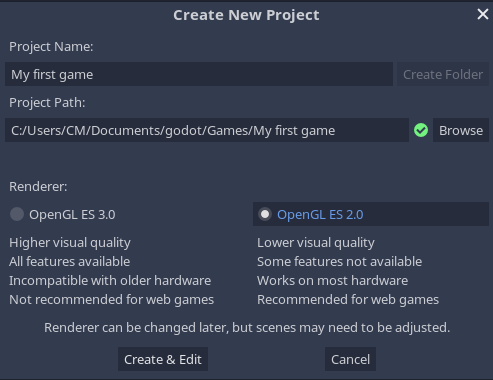
Let's create your first project. Click the 'New' button. You'll need to give your project a name and choose an empty folder to store its files. You'll also be asked to select a renderer. For 2D games, the 'Mobile' renderer is a great choice. It's optimized for performance and works well for most 2D projects.
Once you click 'Create & Edit', the main Godot editor will open. It might look like a lot at first, but it's organized into a few key areas.
Here's a quick rundown of each section:
- Scene Dock: This panel shows you all the building blocks, called nodes, that make up your current game screen. A player character, an enemy, and a user interface element would all appear here.
- FileSystem Dock: This is like a file browser for your project. All your assets—images, sounds, and scripts—live here.
- Viewport: This is the main stage. It’s a visual representation of your game where you can place and move objects around.
- Inspector: When you select a node in the Scene dock, its properties (like position, color, or size) appear here for you to edit.
- Toolbar: At the very top, you'll find buttons to run, pause, and stop your game.
How a Godot Project Works
Every Godot project is essentially a folder on your computer. Inside this folder, Godot creates a special file called project.godot. This file is a simple text file that stores all your project's settings, like the window size, input mappings, and which scene to load first.
You can open this file in a text editor to see how it works, but you'll usually manage these settings directly within the Godot editor through the
Project -> Project Settingsmenu.
Besides project.godot, your project folder contains all the assets you use. It's a good practice to keep things organized. Create subfolders for your different asset types, such as sprites, sounds, and scripts. This keeps your project tidy and makes it much easier to find what you're looking for as your game grows.
Godot organizes your game into 'scenes'. Think of a scene as a self-contained part of your game. The main menu could be one scene, a single level could be another, and the game-over screen a third. You build these scenes out of nodes and then connect them to create the flow of your game.
Everything you create and save in the editor, like a scene or a script, is saved as a file in your project folder. This makes Godot projects very portable and easy to manage with version control systems like Git.
What is the primary licensing model of the Godot game engine?
When you first launch the Godot application, what is the first screen you will see?
Now you have a basic grasp of the Godot engine's interface and structure. The best way to learn is by doing, so in the next step, we'll start building our first scene.