GitHub Mastery: CLI, Repo Management, and Architecture
GitHub CLI Fundamentals
Power Up Your Terminal
You already know how to use Git to track changes locally. The GitHub CLI, or gh, is a command-line tool that brings GitHub's features—like pull requests, issues, and repositories—directly to your terminal. It doesn't replace Git; it complements it, saving you from constantly switching between your code editor and your browser.
Think of it as a bridge. While git manages your local project history, gh manages your project's life on GitHub. This integration allows for faster workflows and makes it easier to script common tasks, keeping you focused and in the zone.
Installation and Authentication
First, you need to install gh. The process varies slightly depending on your operating system. Most package managers have it readily available.
# macOS (using Homebrew)
brew install gh

# Windows (using winget or scoop)
winget install GitHub.cli
# or
scoop install gh

# Debian/Ubuntu Linux
sudo apt install gh
Once installed, you need to authenticate gh with your GitHub account. This is a one-time setup that securely links your terminal to your profile. The simplest way is through a web-based login.
gh auth login
Running this command will prompt you with a few questions, such as which GitHub account you want to log into (GitHub.com or a private Enterprise server). It will then provide a one-time code and open a browser window for you to authorize the application. It's a secure and straightforward process.
For non-interactive environments like automated scripts or CI/CD pipelines, you can authenticate using a Personal Access Token (PAT). This method involves passing a token directly to the login command.
After logging in, you can verify your connection at any time.
gh auth status
This command will confirm which account you're logged into and what scopes your token has.
Configuring Your Identity
Every commit you make is stamped with your name and email. It’s crucial to configure these details in Git so your contributions on GitHub are linked to your account. You likely did this when you first set up Git, but it's worth confirming, especially ensuring the email matches your primary GitHub email.
git config --global user.name "Your Name"
git config --global user.email "your_email@example.com"
Next, let's set up an SSH key for secure communication. While you can push and pull over HTTPS using your PAT, SSH is a more common and convenient method for daily development. It allows your computer to authenticate with GitHub without you needing to enter a username and password each time.
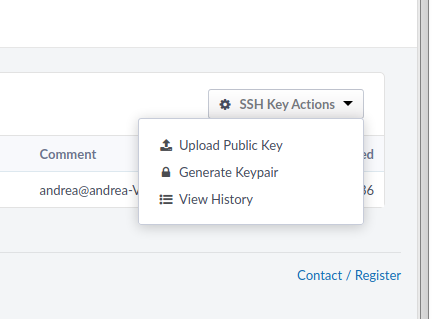
First, check if you already have an SSH key pair. By default, keys are stored in the .ssh directory in your home folder.
ls -al ~/.ssh
Look for files named id_rsa.pub, id_ecdsa.pub, or id_ed25519.pub. If you don't have one, you can generate a new key. The ed25519 algorithm is currently recommended for its security and performance.
ssh-keygen -t ed25519 -C "your_email@example.com"
Follow the prompts, and you'll have a new public/private key pair. The final step is to add this key to your GitHub account. The gh CLI makes this simple.
# The command prompts you to select your public key file
gh ssh-key add
With gh authenticated and your SSH key configured, your local machine is now fully equipped to interact with GitHub securely and efficiently, all from the command line.
What is the primary role of the GitHub CLI (gh)?
Which command initiates the process of logging into your GitHub account from the GitHub CLI?
Now you have a streamlined way to manage your GitHub workflow without leaving the terminal. Next, we'll explore how to use gh to manage repositories.