Git for Unreal Engine Projects
Introduction to Git
What is Git?
Think of a project you've worked on, like a research paper or a piece of art. You probably had different versions: draft_1.doc, draft_2_with_edits.doc, and final_final_I_swear.doc. It gets messy, fast. Version control systems (VCS) solve this problem by keeping a neat, organized history of every change.
Git is a version control system that lets you track changes to your project files over time. It's like a time machine for your work.
Git was created by Linus Torvalds, the same person who created the Linux operating system. He needed a tool to help developers from all over the world collaborate on the massive Linux project without chaos. What makes Git special is that it's a distributed version control system. This means that instead of one central server holding the project's history, every developer gets a full copy on their own computer. This makes it fast, flexible, and allows people to work offline.
Core Concepts
To understand Git, you need to know a few key terms. They might seem abstract at first, but they're the building blocks for everything you'll do.
Repository
noun
A project's main folder, containing all of its files and the complete history of every change made to them. Often shortened to "repo".
When you use Git on a project, it creates a hidden subfolder named .git inside your main project folder. This is where Git stores all the historical information. You don't need to touch this folder directly; Git manages it for you.
A commit is a snapshot of your project at a specific point in time. It's like hitting the save button in a video game. Each commit has a unique ID and a message describing what you changed.
Making frequent, small commits with clear messages is a good habit. It creates a clean history that's easy to understand later if you need to find out why a certain change was made or revert back to an older version.
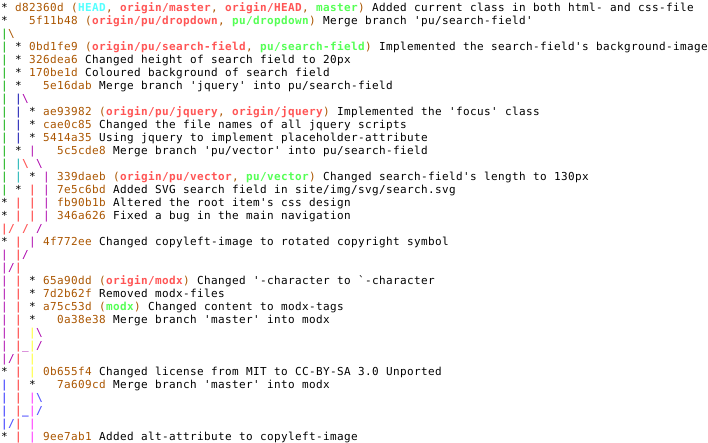
Branches and Merges
One of Git’s most powerful features is its branching capabilities.
Imagine your project is the main trunk of a tree. This is often called the main or master branch. It should always contain a stable, working version of your project.
Now, let's say you want to add a new feature or fix a bug. You don't want to risk breaking the main project while you experiment. This is where branches come in. You create a new branch that splits off from the main trunk. This gives you an identical, isolated copy of the project where you can work freely.
You can make as many commits as you want on your new branch without affecting main at all. Other developers can also create their own branches and work on different things simultaneously.
Once your new feature is complete and tested, you'll want to bring those changes back into the main project. This process is called a merge. Git takes the changes from your feature branch and integrates them into the main branch, creating a new commit that includes all your hard work.
A Few Basic Commands
You'll typically interact with Git using commands in a terminal. While there are many commands, you only need a handful to get started. Here are some of the most common ones.
# Tell Git to start tracking a project folder
git init

# Add a file to the staging area (prepare it for a commit)
git add file.txt

# Save your staged changes as a commit
git commit -m "Add initial project file"

# Create a new branch called 'new-feature'
git branch new-feature

# Switch to your new branch to start working
git checkout new-feature

# Merge the 'new-feature' branch back into your current branch
git merge new-feature
This workflow of branching, committing, and merging is central to using Git effectively. It keeps projects organized and makes collaboration with other developers much easier.
What is the primary purpose of a Version Control System (VCS) like Git?
What makes Git a distributed version control system?