Git for Life Science Research without Coding
Collaborative Review Workflow
Keeping in Sync
Working in a team means everyone's work needs to stay synchronised. You've learned how to 'Push' your changes to the central Bitbucket repository. But what about getting the latest updates from your lab mates? This is where 'Fetching' and 'Pulling' come in.
Fetch checks the remote repository for new changes but doesn't apply them to your local work. It's like peeking outside to see if the post has arrived.
Pull does what Fetch does, and then immediately tries to merge those new changes into your current branch. It's like fetching the post and opening it straight away.
In SourceTree, you'll see icons indicating if there are changes to download or upload. A downward arrow shows changes on the remote repository that you don't have locally (you need to pull). An upward arrow means you have local commits that you haven't pushed yet.
It's good practice to 'Pull' often, especially before you start a new task. This ensures you're always working with the most up-to-date version of the lab's protocols, preventing unnecessary conflicts later.

Asking for a Review
You've finished tweaking a protocol on your own branch and you think it's ready to be merged into the main version. But in a collaborative setting, it's vital to have another pair of eyes review your work. This prevents mistakes and ensures everyone agrees with the changes.
Instead of just merging your branch on your own computer and pushing, you can create a Pull Request (often called a PR). A Pull Request is a formal request on Bitbucket to merge one branch into another. It's the Git equivalent of asking your Principal Investigator, 'Could you please review these changes before we make them official?'
The process is simple:
- Make sure your experimental branch is pushed to Bitbucket.
- Log in to the Bitbucket website and navigate to your repository.
- Find the 'Create pull request' button.
- Select your branch as the 'source' and the main branch as the 'destination'.
- Add your PI or a colleague as a reviewer. They'll get a notification to look at your changes.
On the Pull Request page, your reviewer can see exactly what you've changed—the 'diff'—and leave comments on specific lines. Once they approve it, the merge can be completed right there on the Bitbucket website.
This allows your teammates to review your code, suggest improvements, and ensure everything is in order before the final merge.
When Wires Cross
Sometimes, you'll try to pull updates or merge a branch and Git will stop you, reporting a merge conflict. This sounds scary, but it's a normal part of teamwork.
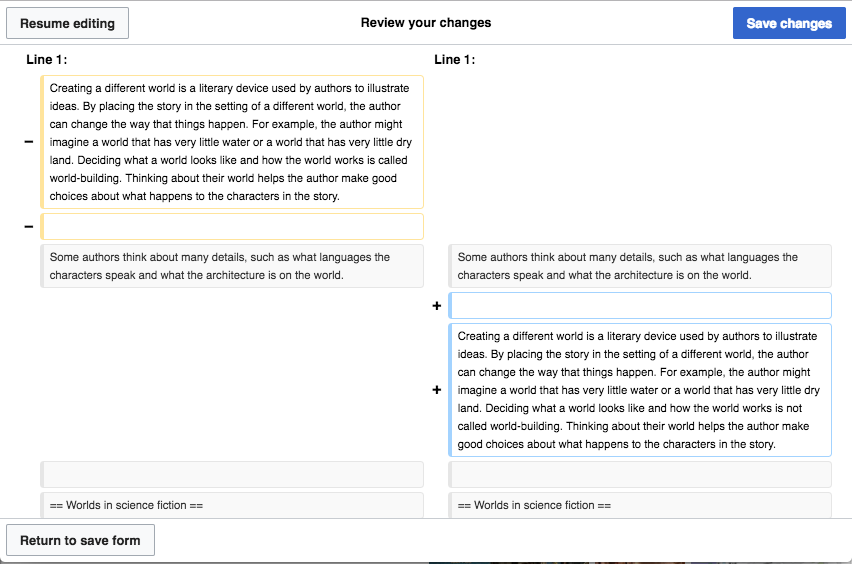
A merge conflict happens when you and a colleague change the exact same line of the exact same file in different ways. When you try to combine this work, Git doesn't know which version to keep. It's like two people editing the same sentence in a document simultaneously. Git pauses and asks a human—you—to make the final decision.
SourceTree makes resolving these conflicts straightforward. When a conflict occurs, SourceTree will show you the conflicted files. You can right-click a file and select 'Resolve Conflicts > Launch External Merge Tool'.
This opens a special view showing your version of the file on the left, your colleague's version on the right, and the result at the bottom. For each conflicting section, you can simply click to choose which version to keep, or even edit the result manually to combine both. Once you've resolved all the conflicts and saved, you can complete the merge.
Milestones and Versions
As your project grows, you'll reach important milestones. Maybe you've just submitted a paper, or a specific Standard Operating Procedure (SOP) has been approved by a regulatory body. You need a way to bookmark these specific moments in your project's history.
This is done using Tags. A tag is a label that points to a specific commit. Unlike a branch, which moves forward as you add more commits, a tag is a permanent marker. You could create a tag called paper_submission_v1 or SOP_v3_approved.
In SourceTree, you can add a tag by right-clicking any commit in your history and selecting 'Tag...'. This makes it incredibly easy to find and check out the exact state of your lab's data at a critical point in time, ensuring perfect reproducibility.
Using Pull Requests for review and tags for milestones establishes a 'Single Source of Truth' for your lab. Everyone knows where the official protocols are, who approved them, and how to access specific historical versions.
Let's test your understanding of this collaborative workflow.
In SourceTree, what does a downward arrow next to a branch name signify?
What is the primary purpose of creating a Pull Request (PR) on Bitbucket?
By combining branching for experimentation, pull requests for review, and tags for versioning, you now have a complete, transparent, and reproducible system for managing your research. This workflow minimises confusion, prevents data loss, and provides a clear audit trail for your entire lab.