GarageBand Music Production Essentials
GarageBand Basics
Starting Your First Song
GarageBand is a digital audio workstation, or DAW, that comes free with every Mac. It's a powerful tool for recording music, podcasts, or any other audio project you can dream up. It’s designed to be easy for beginners but has enough features to create professional-sounding tracks.
When you first open GarageBand, you'll be prompted to create a new project. This is your first step. You can start from a template designed for specific instruments, like guitar or keyboards, or you can begin with a completely blank slate.
For your first project, choosing 'Empty Project' is a great way to learn from the ground up. It gives you a clean canvas without any pre-loaded settings.
After selecting 'Empty Project,' GarageBand will ask you to create your first track. This brings us to the different types of tracks you can work with, which are the building blocks of any song.
Navigating Your Workspace
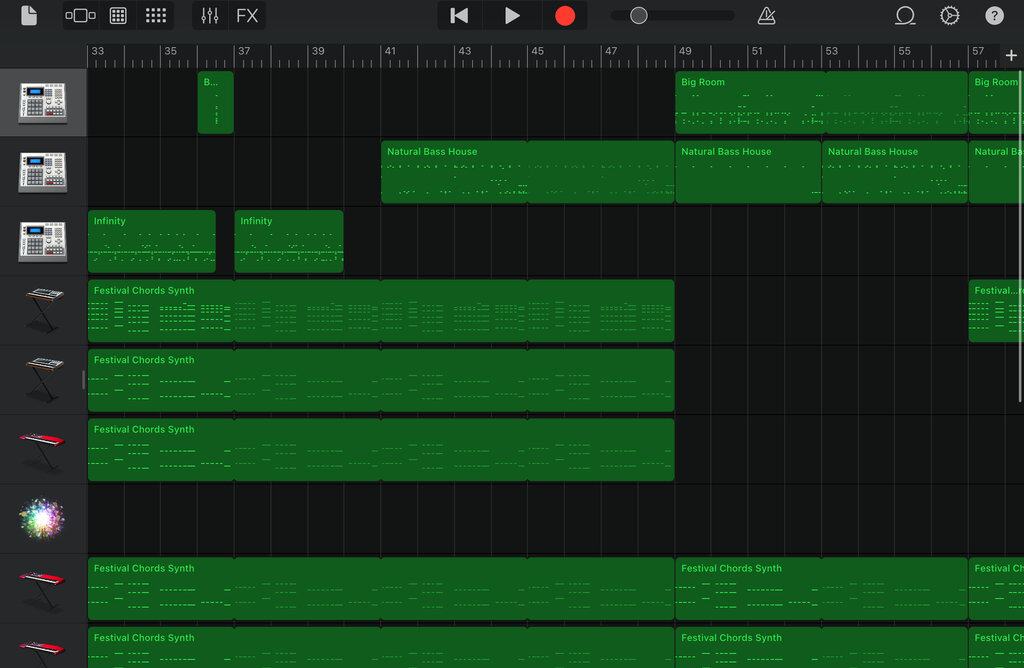
Once your project is open, you'll see the main workspace. It might look complex at first, but it's organized into a few key areas. Understanding these will help you feel at home.
The main part of the window is the Timeline. This is where you'll arrange your music. It's laid out like a grid, with time moving from left to right. Each horizontal row is a separate Track, which holds a single instrument or voice.
At the top, you'll find the Control Bar. This has all the essential buttons like play, record, and pause, as well as tools like the metronome and tuner. On the left, you'll see the Library, where you can browse and select different instrument sounds and effects.
The Different Types of Tracks
Every sound in your project lives on a track. There are two main types you'll use constantly: Software Instrument tracks and Audio tracks. Choosing the right one is crucial for getting the sound you want.
| Track Type | What It's For | How It Works |
|---|---|---|
| Software Instrument | Virtual instruments like keyboards, synths, and strings. | You play notes using a MIDI keyboard or your computer's keyboard, and GarageBand generates the sound. |
| Audio | Recording real-world sounds like vocals, acoustic guitar, or anything through a microphone. | It captures sound waves from a connected microphone or an electric instrument plugged into an audio interface. |
GarageBand also offers a special type of track called a Drummer track. This is a virtual drummer that automatically creates a beat for your song. You can choose from different drummers and styles, and it will intelligently follow along with your project. It's a fantastic way to quickly add a professional-sounding rhythm section.
Your Basic Toolkit
The control bar at the top of the screen contains the most frequently used tools. Think of it as the remote control for your entire project. Let's look at the essentials.
The circular buttons are your transport controls:
- Record (the red circle) starts recording on the selected track.
- Play (the triangle) starts or stops playback.
- Go to Beginning (the line with a triangle) jumps the playhead back to the start of the song.
To the right of these, you’ll find a few more handy icons. The Cycle button lets you loop a specific section of your song, which is great for practicing a part or working on a particular section. The Metronome provides a steady click to help you play in time. You can turn it on or off with a single click.
Pro-tip: Before you hit record, always check if the metronome is on and set to the right tempo. It makes editing much easier later.
With these basics, you have everything you need to start laying down some ideas and building your first song in GarageBand.
What is the primary function of GarageBand?
In the GarageBand workspace, the main area where you arrange your music on a grid is called the __________.