Full Stack Web Development Mastery
Introduction to HTML
The Skeleton of a Web Page
Every website you visit, from a simple blog to a massive online store, is built on a foundation of HTML. HTML stands for HyperText Markup Language, and it's the standard language used to create and structure the content of a web page. Think of it like the skeleton of a human body. It provides the essential structure that everything else is built upon. Without HTML, your web browser would have no idea how to display text, images, or links.
HTML uses "tags" to label pieces of content. These tags tell the browser what each element is—a heading, a paragraph, a link, and so on.
Most HTML tags come in pairs: an opening tag and a closing tag. For example, to create a paragraph, you wrap your text in <p> and </p> tags. The combination of the opening tag, the content, and the closing tag is called an HTML element. Here’s the basic structure of every HTML page:
<!DOCTYPE html>
<html>
<head>
    <title>Page Title</title>
</head>
<body>
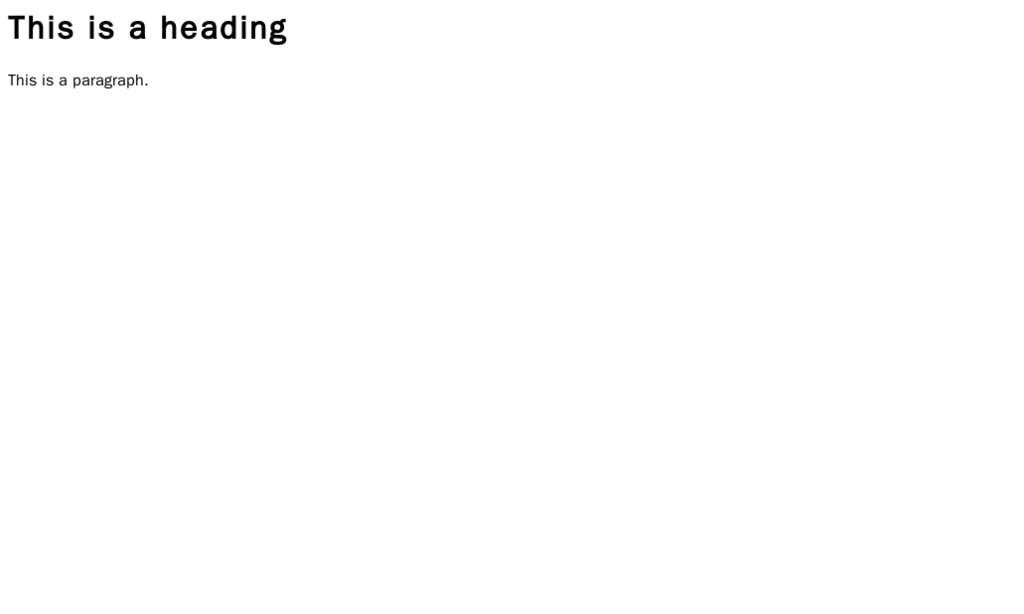
    <h1>This is a Heading</h1>
    <p>This is a paragraph.</p>
</body>
</html>
The <!DOCTYPE html> declaration defines the document type. The <html> element is the root of the page. The <head> contains meta-information (like the page title), and the <body> contains the visible content.
Common Building Blocks
HTML gives you a set of elements to structure your text. The most common are headings and paragraphs. Headings are created with <h1> through <h6> tags. <h1> is the most important heading, usually the main title, while <h6> is the least important.
<h1>Main Title of the Page</h1>
<h2>A Subheading</h2>
<p>This is a paragraph of text. It's where you'll write most of your content.</p>
<h3>Another, smaller subheading</h3>
<p>And here is another paragraph. Browsers automatically add some space between paragraphs.</p>
For creating lists, you have two options: unordered (bulleted) lists and ordered (numbered) lists. An unordered list uses the <ul> tag, and an ordered list uses <ol>. Inside either of these, each list item is defined with an <li> tag.
<ul>
    <li>Apples</li>
    <li>Oranges</li>
    <li>Bananas</li>
</ul>

<ol>
    <li>First step</li>
    <li>Second step</li>
    <li>Third step</li>
</ol>
Connecting Pages
The "HyperText" in HTML refers to the ability to link documents together. This is what creates the "web." We create links using the anchor tag, <a>.
The most important part of a link is the href attribute, which specifies the destination URL. An attribute provides extra information about an element and is always included in the opening tag.
<p>You can find more information on the <a href="https://www.example.com">Example Website</a>.</p>
The text between the opening <a> and closing </a> tags becomes the clickable link on the page.
Images and Forms
To embed an image into a page, we use the <img> tag. This tag is self-closing, meaning it doesn't need a closing tag. It requires two key attributes: src to specify the image file's path, and alt to provide a text description for screen readers or if the image fails to load.
<img src="images/cat.jpg" alt="A photo of a fluffy cat sleeping.">
HTML also allows you to collect information from users through forms. The <form> element acts as a container for different types of input fields. The <input> element is versatile and can be many things, depending on its type attribute.
<form>
    <label for="username">Username:</label><br>
    <input type="text" id="username" name="username"><br>

    <label for="pwd">Password:</label><br>
    <input type="password" id="pwd" name="pwd"><br><br>

    <input type="submit" value="Submit">
</form>
This simple form asks for a username and password and provides a submit button. There are many other input types for things like email, numbers, and checkboxes, allowing you to build complex forms for any need.
Let's check your understanding of these core HTML concepts.
What does HTML stand for?
Which tag is used to create a numbered list?
With these building blocks, you can structure almost any kind of content for the web. Every complex site is built from these simple, powerful tags.