Front-End Web Design Fundamentals
HTML Basics
The Skeleton of a Web Page
Every web page you visit is built using HTML, which stands for HyperText Markup Language. Think of HTML as the skeleton of a website. It provides the basic structure and tells the browser what kind of content to display, like headings, paragraphs, or images.
HTML, or HyperText Markup Language, provides the skeleton for your web content.
An HTML document has a standard structure. It starts with a <!DOCTYPE html> declaration, which tells the browser it's an HTML5 document. Everything else is wrapped inside an <html> tag. Inside that, you'll find two main parts: the <head> and the <body>.
The
<head>contains meta-information about the page, like the title that appears in your browser tab. The<body>contains all the content you actually see on the page.
<!DOCTYPE html>
<html>
  <head>
    <title>My First Web Page</title>
  </head>
  <body>
    <!-- Page content goes here -->
  </body>
</html>
Adding Content with Tags
To add content, you use HTML tags. Most tags come in pairs: an opening tag like <p> and a closing tag like </p>. The content goes between them.
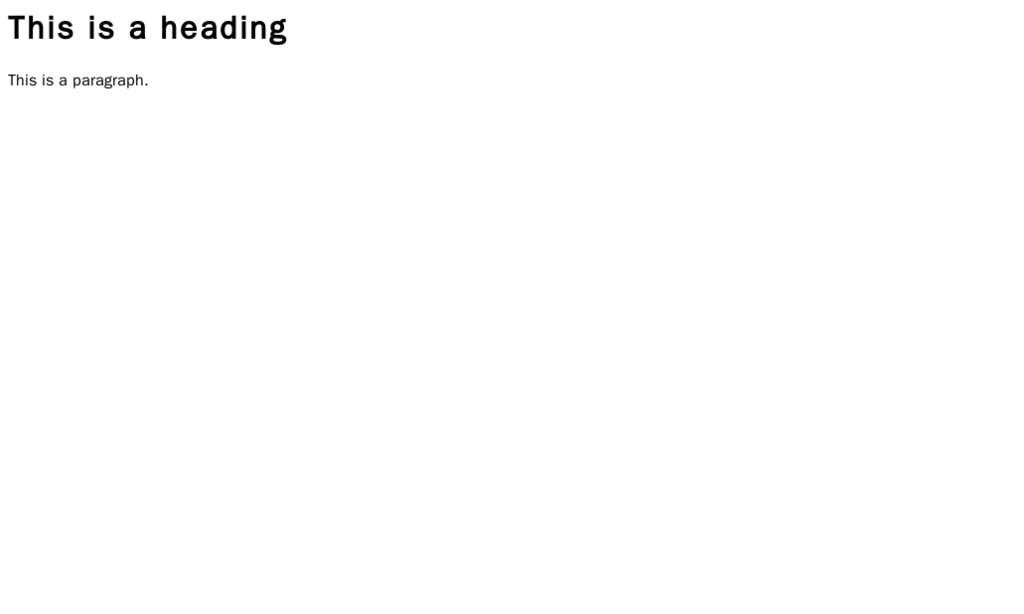
For text, the most common tags are headings and paragraphs. Headings are created with <h1> through <h6>, with <h1> being the most important and largest. Paragraphs are created with the <p> tag.
<body>
  <h1>This is the main heading</h1>
  <p>This is a paragraph of text. It's where you'd write most of your content.</p>
  <h2>This is a subheading</h2>
  <p>Here's another paragraph, under a smaller heading.</p>
</body>
Lists are another great way to structure content. An unordered list (<ul>) uses bullet points, while an ordered list (<ol>) uses numbers. Each item within a list is created with a list item tag (<li>).
<h3>My Grocery List</h3>
<ul>
  <li>Milk</li>
  <li>Bread</li>
  <li>Cheese</li>
</ul>

<h3>My Top 3 Movies</h3>
<ol>
  <li>The Godfather</li>
  <li>The Shawshank Redemption</li>
  <li>Pulp Fiction</li>
</ol>
Connecting Pages with Links
The web is all about connecting pages. We do this with hyperlinks, which are created using the anchor tag, <a>.
The most important part of a link is the href attribute, which stands for "hypertext reference." This attribute tells the browser where to go when the link is clicked. The text between the opening <a> and closing </a> tags is what the user sees and clicks on.
<p>You can find great information on the <a href="https://www.wikipedia.org">Wikipedia</a> website.</p>
Good link text is descriptive. Instead of "Click Here," tell the user where the link will take them. This is crucial for accessibility, as it helps people using screen readers understand the context of the link.
Incorporating Images
Images bring a web page to life. To add an image, you use the <img> tag. This tag is self-closing, meaning it doesn't need a separate closing tag.
It requires two key attributes: src and alt.
src: The source of the image file. This can be a URL or a path to a file on your server.alt: Alternative text. This text describes the image for users who can't see it, such as people using screen readers or if the image fails to load. Always include descriptive alt text.
<img src="https://upload.wikimedia.org/wikipedia/commons/6/6a/PNG_Test.png" alt="A test image with various color depths and an alpha channel.">
Let's review what we've learned.
What does HTML stand for?
What are the two main sections found directly inside the <html> tag?
Now you know the fundamental building blocks of any web page. By combining these tags, you can create a well-structured document that forms the foundation for any website design.