Front-End Project Mastery
HTML Basics
The Skeleton of the Web
Every website you visit is built on a foundation called HTML, which stands for HyperText Markup Language. Think of HTML as the skeleton of a webpage. It provides the basic structure and defines what each piece of content is, whether it's a heading, a paragraph, or an image. It doesn't control how things look, like colors or fonts, but it gives everything its place and purpose.
HTML works using a system of tags. Most tags come in pairs: an opening tag and a closing tag. For example, <h1> is an opening tag for a main heading, and </h1> is its closing tag. The content goes between them. The tag pair and the content inside it form an element.
<h1>This is a main heading.</h1>
<p>This is a paragraph.</p>
All HTML files follow a standard structure. This structure tells the web browser that it's reading an HTML document and where the main content lives.
<!DOCTYPE html>
<html>
<head>
  <title>My First Webpage</title>
</head>
<body>
  <h1>Hello, World!</h1>
  <p>Welcome to my site.</p>
</body>
</html>
Let's break that down:
<!DOCTYPE html>: Declares that this is an HTML5 document. It's always the very first line.<html>: The root element that wraps everything else.<head>: Contains meta-information about the page, like the title that appears in the browser tab. This content isn't displayed on the page itself.<body>: This is where the visible content goes—all the headings, paragraphs, and images you want people to see.
Building with Blocks
Once you have the basic structure, you can start adding content using different elements. The most common ones are for organizing text.
Headings create an outline for your page. There are six levels, from <h1> (the most important) to <h6> (the least important). Using them correctly helps search engines and screen readers understand your content's hierarchy.
<h1>Main Title</h1>
<h2>A Subheading</h2>
<h3>A smaller subheading</h3>
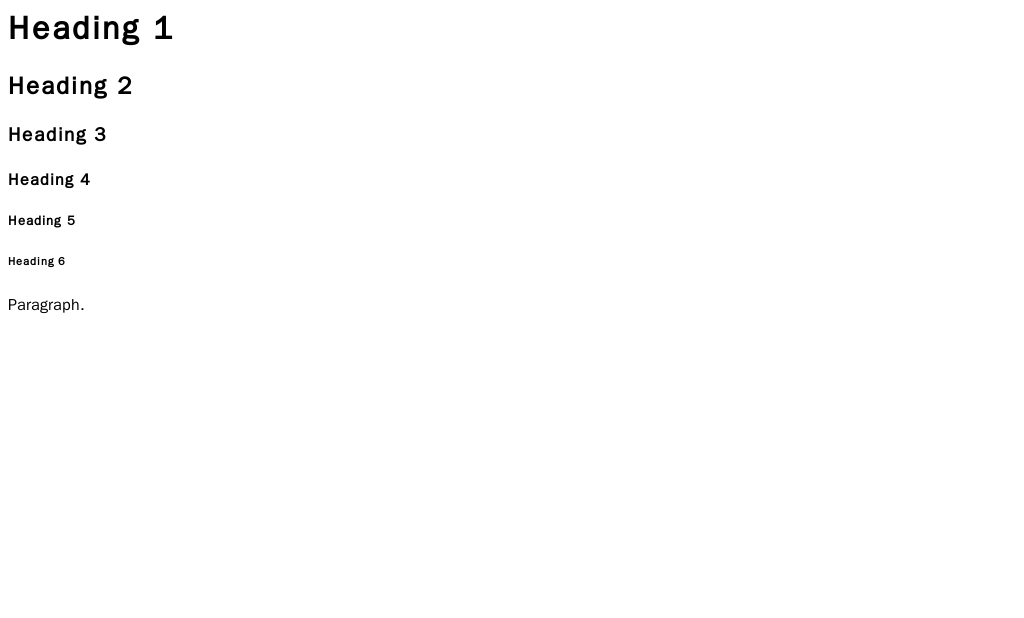
For regular text, you use the paragraph element, <p>. Each <p> tag creates a new block of text.
HTML uses tags to structure content, not to style it. The default size of an
<h1>is large, but its real purpose is to signify the main heading of the page.
You can also create lists. For a bulleted list where the order doesn't matter, use an unordered list (<ul>). For a numbered list, use an ordered list (<ol>). In both cases, each item in the list is wrapped in a <li> (list item) tag.
<!-- Unordered List -->
<ul>
  <li>Apples</li>
  <li>Oranges</li>
  <li>Bananas</li>
</ul>

<!-- Ordered List -->
<ol>
  <li>Gather ingredients</li>
  <li>Mix them together</li>
  <li>Bake for 30 minutes</li>
</ol>
Connecting Pages and Media
The web wouldn't be a web without links. To create a hyperlink, you use the anchor tag, <a>. This tag needs an attribute to work. Attributes are extra bits of information that configure an element.
The most important attribute for an <a> tag is href, which specifies the URL the link should point to.
<a href="https://www.wikipedia.org">Go to Wikipedia</a>
To add an image, you use the <img> tag. This is a self-closing tag, meaning it doesn't need a separate closing tag. It requires two attributes:
src(source): The URL or file path of the image.alt(alternative text): A description of the image. This text is crucial for accessibility, as screen readers announce it to visually impaired users. It also displays if the image fails to load.
<img src="images/cat.jpg" alt="A fluffy orange cat sleeping on a chair.">
Gathering Information with Forms
Forms allow users to send information to a website, like in a contact form or a login page. The <form> element acts as a container for all the input fields.
Inside the form, you use <input> elements to collect data. The type attribute determines what kind of input it is. Some common types include text for a single line of text, password which obscures the input, and submit for a button that sends the form data.
It's also important to use the <label> element to describe each input field. This links the text description to the input field itself, which is great for accessibility and usability.
<form>
  <label for="username">Username:</label>
  <input type="text" id="username" name="username">
  <br>

  <label for="password">Password:</label>
  <input type="password" id="password" name="password">
  <br>

  <input type="submit" value="Log In">
</form>
Notice the
forattribute in the<label>matches theidof the<input>. This is how they are linked together.
For longer text entries, like a comment box, you can use the <textarea> element.
<label for="comment">Your comment:</label>
<br>
<textarea id="comment" name="comment" rows="4" cols="50"></textarea>
These are the fundamental building blocks of every webpage. By combining these elements, you can create a clear and logical structure for your content.
Ready to test your knowledge? Let's see what you've learned about the basics of HTML.
What is the primary function of HTML?
In a standard HTML document, where does the content visible to the user (like headings, paragraphs, and images) go?