Foundational Deskside IT Support for L1 Roles
Computer Hardware Basics
The Command Center
Think of a computer's main components as a team working in a busy office. For the team to function, they need a central office space with hallways connecting everyone. In a computer, that's the motherboard.
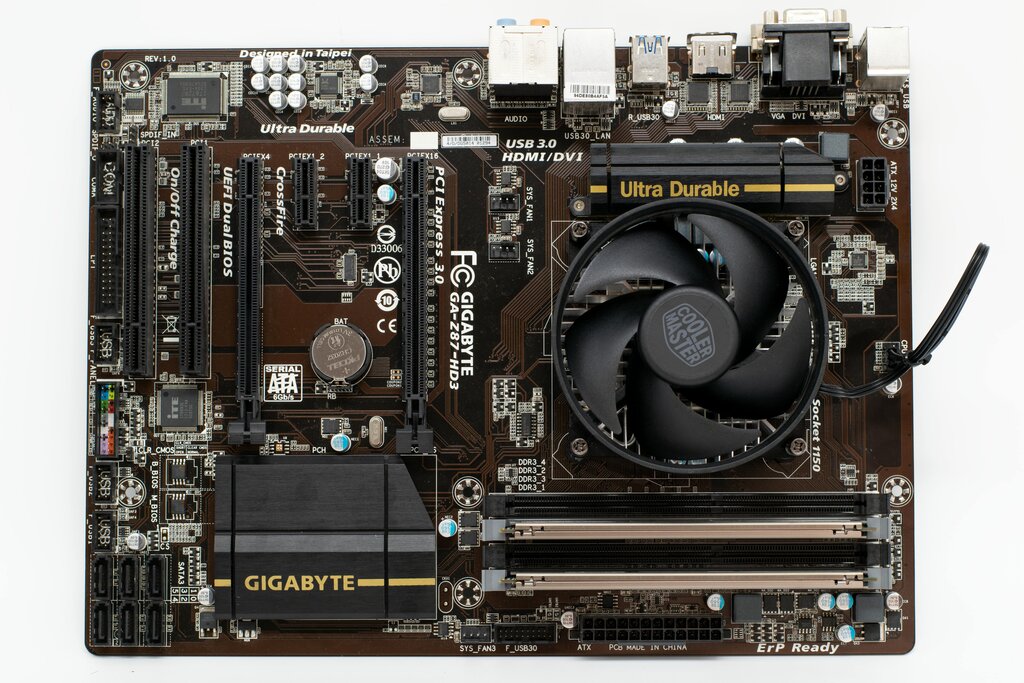
The motherboard is a large circuit board that houses the most critical parts of the system and provides connectors for everything else. All the components communicate with each other through the pathways, or buses, on the motherboard.
Seated on the motherboard is the processor, or Central Processing Unit (CPU). This is the brain of the operation. It executes instructions and performs the calculations that allow your computer to run software. The speed of a CPU, measured in gigahertz (GHz), tells you how many cycles it can perform per second. A higher number generally means a faster processor.
But the CPU can't talk directly to every single component. It needs a manager to handle communications. This is the job of the chipset. The chipset is a set of integrated circuits on the motherboard that manages the data flow between the CPU, memory, and peripherals. It's like the office manager directing traffic, ensuring messages get from the CPU to the hard drive or the USB ports without collision.
The motherboard connects everything, the CPU does the thinking, and the chipset manages the flow of information.
Memory and Storage
Computers have two main types of memory: short-term and long-term. For short-term, active memory, computers use Random Access Memory (RAM). Think of RAM as a workbench. When you're working on a task, like editing a document or browsing the web, the computer places all the necessary files and data on this workbench for quick access. The more RAM you have, the bigger your workbench, and the more tasks you can handle at once without slowing down. When you turn off the computer, the workbench is cleared.
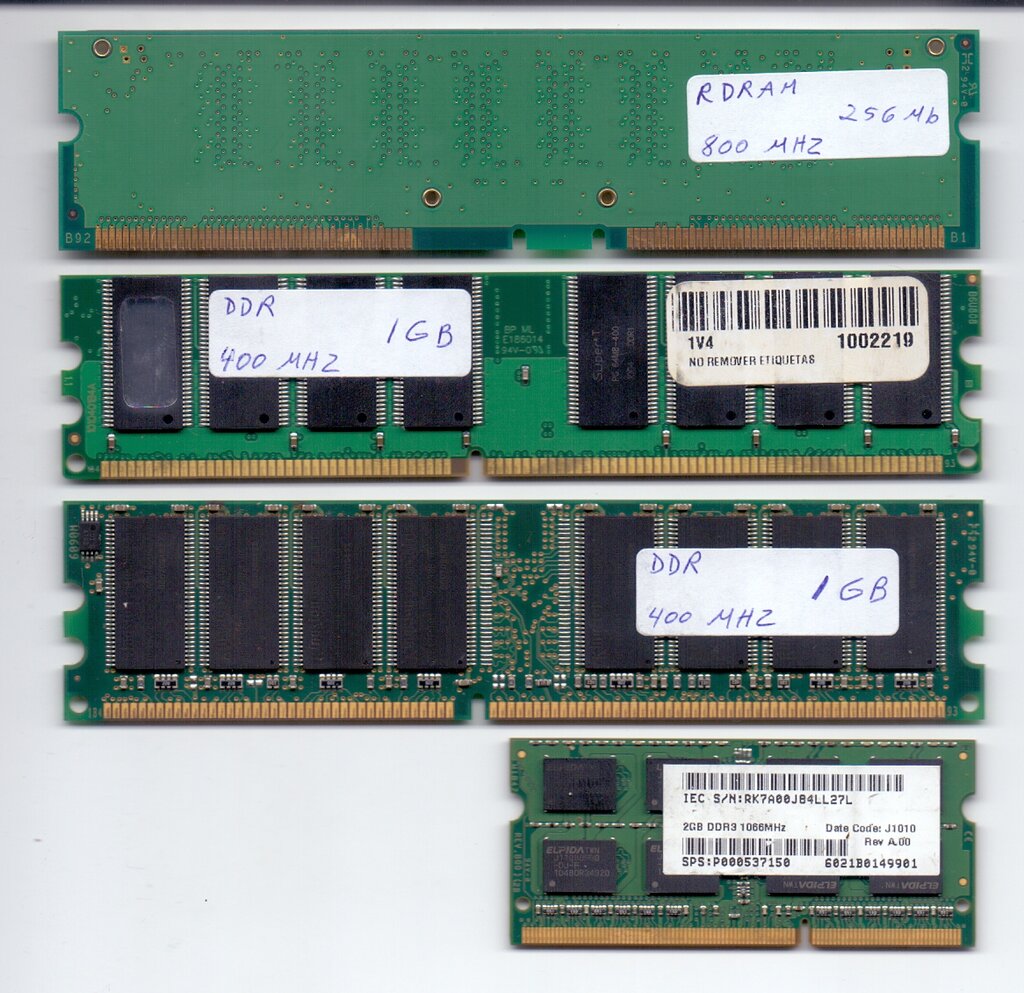
RAM comes in modules called DIMMs for desktops and smaller SO-DIMMs for laptops. You'll often see them referred to by their type, like DDR4 or DDR5, with each new generation offering faster speeds.
For long-term data keeping, we use storage devices. This is the computer's filing cabinet, where software, documents, and the operating system are kept even when the power is off.
There are a few common types of storage:
| Type | Description | Key Feature |
|---|---|---|
| HDD (Hard Disk Drive) | Uses spinning magnetic platters to read and write data. | High capacity, low cost. |
| SSD (Solid-State Drive) | Uses flash memory chips, with no moving parts. | Much faster and more durable than HDDs. |
| NVMe (Non-Volatile Memory Express) | A type of SSD that connects directly to the motherboard's high-speed PCIe slot. | The fastest consumer storage available. |
Power and Temperature
None of these components can work without electricity. The Power Supply Unit (PSU) is the component that pulls alternating current (AC) from your wall outlet and converts it into the direct current (DC) voltages that computer hardware needs.
A PSU's capacity is measured in watts. It's crucial that a PSU can provide enough power for all the components in the system, especially power-hungry ones like high-end processors and graphics cards. An underpowered system can be unstable or fail to turn on at all.
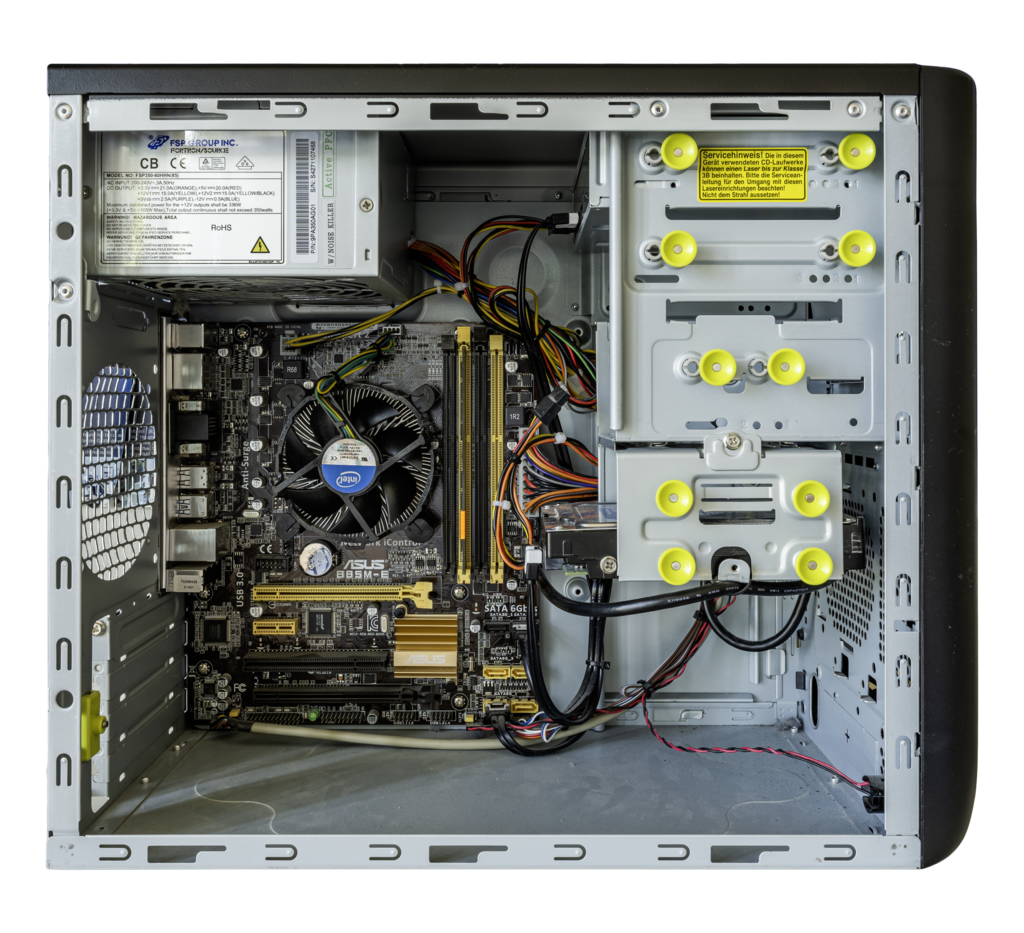
As electricity flows through components, they generate heat. Too much heat can damage parts and reduce their lifespan. That's why every computer needs a cooling solution.
The most common form of cooling involves fans and heat sinks. A heat sink is a block of metal with fins that sits directly on a component like the CPU. It draws heat away, and a fan blows that heat out of the computer case. You'll find fans on the CPU, on the graphics card, and mounted on the case itself to ensure a steady flow of cool air. Some high-performance systems use liquid cooling, which circulates a coolant to transfer heat even more efficiently.
Getting Information In and Out
All the internal hardware would be useless if we couldn't interact with it. That's where peripheral devices come in. These are the external components that connect to the computer, usually via USB, Bluetooth, or other ports.
Peripherals are generally categorized as either input or output devices.
-
Input Devices: These send data to the computer. The most common examples are the keyboard (for typing text) and the mouse (for navigating the graphical interface). Other examples include microphones, webcams, and scanners.
-
Output Devices: These receive data from the computer to present it to you. The monitor displays visual information, while speakers provide audio. A printer is another key output device, creating physical copies of digital documents.
As an IT support specialist, you'll frequently deal with issues related to these peripherals, from connectivity problems to driver conflicts.
Now that you've reviewed the core components, test your knowledge.
If the motherboard is the office building of a computer, what component acts like the office manager, directing the flow of information between the CPU, memory, and other parts?
A user complains that their computer slows down significantly when they have many applications and browser tabs open simultaneously. Which component is most likely the bottleneck?
Understanding these fundamental hardware components is the first step in diagnosing and solving computer issues. Each part has a specific job, and they all must work together for a functioning system.