Flutter App Development Mastery
Setting Up Flutter
Get the Flutter SDK
First, you need the Flutter Software Development Kit (SDK). This is a collection of tools, including libraries, a compiler, and a command-line interface, that you'll use to build, test, and deploy your apps. You can download the latest stable release directly from the official Flutter website. Be sure to grab the correct version for your operating system (Windows, macOS, or Linux).
Once you've downloaded and unzipped the SDK, you'll have a folder named flutter. Place this folder somewhere permanent on your computer, like C:\src\flutter on Windows or ~/development/flutter on macOS/Linux. Avoid putting it in a directory that requires elevated permissions, like C:\Program Files\.
Next, you need to add the Flutter tool to your system's path. This lets you run flutter commands from any terminal window. The process varies slightly by operating system, but it involves updating your PATH environment variable to include the full path to the flutter/bin directory.
For example, on macOS or Linux, you'd add a line like this to your shell's profile file (e.g.,
.zshrcor.bash_profile):export PATH="$PATH:[PATH_TO_FLUTTER_GIT_DIRECTORY]/flutter/bin"
After updating your path, open a new terminal window and run flutter --version. If it's set up correctly, you'll see details about the Flutter SDK version you just installed.
Choose Your Editor
While you can write Flutter apps in any text editor, using an Integrated Development Environment (IDE) with dedicated Flutter support makes life much easier. The two most popular choices are Visual Studio Code and Android Studio. Both offer powerful features like code completion, syntax highlighting, and debugging tools through official extensions.
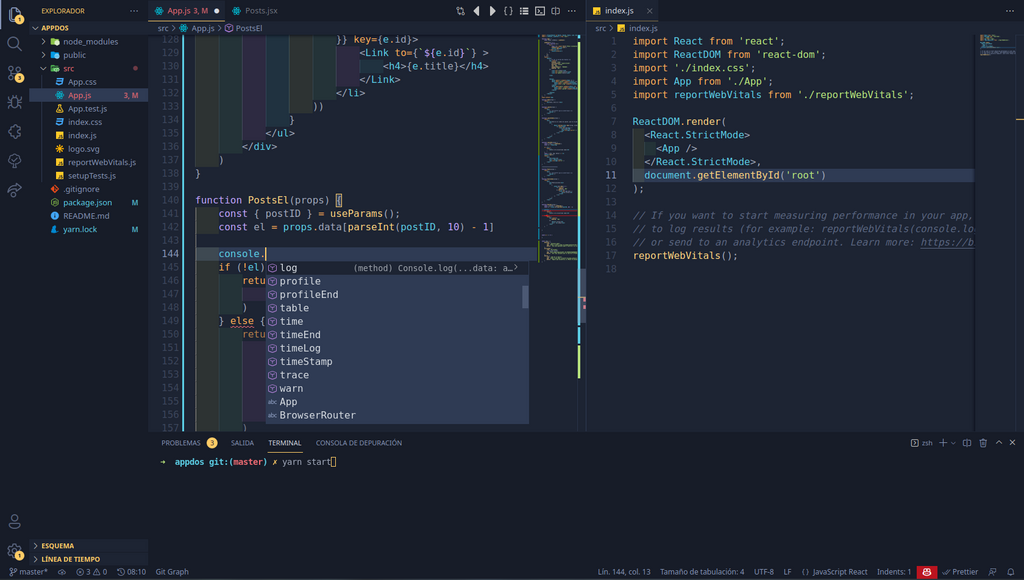
To set up your editor, you'll need to install two plugins: one for Flutter and one for the Dart language. In VS Code, open the Extensions view (Ctrl+Shift+X), search for Flutter, and install it. The Dart extension will be installed automatically as a dependency. In Android Studio, go to Settings/Preferences > Plugins, search for Flutter in the Marketplace, and click install. You'll be prompted to install the Dart plugin as well.
These plugins are essential. They integrate the Flutter SDK with your editor, enabling features like hot reload, widget inspectors, and automated code formatting.
Configure a Test Device
You need a place to run and test your app. You have two main options: a virtual device running on your computer (an emulator or simulator) or a physical Android or iOS device.
For Android, you can create an emulator using the AVD (Android Virtual Device) Manager included with Android Studio. You can choose from various device profiles and Android versions to match your testing needs. For iOS, you can use the Simulator, which comes with Xcode. You'll need a Mac to develop for and test on iOS.
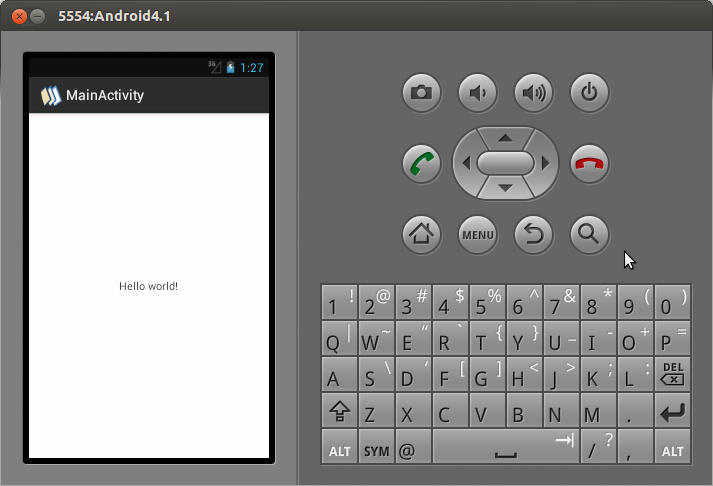
To use a physical device, enable Developer Mode and USB Debugging on your Android phone or follow the setup steps in Xcode for your iPhone. Then, connect it to your computer with a USB cable. When you run your app from the IDE, you should see your physical device listed as a target.
Verify Your Setup
Flutter includes a handy tool called flutter doctor that checks your environment and reports on the status of your installation. It's the best way to see if everything is configured correctly or if any dependencies are missing.
Open your terminal and run the command:
flutter doctor
The tool will run a series of checks and produce a summary. It will verify your Flutter SDK, check for connected devices, and confirm your IDE is set up with the necessary plugins. If it finds any issues, it will describe the problem and often suggest a command to run or a step to take to fix it. A green checkmark next to a category means you're good to go.
Once flutter doctor reports no issues, your development environment is ready. You can now create and run your first Flutter project.
What is the primary purpose of the Flutter Software Development Kit (SDK)?
After downloading and unzipping the Flutter SDK, what is the next critical step required to run flutter commands from any terminal?