Fixing Website Formatting with HTML CSS
HTML Basics
The Skeleton of the Web
Every website you visit is built on a foundation of HTML, which stands for HyperText Markup Language. Think of it as the skeleton of a webpage. It doesn't control the colors or fonts—that's a different language—but it gives the page its structure and puts all the content in the right place.
HTML, or HyperText Markup Language, provides the skeleton for your web content.
HTML uses special keywords called tags to define different types of content. Most tags come in pairs: an opening tag like <p> and a closing tag like </p>. Whatever you put between them gets treated in a specific way. For example, the <p> tag creates a paragraph.
A basic HTML document has a standard structure that tells the browser it's looking at a webpage. It always starts with a <!DOCTYPE html> declaration, followed by the <html> tag which wraps everything else.
<!DOCTYPE html>
<html>
<head>
  <title>My First Page</title>
</head>
<body>
  <!-- Content goes here -->
</body>
</html>
The <head> section contains meta-information, like the page title that appears in your browser tab. The <body> is where all the visible content—the text, images, and links you interact with—actually goes.
Building with Content Blocks
Inside the <body>, you build your page using different elements. The most common are for text.
Headings are used for titles and subtitles, helping to organize the page. They range from <h1> (the most important) to <h6> (the least important). Paragraphs are created with the <p> tag and are used for regular blocks of text.
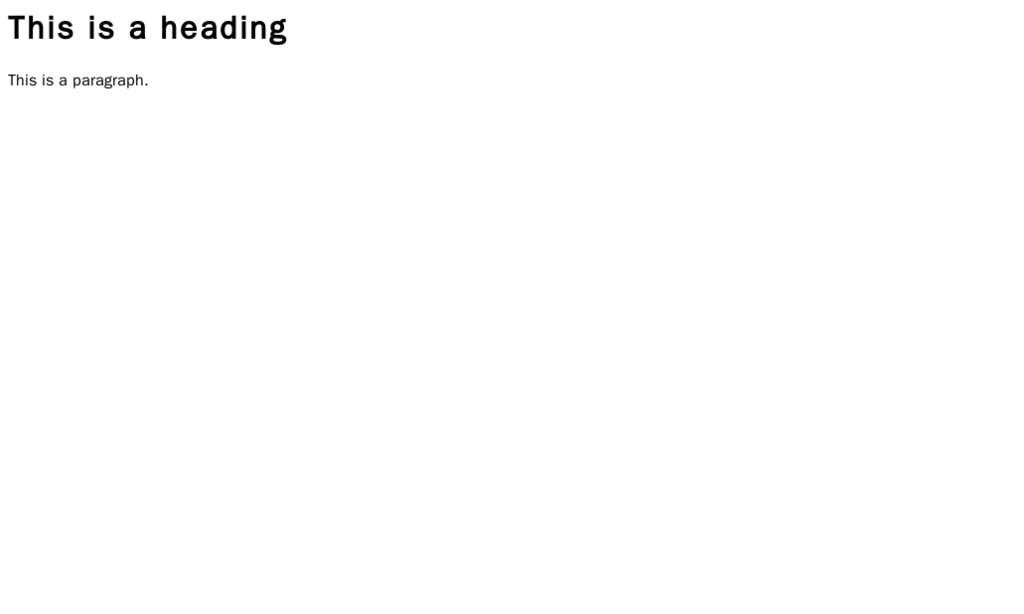
<h1>This is the main heading</h1>
<p>This is a paragraph of text. It introduces the topic.</p>
<h2>This is a subheading</h2>
<p>This is another paragraph, providing more details.</p>
When a browser reads this code, it renders the text with default styling, making the <h1> larger and bolder than the <h2>, and displaying the <p> content as standard text.
Lists are another fundamental way to organize content. HTML gives you two main types:
- Unordered lists
<ul>are for bullet points where the order doesn't matter. - Ordered lists
<ol>are for numbered lists where the sequence is important.
In both cases, each individual item in the list is wrapped in a <li> (list item) tag.
<ul>
  <li>Apples</li>
  <li>Oranges</li>
  <li>Bananas</li>
</ul>

<ol>
  <li>First, open the box.</li>
  <li>Second, read the instructions.</li>
  <li>Third, assemble the product.</li>
</ol>
Adding Links and Images
Webpages aren't just static documents; they're connected. We create these connections with links, using the anchor tag, <a>. But the tag alone isn't enough. It needs an attribute to tell it where to link to.
Attributes provide extra information about an element and are always included in the opening tag. For a link, the href (hypertext reference) attribute specifies the destination URL.
<a href="https://www.wikipedia.org">Go to Wikipedia</a>
Images work similarly. The <img> tag is used to embed an image, but it needs to know which image to show. This is done with the src (source) attribute, which points to the image file's URL.
The <img> tag is what's known as a self-closing tag; it doesn't need a separate closing tag like </img>.
It's also crucial to include an alt (alternative text) attribute. This text describes the image for screen readers used by visually impaired users and also displays if the image fails to load. It makes the web more accessible for everyone.
<img src="https://upload.wikimedia.org/wikipedia/commons/6/63/Wikipedia-logo.png" alt="The Wikipedia logo">
With just these few tags—headings, paragraphs, lists, links, and images—you have the essential building blocks for structuring the content of any webpage.