Fix Website Formatting with HTML CSS
HTML Basics
The Skeleton of the Web
Every webpage you see is built with HyperText Markup Language, or HTML. Think of it as the skeleton of a website. It provides the basic structure and organizes all the content, like text, images, and links. HTML isn't a programming language; it's a markup language. It uses special markers called tags to tell the web browser how to display the content.
HTML is the standard markup language used to create webpages.
Tags are usually written in pairs: an opening tag and a closing tag. For example, to create a paragraph, you'd wrap your text in <p> and </p> tags. The closing tag is the same as the opening one, but with a forward slash before the tag name.
Anatomy of an HTML Page
Every HTML document follows a standard structure. It tells the browser that it's reading an HTML file and separates the non-visible information (like the page title) from the visible content.
<!DOCTYPE html>
<html>
  <head>
    <!-- Information about the page goes here -->
    <title>My First Webpage</title>
  </head>
  <body>
    <!-- Visible page content goes here -->
  </body>
</html>
Let's break that down:
<!DOCTYPE html>: This is a declaration. It tells the browser that the document is an HTML5 page.<html>: This is the root element that wraps everything else.<head>: This contains meta-information about the page, such as the title that appears in the browser tab. This content isn't displayed on the page itself.<body>: This is where all the visible content—headings, paragraphs, images, and links—goes.
Adding Basic Content
Once you have the basic structure, you can start adding content inside the <body> tags. The most common elements for text are headings and paragraphs.
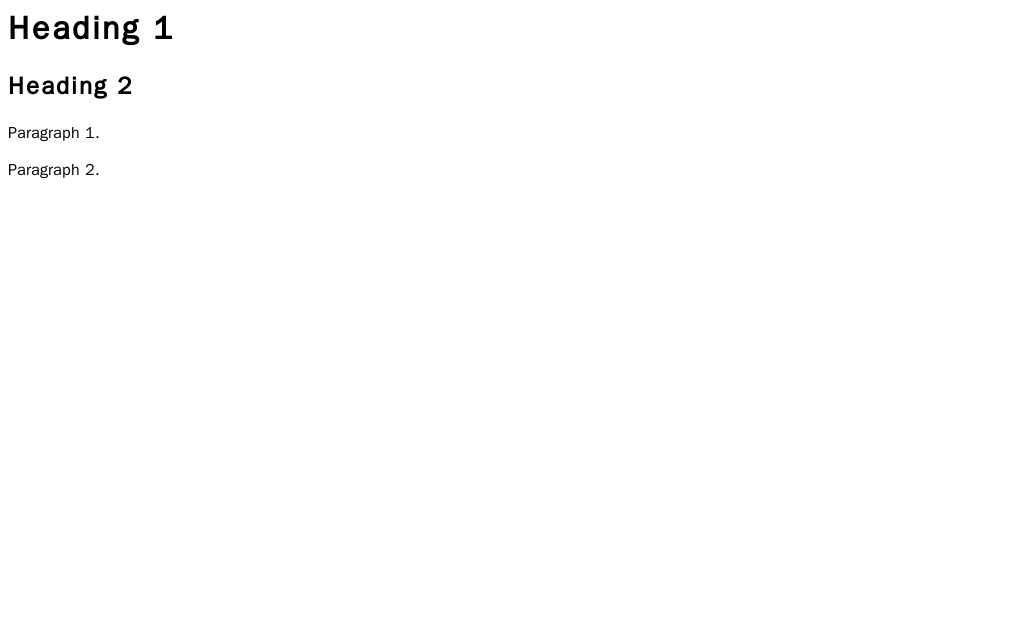
Headings are used to structure your page and create a hierarchy of information. There are six levels, from
<h1>(the most important) to<h6>(the least important).
Paragraphs are created with the <p> tag. The browser automatically adds some space before and after each paragraph.
<body>
  <h1>This is the Main Heading</h1>
  <p>This is a paragraph of text. It introduces the topic.</p>
  <h2>This is a Subheading</h2>
  <p>This is another paragraph, providing more detail.</p>
</body>
For lists, HTML gives you two options: unordered (bulleted) lists and ordered (numbered) lists.
<ul>creates an unordered list.<ol>creates an ordered list.
Inside either of these, each list item is created with an <li> tag.
<ul>
  <li>Apples</li>
  <li>Oranges</li>
  <li>Bananas</li>
</ul>

<ol>
  <li>First, do this.</li>
  <li>Next, do that.</li>
  <li>Finally, do this last thing.</li>
</ol>
Attributes Add Information
Sometimes, tags need extra information to work properly. This is where attributes come in. Attributes are added to the opening tag and provide details about the element. They usually come in name/value pairs, like name="value".
A great example is the anchor tag, <a>, which creates a hyperlink. By itself, the <a> tag doesn't know where to link. You need to give it an href attribute to specify the destination URL.
<a href="https://www.example.com">Visit Example.com</a>
Another common element that uses attributes is the image tag, <img>. This tag is self-closing, meaning it doesn't need a separate closing tag. It requires a src attribute to point to the image file's location and an alt attribute to provide alternative text.
The
alttext is important for accessibility. It's read aloud by screen readers for visually impaired users and is displayed if the image fails to load.
<img src="images/cute_puppy.jpg" alt="A small puppy playing in the grass.">
What is the primary purpose of HTML?
True or False: The content placed inside the <head> tag is displayed directly on the main, visible part of the web page.
With just these few elements and an understanding of attributes, you can structure a simple but complete webpage. This is the foundation that everything else in web development is built upon.