Finding High-Resolution Oboe Intro Video
Understanding Oboe's Introductory Video
Finding the Official Video
Before you can analyze a video, you need to find it. The best place to start is always the official source. This ensures you're watching the most up-to-date and highest-quality version, directly from the creators. Unofficial copies can be low-resolution, edited, or even outdated.
Look for Oboe's official website first. Companies often have a 'Media' or 'Press' section with official assets. If you can't find it there, check their official channels on major video platforms like YouTube or Vimeo. A quick search for the official 'Oboe' channel should point you in the right direction.
Always prioritize official channels. This guarantees you're working with the authentic video, not a re-uploaded or compressed copy.
Downloading in High Resolution
Once you've found the video, the next step is to get the best possible version. Resolution refers to the number of pixels in a video, which determines its sharpness and clarity. Higher resolutions like 1080p (Full HD) or 2160p (4K) contain more detail than lower ones like 720p or 480p.
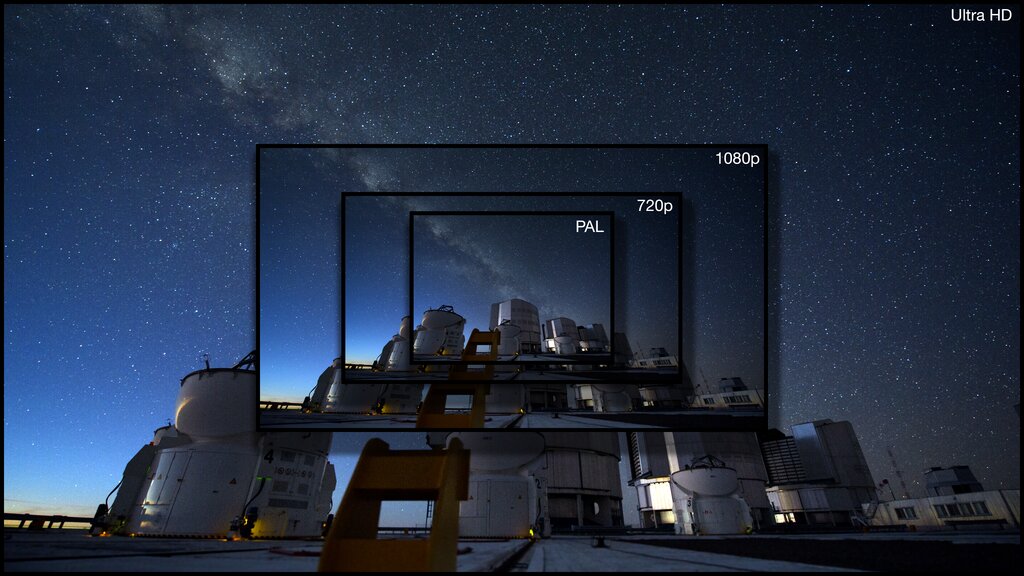
On platforms like YouTube, you can often choose the resolution directly in the player's settings before you watch. For downloading, you might need a tool to grab the file. Browser extensions can sometimes do this, but dedicated command-line tools like yt-dlp offer more control.
Using a tool like yt-dlp, you can list all available formats for a video. This lets you see the different resolutions, frame rates, and codecs available and choose the exact one you need.
# First, list all available formats for the video URL
yt-dlp -F [video_url]

# Then, download the best quality video and audio
yt-dlp -f 'bestvideo[ext=mp4]+bestaudio[ext=m4a]/best' [video_url]
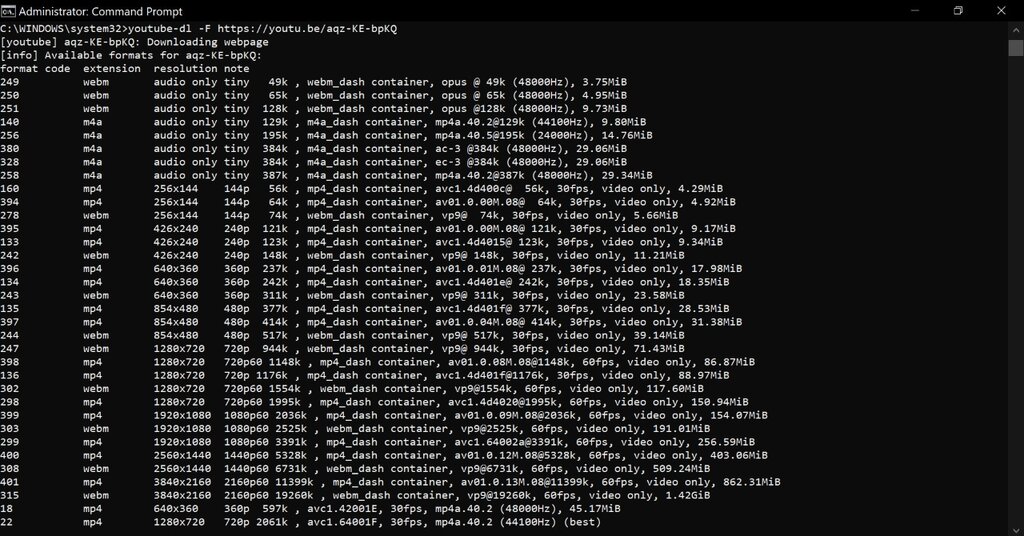
Verifying Your Download
After downloading, it's good practice to verify the file. First, do a quick visual and audio check. Play the video and look for any glitches, pixelation, or audio sync issues. Does it look sharp and sound clear?
Poor quality often shows up as 'compression artifacts,' which are distortions in the image caused by data being lost during compression. These can look like blocky patches, blurry areas, or strange colors that weren't in the original.
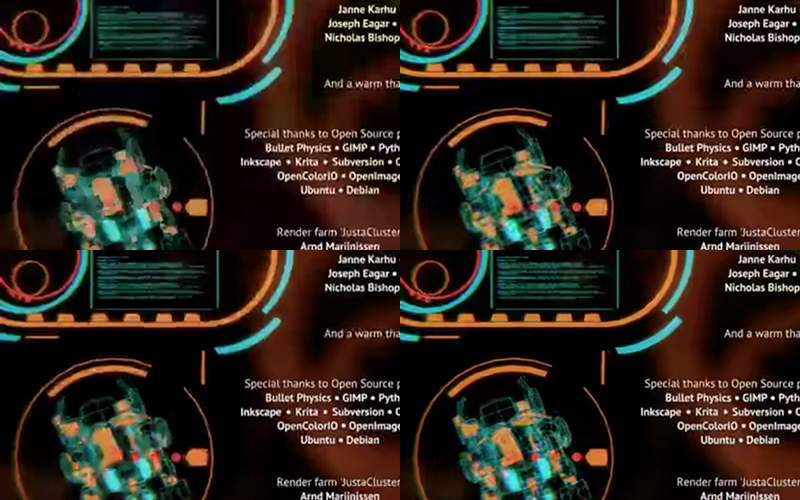
You can also check the file's properties. Right-click the file and select 'Properties' (Windows) or 'Get Info' (Mac). Look for the video's dimensions, which correspond to its resolution (e.g., 1920x1080 for 1080p). This confirms you downloaded the high-resolution version you wanted.
For an even higher level of verification, some sources provide a 'checksum' or 'hash' for a file. This is a unique string of characters generated from the file's data. If your downloaded file produces the exact same hash, you can be certain it's a perfect, unaltered copy.
# Example of a SHA-256 hash
5a3c2f8d1e9b0a7c6f5e4d3b2a1c0d9e8f7g6h5i4j3k2l1m0n9o8p7q
You now have a high-quality, verified copy of the video, ready for whatever comes next.