Figma UI Design Fundamentals
Introduction to Figma
Getting Started with Figma
Figma is a design tool that lives in your browser. It’s used by designers to create the look and feel of websites and apps, a process often called UI/UX design. Because it's web-based, you don't need to install any heavy software, and you can access your work from any computer.
Figma is a collaborative, cloud-based design tool primarily used for creating user interfaces and prototypes for websites and applications.
To start, you’ll need a free account. Head over to Figma's website and look for the sign-up button. You can register with an email address or connect your Google account. The process is straightforward and only takes a minute. Once you’re in, you can start a new design file right away.
Finding Your Way Around
When you open a new file, you'll see the main Figma workspace. It might look busy at first, but it's organized into a few key areas.
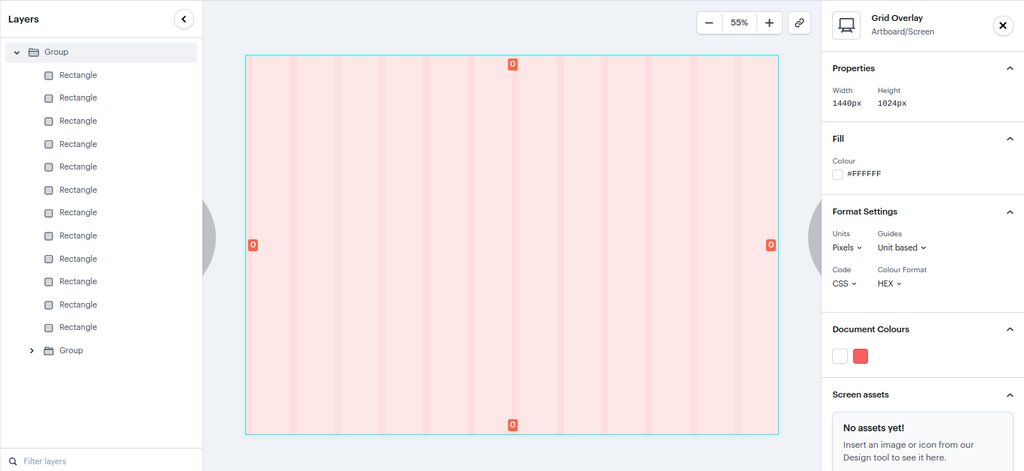
The large, grey area in the middle is the Canvas. This is your infinite workspace where all the magic happens. On the left, you'll find the Layers Panel, which lists every object in your design. On the top is the Toolbar, containing all the tools you need to create. And on the right, you have the Properties Panel, where you can adjust the details of any selected object.
Toolbar Essentials
The toolbar at the top gives you access to Figma's core creation tools. Let's look at the most important ones you'll use constantly.
| Tool | Keyboard Shortcut | What It Does |
|---|---|---|
| Move | V | Selects, moves, and resizes objects on the canvas. |
| Frame | F | Creates containers for your designs, like a phone screen or a web page. |
| Shape | R (Rectangle), O (Ellipse), L (Line) | Draws basic geometric shapes. |
| Pen | P | Creates custom shapes and complex vector paths. |
| Text | T | Adds text to your design. |
Most of these tools have a small arrow next to them. Clicking it reveals more options, like different shapes (stars, polygons) or other tools related to the main one.
Layers and Properties
Every time you add a shape, some text, or a frame to your canvas, it appears as a new item in the Layers Panel on the left. This panel is crucial for organization. Think of it as a list of all your design ingredients. You can click on an item in the list to select it, or drag items up and down to change their stacking order—what’s on top versus what’s behind.
Properly naming your layers will save you a lot of time as your designs become more complex. Instead of "Rectangle 57," try "Header Background."
Once you select an object, either on the canvas or in the Layers Panel, the Properties Panel on the right comes alive. This panel is your control center for changing how that object looks and behaves. You can adjust its position, size, color, and much more. For text, this is where you change the font, size, and alignment. For a shape, you can change its fill color, add a border (called a 'stroke'), or apply effects like shadows.
Ready to test what you've learned? Give these questions a try.
What is the primary function of Figma?
In the Figma workspace, where would you find a list of all the objects in your design file, organized by their stacking order?
With these basics, you have a solid foundation for exploring Figma. The best way to learn is by doing, so try creating a few simple shapes and text blocks, and see how you can change them using the properties panel.