Figma to Live Website
Understanding Figma Basics
Getting Started in Figma
Figma is a design tool that lives in your browser. Think of it as a shared, digital whiteboard where you and your team can create designs for websites, mobile apps, and other digital products. Because it's cloud-based, collaboration happens in real-time. You can see your teammate's cursor moving on the screen, just like in Google Docs.
When you open a Figma file, the interface has three main parts. The large central area is your Canvas, where you'll do all your creative work. On the left, you have the Layers Panel, which lists every object you add to your canvas. On the right is the Properties Panel, where you can adjust the details of any selected object, like its color, size, or text style. Finally, the Toolbar across the top holds all your primary tools for creating shapes, text, and frames.
Creating Your First Design
To start a new project, you simply create a new design file. Your canvas will be blank and infinite, waiting for your ideas. But before you start adding elements, you need to create a container for them. In Figma, this container is called a Frame.
Think of a Frame as the canvas for a specific screen, like a mobile phone display, a tablet interface, or a desktop webpage.
You can select the Frame tool from the toolbar (or just press the F key). Once selected, the Properties Panel on the right will show a list of preset frame sizes for popular devices like iPhones, Android devices, and MacBooks. Choosing a preset is the fastest way to get started. Just click one, and the frame will appear on your canvas, perfectly sized.
Staying Organized
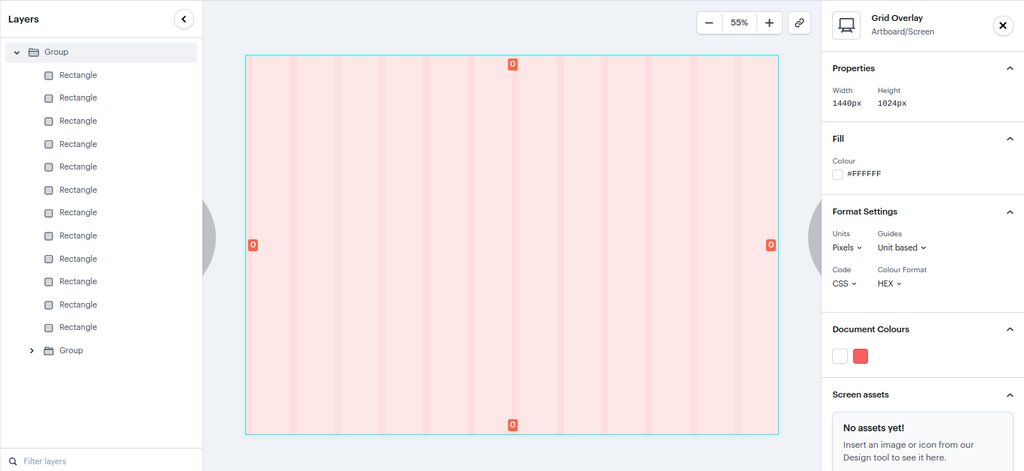
As your design grows more complex, keeping things tidy becomes essential. This is where the Layers Panel on the left comes in. Every shape, piece of text, or image you add to a frame gets its own layer. You can click and drag layers to reorder them, bringing some objects in front of others.
Good layer naming is a superpower. 'Rectangle 1' tells you nothing, but 'Header Background' tells you everything. Double-click any layer to rename it.
For even better organization, you can group related layers together. Select multiple layers by holding the Shift key and clicking them, then press Cmd+G (or Ctrl+G on Windows) to group them. This helps keep your Layers Panel clean and manageable.
To work even more efficiently, Figma has a powerful feature called Components. A component is a reusable design element. Imagine you've designed the perfect button. Instead of copying and pasting it every time you need it, you can turn it into a component. Now, you can place instances of that button all over your design. If you ever need to change the button's color, you just edit the main component, and every single instance updates automatically. It’s a huge time-saver.
Building a Design System
Components are the building blocks of a design system. A design system is essentially a library of all the reusable elements and guidelines for a product. It includes things like colors, text styles, icons, and components like buttons and navigation bars. The goal is to ensure consistency and speed up the design process.
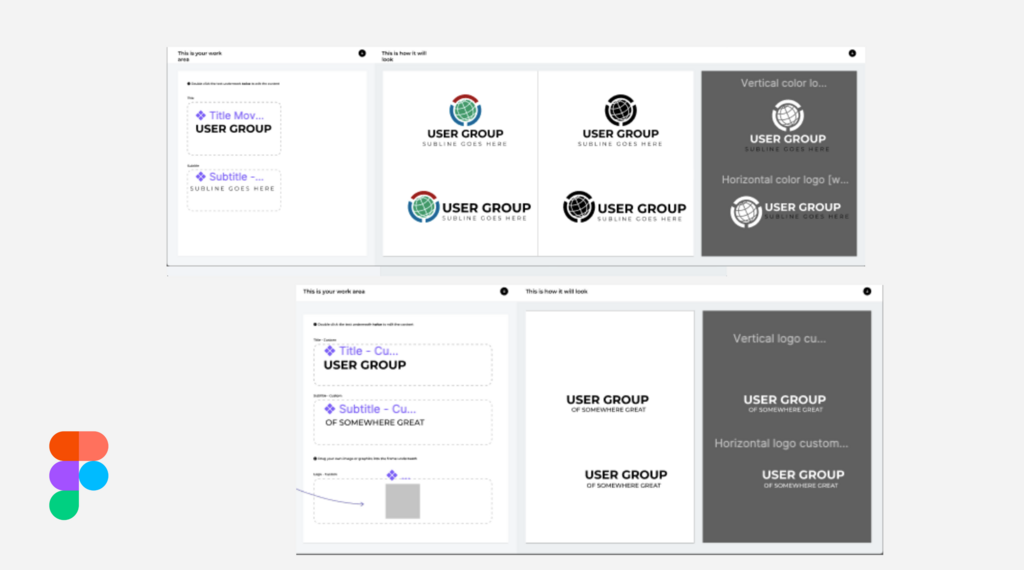
You can start building a simple design system right in your Figma file. First, define your core styles. In the Properties Panel, you can save colors and text settings as Styles. For example, you can create a 'Primary Brand Color' style or a 'Heading 1' text style. Once saved, you can apply these styles to any object with a single click.
Combine these saved styles with your components, and you've got the foundation of a design system. By creating a set of consistent, reusable elements, you make your design process faster, more scalable, and easier to manage for your entire team.
Time to check your understanding of these core concepts.
What is the primary container for all the design elements of a single screen (like an iPhone app screen) called in Figma?
If you want to change the font size of a selected piece of text, which part of the Figma interface would you use?
You've now got a handle on the fundamentals of Figma, from navigating the interface to organizing your work with components and styles. This foundation is key to creating clean, consistent, and scalable designs.