FFmpeg Fundamentals
Introduction to FFmpeg
The Swiss Army Knife for Media
Imagine you have a video file that won't play on your phone, or an audio file in a format your software doesn't recognize. What do you do? Often, the answer is FFmpeg.
FFmpeg is a free, open-source software project that produces libraries and programs for handling multimedia data. It's a powerful tool that can record, convert, stream, and edit audio and video. It's not a program with a fancy interface and buttons. Instead, it works from the command line, a text-based interface where you type commands to get things done.
FFmpeg is the swiss army knife of multimedia processing.
The FFmpeg project includes a few key components you'll interact with:
ffmpeg: The main command-line tool for converting one video or audio format to another. It can also capture live audio/video.ffprobe: A tool for analyzing media files. It can show you detailed information about a file's format, codecs, duration, and more.ffplay: A simple media player based on FFmpeg libraries. It's great for quick tests and previews.
What Can You Do With It?
Because FFmpeg is so versatile, it's used by many popular applications, including VLC media player, YouTube, and iTunes. For personal use, it's fantastic for tasks like:
- Converting formats: Change a
.movfile from your iPhone into a more universally compatible.mp4. - Extracting audio: Pull the soundtrack from a video file and save it as an
.mp3. - Resizing video: Scale a 4K video down to 1080p to save space.
- Basic editing: Trim the beginning and end of a video or create a short GIF from a clip.
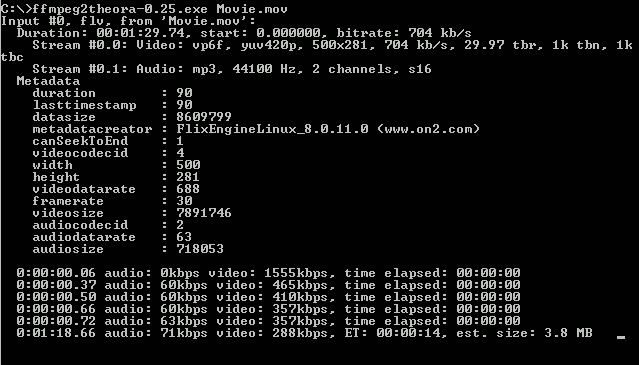
All of this is done by typing specific commands into your computer's terminal or command prompt. It might seem intimidating at first, but once you learn the basic structure, you unlock a huge amount of power.
Getting FFmpeg
Installing FFmpeg is straightforward on most operating systems. The easiest way is through a package manager, which handles downloading and setup for you.
On Windows, you can use the Windows Package Manager (winget), which is built into modern versions of Windows. Open Command Prompt or PowerShell and type:
winget install -e --id Gyan.FFmpeg
On macOS, the most common method is using Homebrew. If you don't have Homebrew installed, you can get it from brew.sh. Once it's ready, open Terminal and run:
brew install ffmpeg
On Linux, you can use your distribution's package manager. For Debian-based systems like Ubuntu, open a terminal and use
apt:
sudo apt update
sudo apt install ffmpeg
Checking Your Installation
Once the installation is finished, you should verify that it works. Open a new terminal or command prompt window and type the following command, then press Enter:
ffmpeg -version
If FFmpeg is installed correctly, you'll see a block of text showing the version number, build information, and library configurations. If you see an error like "command not found," something went wrong during installation, or your terminal needs to be restarted for the changes to take effect.
With FFmpeg installed, you're ready to start processing your media files.