Excel VBA Automation
Introduction to VBA
What is VBA?
Think of Microsoft Excel as a powerful workshop. You have all sorts of tools for working with data: formulas, charts, PivotTables. But what if you need a custom tool for a job you do over and over? That's where Visual Basic for Applications, or VBA, comes in.
VBA is the programming language built into Excel and other Microsoft Office applications. It lets you go beyond the standard features to automate repetitive tasks, create custom functions, and build interactive tools directly within your spreadsheets. If you find yourself doing the same sequence of clicks, formatting, and calculations every day, VBA can turn that entire process into a single button press.
VBA is a coding language integrated into Excel that allows you to automate repetitive or complex processes.
Learning VBA allows you to write instructions for Excel to follow. These sets of instructions are called macros. You can create a macro to do almost anything, from cleaning up messy data downloads to generating custom reports and sending emails. It's the key to making Excel work exactly the way you want it to.
Accessing the VBA Editor
Before you can start writing VBA code, you need to enable the Developer tab in Excel's ribbon. It's hidden by default, but it only takes a moment to turn on.
- Go to File > Options.
- In the Excel Options dialog box, click Customize Ribbon.
- In the list on the right, check the box next to Developer.
- Click OK.
Now, you'll see a new "Developer" tab in your Excel ribbon. Click on it, and then select the "Visual Basic" button on the far left. This will open the Visual Basic Editor (VBE), which is where all your VBA coding will happen.
The VBE might look intimidating at first, but it's organized logically. The main window you'll work with is the Code Window, where you type your VBA code. To the left, the Project Explorer shows all your open workbooks and the objects within them, like worksheets and code modules. A Module is simply a container for your VBA code. To add one, right-click your workbook in the Project Explorer and choose Insert > Module.
The Structure of VBA Code
VBA code is organized into procedures. The most common type of procedure is a Subroutine (or Sub), which is a set of instructions that performs an action. This is what people usually mean when they talk about an Excel macro.
Every Sub starts with the keyword Sub, followed by a name you give it, and ends with End Sub. Everything between these two lines is the code that Excel will execute when the macro is run.
A good practice is to use names for your macros that clearly describe what they do, like
FormatSalesReportorClearInputFields.
Here's the structure of a simple subroutine:
Sub MyFirstMacro()
    ' This is a comment. Code starts on the next line.
    ' Lines starting with a single quote are ignored by VBA.

    MsgBox "Hello, World!"
End Sub
In this example, MyFirstMacro is the name of the subroutine. The line MsgBox "Hello, World!" is a single command that tells Excel to display a simple pop-up message box with the text "Hello, World!".
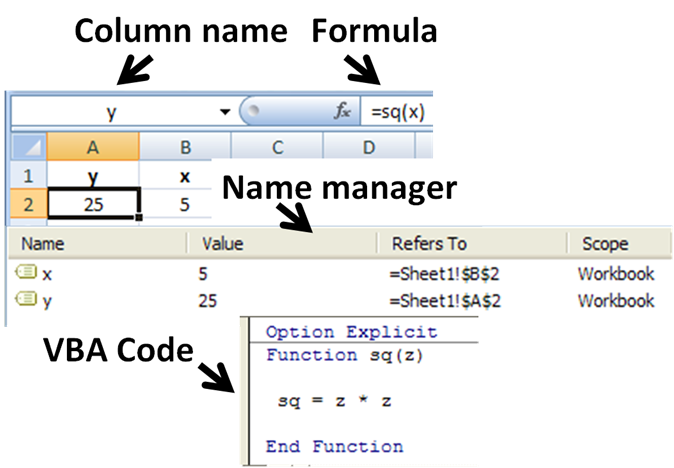
The other main type of procedure is a Function. Unlike a Sub, which just performs actions, a Function performs a calculation and returns a value. This means you can use custom functions you create directly in your worksheet cells, just like built-in Excel functions such as SUM or VLOOKUP.
Function AddTwo(number1 As Integer, number2 As Integer)
    ' This function takes two numbers and returns their sum.
    AddTwo = number1 + number2
End Function
This foundation is all you need to start exploring the power of automation in Excel. By understanding how to access the editor and structure your code, you can begin to build simple macros that save you time and reduce errors.
What is the primary purpose of using VBA (Visual Basic for Applications) in Microsoft Excel?
Before you can access the Visual Basic Editor (VBE) to write code, which tab must you first enable in the Excel ribbon?
Now that you've got the basics, you're ready to start automating.