Excel Shortcuts and Formulas Mastery
Excel Interface Basics
Getting Around Excel
Opening Excel for the first time can feel a little like stepping into the cockpit of an airplane. There are buttons and panels everywhere. But once you understand the layout, you'll find it's all quite logical. Let's take a tour of the main screen.
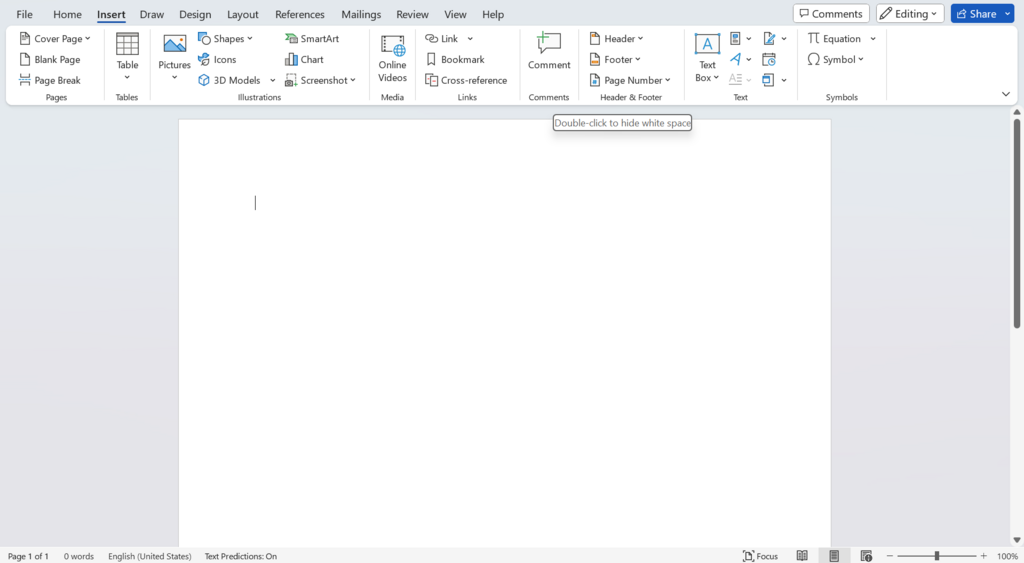
The entire window is your workbook. Think of it as a digital binder. A workbook can hold one or more pages, which in Excel are called worksheets or just sheets. You can switch between sheets using the tabs at the bottom-left of the screen.
The Command Center
The big menu of buttons and options at the top of the screen is called the Ribbon. This is where you'll find nearly every tool you need. The Ribbon is organized into a series of tabs, like 'Home', 'Insert', 'Page Layout', and 'Formulas'.
Each tab groups together related commands. For example, the 'Insert' tab has everything you need to add things to your sheet, like charts, pictures, and tables.
Beneath the Ribbon is the Formula Bar. This bar shows you the contents of the currently selected cell. It's also where you'll type or edit data and formulas directly.
The Worksheet Grid
The main part of Excel is the grid itself. This is your worksheet, and it's made up of three basic building blocks.
| Term | Description |
|---|---|
| Column | A vertical stack of cells, identified by a letter (A, B, C...). |
| Row | A horizontal line of cells, identified by a number (1, 2, 3...). |
| Cell | A single box where a column and row intersect. |
Every cell has a unique address, or reference, based on its column and row. The cell in the top-left corner is A1, because it's in column A and row 1. The cell to its right is B1, and the one below it is A2.
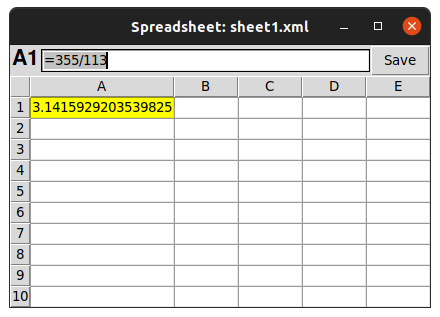
Cell
noun
The intersection of a row and a column in a worksheet. It is the basic unit for storing data in Excel.
You can select a cell by clicking on it. The selected cell is called the active cell, and it will have a border around it. Its address will also appear in the Name Box, just to the left of the Formula Bar.
Understanding this grid system of columns, rows, and cells is the key to everything else in Excel. It’s how you organize your data and tell Excel which numbers you want to work with.
Now that you know the basic layout, you're ready to start putting data into these cells and making them work for you.