Excel Mastery in Months
Excel Basics
The Excel Workspace
When you first open Excel, you're looking at a grid of boxes. This is your canvas. Let's break down the main parts so you know your way around.
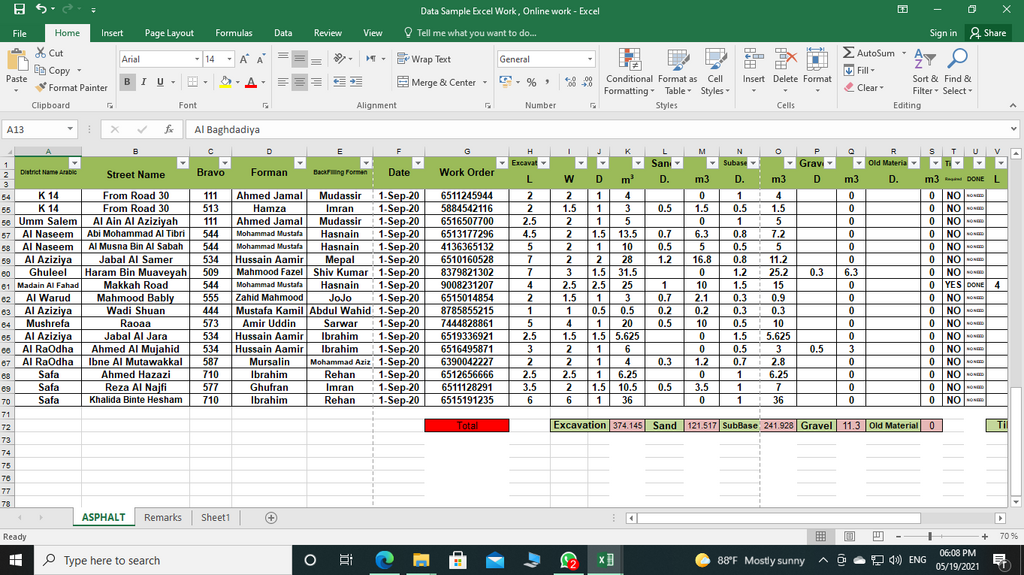
At the top, you'll find the Ribbon. It’s a collection of toolbars organized into tabs like 'Home', 'Insert', and 'Data'. The Home tab contains the most common formatting tools, which we'll use in a bit.
Just below the Ribbon is the Formula Bar. This bar shows the actual content of the selected cell. If you type a formula, you'll see the formula here, while the cell itself will show the result. For now, it will just show whatever text or number you type.
The main area is the grid of cells. Each box is a cell, and each cell has a unique address, or reference, based on its column letter and row number.
The cell in the top-left corner is A1, because it's in column A and row 1. The cell to its right is B1, and the cell below it is A2.
Workbooks and Worksheets
An entire Excel file is called a workbook. Think of it as a digital notebook. Inside that notebook, you have individual pages called worksheets, or just 'sheets'. You can see your sheets as tabs at the bottom-left of the screen, usually starting with 'Sheet1'.
You can have many worksheets in a single workbook, which is great for organizing related information. For example, you could have one sheet for January sales, another for February, and so on, all within the same sales workbook.
To manage your sheets:
- Add a new sheet: Click the plus icon (+) next to the existing sheet tabs.
- Rename a sheet: Double-click the sheet tab, type a new name, and press Enter.
- Delete a sheet: Right-click the sheet tab and select 'Delete'.
Entering and Formatting Data
Getting data into Excel is simple. Just click on a cell and start typing. When you're done, press Enter to move to the cell below, or Tab to move to the cell to the right.
Excel recognizes different types of data. For now, let's focus on the two most common:
- Text: Any combination of letters, symbols, or numbers treated as text (like 'Apples' or 'Invoice #123').
- Numbers: Numerical values you can use in calculations (like 10, 5.75, or $250).
Raw data can be hard to read. That's where formatting comes in. Basic formatting helps your data stand out and makes your spreadsheet easier to understand. You can make text bold, change its color, or even change the background color of a cell to highlight it. All these options are in the 'Font' and 'Alignment' sections of the 'Home' tab.
| Unformatted | Formatted |
|---|---|
| Item | Item |
| Price | Price |
| Apples | Apples |
| 1.50 | $1.50 |
This is the most fundamental use of Excel for beginners.
You've now covered the essential first steps. Knowing how to navigate the interface, manage worksheets, and enter and format data gives you a solid foundation for everything else you'll do in Excel.