Excel Mastery
Excel Basics
The Lay of the Land
Open Excel, and you're looking at a grid of boxes. These boxes are called cells, and each one has a unique address, like a house on a street. The address is made up of its column letter and row number. The cell in the top-left corner is A1. The one to its right is B1, and the one below it is A2.
This simple grid system is the foundation of everything you'll do in Excel, from making a simple shopping list to tracking a company's budget.
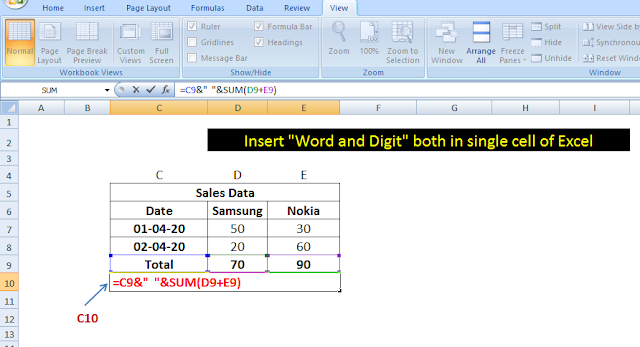
At the top, you'll see a ribbon with tabs like 'Home', 'Insert', and 'Page Layout'. This ribbon holds all the tools you'll need. Just below it is the formula bar, which shows the contents of the currently selected cell. This is especially handy when a cell contains a formula but displays a result.
Workbooks and Worksheets
An Excel file is called a workbook. Think of it as a digital binder. Inside this binder, you have individual pages called worksheets, or just 'sheets'. You can see tabs for each sheet at the bottom-left of the window, usually named 'Sheet1', 'Sheet2', etc. Clicking a tab switches to that sheet.
You can have many worksheets in one workbook, each holding different but related information. For example, one sheet could track January sales, another February sales, and a third could summarize the totals. To add a new sheet, just click the plus (+) icon next to the sheet tabs.
Data Entry and Formatting
To enter data, simply click a cell and start typing. You can enter text, numbers, or dates. Press Enter to confirm the entry and move to the cell below, or Tab to move to the cell to the right.
Raw data can be hard to read. That's where formatting comes in. You can make text bold, change its color, or highlight a cell with a background color. Most of these options are in the 'Home' tab of the ribbon. Formatting helps draw attention to important information and makes your spreadsheet easier to understand at a glance.
For instance, you might make all your column headers bold and give cells with negative numbers a red background.
Basic Cell Referencing
The real power of Excel comes from its ability to perform calculations using data from other cells. This is done through cell referencing. Instead of typing a number into a formula, you type the address of the cell that contains the number.
All formulas in Excel start with an equals sign (=). Let's say cell A1 has the number 5, and cell A2 has the number 10. To add them together, you could click on cell A3 and type:
When you press Enter, A3 will display 15. The magic is that if you change the value in A1 to something else, say 7, the total in A3 will automatically update to 17. Your formula is linked to the cells, not the values inside them.
This simple concept of referencing other cells is the engine behind almost every spreadsheet. It allows you to build dynamic models that update automatically as new data comes in.
What is the address of the cell located in the very top-left corner of a new worksheet?
An entire Excel file is called a __________, and it can contain multiple pages called __________.
With these basics, you're ready to start organizing and calculating your own data.