Excel Mastery
Excel Basics
The Lay of the Land
Opening Excel for the first time can feel like looking at an airplane cockpit. There are buttons and panels everywhere. But don't worry, you only need to know a few key parts to get started.
At the very top, you'll see the Ribbon. This is where most of Excel's tools live, organized into tabs like Home, Insert, and Page Layout. Think of it as your main toolbox.
Just below the Ribbon is the Formula Bar. This is a crucial area. It shows you the actual content of the selected cell, whether it's plain text, a number, or a formula. To its left is the Name Box, which tells you the address of the cell you've clicked on, like A1 or C5.
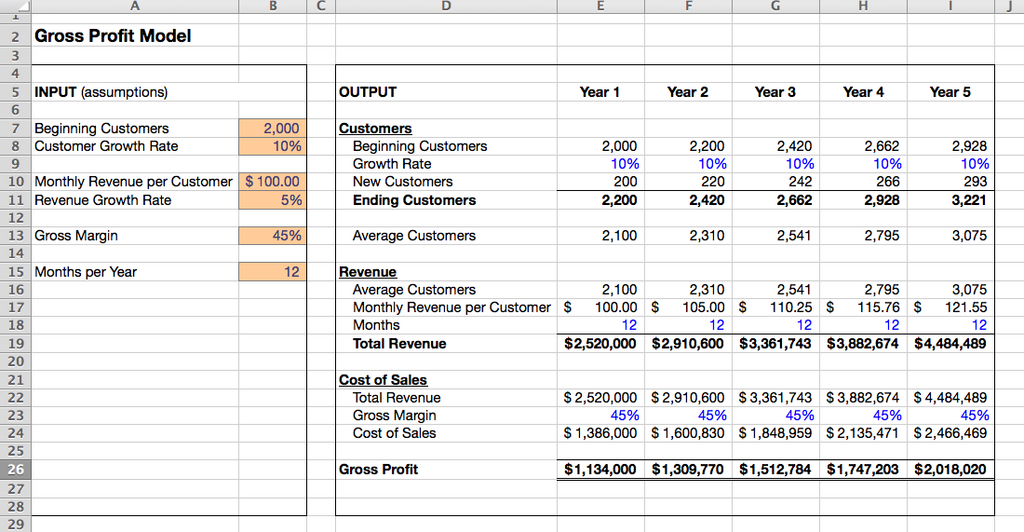
The heart of Excel is the grid. Each box in the grid is a cell, and it's where you'll put your information. Each cell has a unique address, defined by its column letter and row number.
Columns are the vertical stacks of cells, labeled with letters (A, B, C...). Rows are the horizontal lines of cells, labeled with numbers (1, 2, 3...).
Moving Around
An Excel file is called a workbook. Think of it as a digital binder. Inside that binder, you have individual pages called worksheets (or just 'sheets'). You can see tabs for each sheet at the bottom-left of the screen, usually named Sheet1, Sheet2, and so on. Clicking these tabs lets you flip between pages.
You can add a new sheet by clicking the plus (+) icon next to the tabs, or rename a sheet by double-clicking its tab and typing a new name. This is perfect for organizing related information, like monthly budgets, in one single file.
To navigate within a worksheet, you can simply click on any cell with your mouse. For faster movement, use the arrow keys on your keyboard to jump from one cell to the next.
Entering and Editing Data
Putting information into Excel is straightforward. Just click a cell and start typing. When you're done, press Enter to confirm the entry and move to the cell below, or press Tab to move to the cell to your right. This makes entering rows or columns of data quick and easy.
You can enter three main types of data:
- Text: Words, names, or any combination of letters and symbols.
- Numbers: Digits that you can use for calculations.
- Dates/Times: Excel is smart enough to recognize formats like
10/15/2024or3:30 PM.
Made a mistake? No problem. Click the cell once and type over the old information to replace it. To edit without erasing, double-click the cell or click once and then edit the content in the Formula Bar.
Making It Look Good
A wall of plain text and numbers can be hard to read. Basic formatting helps your data stand out and makes your spreadsheet easier to understand. You'll find all the essential formatting tools in the Home tab of the Ribbon.
| Formatting Tool | What It Does |
|---|---|
| Bold, Italic, Underline | Emphasizes text, just like in a word processor. |
| Fill Color | Changes the background color of a cell. Great for highlighting headers or important totals. |
| Font Color | Changes the color of the text itself. |
| Alignment | Lets you position text to the left, right, or center of a cell. |
| Number Formatting | Changes how numbers are displayed. You can format numbers as currency ($12.50), percentages (50%), or dates. |
To apply formatting, just click the cell (or click and drag to select multiple cells) and then choose an option from the Ribbon. Even simple changes, like making your headers bold and adding a light fill color, can make a huge difference in readability.
Now that you know the essentials, let's test your understanding.
In Excel, what is the main area at the top of the screen containing tabs like Home, Insert, and Page Layout?
An entire Excel file, which acts like a digital binder, is called a ______, while an individual page within it is called a ______.
With these fundamentals, you're ready to start organizing information and building your own spreadsheets.