Excel Macro Game Design
Introduction to Excel Macros
Automate Your Repetitive Tasks
If you find yourself doing the same thing over and over in Excel, like formatting reports or cleaning up data, macros can be a huge time-saver. A macro is a recorded sequence of actions, commands, and functions that you can run whenever you need to repeat that task.
Excel macros save you time and headaches by automating common, repetitive tasks, and you don’t have to be a programmer or know Visual Basic Applications (VBA) to write one.
Think of it like a recipe. You perform the steps once, and Excel writes down the recipe for you. Next time, you just tell Excel to follow that recipe, and it does the work instantly. These "recipes" are written in a language called Visual Basic for Applications, or VBA. But the good news is, you don't need to learn VBA to get started. Excel has a built-in Macro Recorder that does the writing for you.
Recording Your First Macro
The easiest way to create a macro is to record one. Before you can do that, you might need to enable the Developer tab in Excel's ribbon. Go to File > Options > Customize Ribbon, and check the box next to Developer.
Once that's done, let's record a simple macro that applies some formatting. We'll make it turn any selected cell yellow with bold text.
Plan your steps before you start. The recorder captures every click, so it's best to know exactly what you want to do ahead of time.
- Click on the Developer tab.
- In the Code group, click Record Macro.
- A dialog box will appear. Give your macro a name, like
HighlightCell. Macro names can't have spaces. - You can also assign a shortcut key, but be careful not to override a standard Excel shortcut. Let's skip it for now.
- Click OK. The recording has begun! From now on, Excel is watching everything you do.
- Select a cell if you haven't already. Go to the Home tab.
- Click the Bold button (or press Ctrl+B).
- Click the arrow next to the Fill Color bucket and choose a yellow color.
- Now, go back to the Developer tab and click Stop Recording.
That's it. You've created your first macro.
Running and Editing Your Macro
To use your new macro, just click on any cell and run it. You can do this by going to the Developer tab, clicking Macros, selecting HighlightCell from the list, and clicking Run.
But what did Excel actually record? Let's take a peek at the code. In that same Macros dialog box, with your macro selected, click Edit. This opens the Visual Basic Editor (VBE).
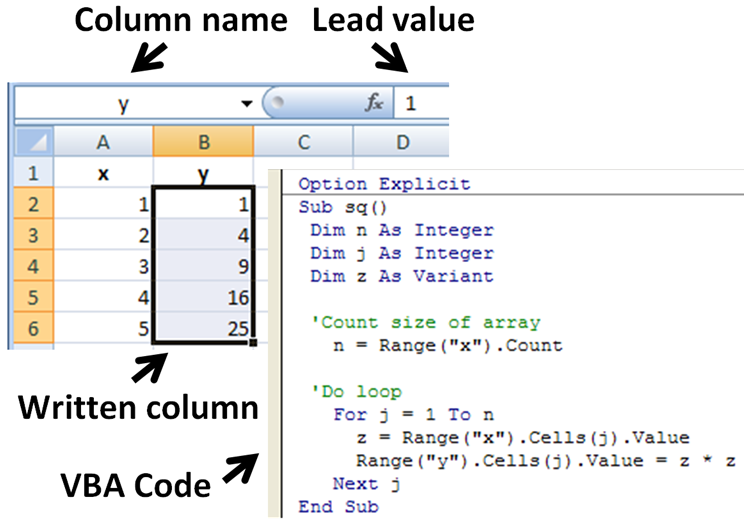
You'll see something that looks like this:
Sub HighlightCell()
' HighlightCell Macro

    With Selection.Font
        .Bold = True
    End With
    With Selection.Interior
        .Pattern = xlSolid
        .PatternColorIndex = xlAutomatic
        .Color = 65535 'This is the code for yellow
        .TintAndShade = 0
        .PatternTintAndShade = 0
    End With
End Sub
Even without being a programmer, you can probably guess what some of this does. .Bold = True makes the text bold. The Selection.Interior part handles the background color. The number 65535 is how Excel represents yellow.
Let's make a small change. What if we wanted green instead of yellow? You can edit the code directly. Change .Color = 65535 to .Color = 5287936. Now save your changes, go back to Excel, and run the macro on a new cell. It will turn green!
A Quick Word on Security
Because macros are code that runs inside Excel, they can be a security risk. A malicious macro could potentially harm your computer. This is why Excel has security settings to protect you.
By default, Excel will likely disable macros and show a security warning when you open a file that contains them. This is a good thing.
A simple rule: Never enable macros in a file from an unknown or untrusted source. If you get an unexpected Excel file in an email, be very cautious about enabling its content.
Recording your own macros is perfectly safe. The risk comes from opening files created by others. Always be sure you trust the source of the workbook before you click "Enable Content".
What is a macro in the context of Excel?
Before you can record a macro, you often need to make the Developer tab visible. How is this done?