Excel Fundamentals
Excel Interface
Getting Around in Excel
Opening Excel for the first time reveals a grid of boxes. This is your workspace, also known as a worksheet. It’s organized into columns, labeled with letters (A, B, C...), and rows, labeled with numbers (1, 2, 3...). The individual boxes where columns and rows intersect are called cells. Each cell has a unique address, or reference, like A1, B2, or C3.
When you click on a cell, it becomes the active cell, indicated by a dark green border. The active cell is where you'll enter your data or formulas.
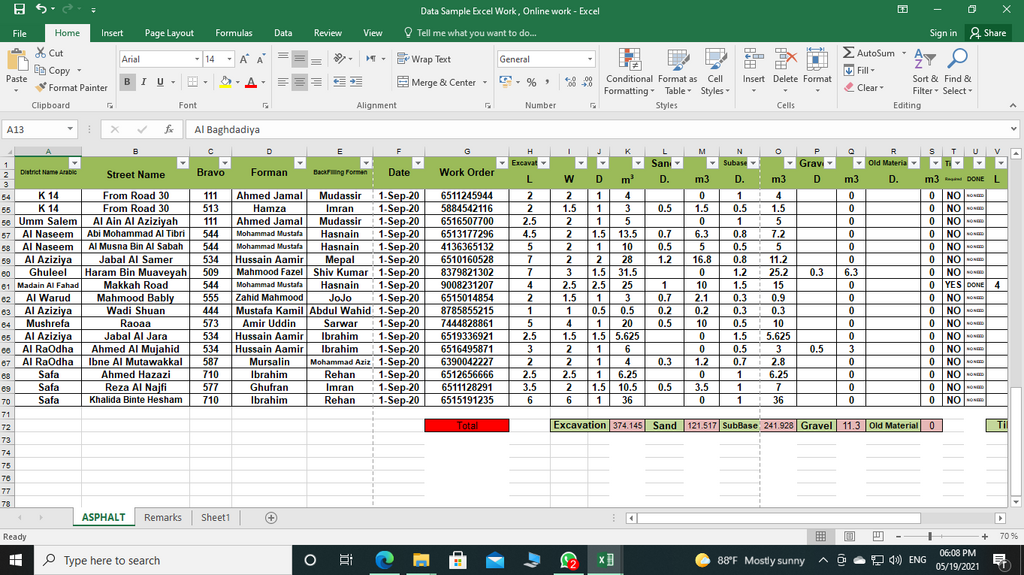
Above the column headers, you'll find two important tools. On the left is the Name Box, which displays the address of the active cell (like 'A1'). To its right is the Formula Bar. This bar shows the contents of the active cell. If you type text or a number into a cell, you'll see it in the Formula Bar. If the cell contains a formula, like , the cell will show the result (4), but the Formula Bar will show the actual formula.
At the bottom of the window are the Sheet Tabs. An Excel file, called a workbook, can contain multiple worksheets. You can switch between them by clicking these tabs, and you can add new sheets by clicking the plus (+) icon.
The Ribbon
The main command center in Excel is the Ribbon, the wide band of buttons and icons at the top of the window. It’s designed to help you find the commands you need to complete tasks.
The Ribbon is organized into several tabs, such as Home, Insert, Page Layout, and Data. Each tab relates to a specific kind of activity.
Within each tab, related commands are clustered into groups. For example, the Home tab has a Font group with options for changing text style, size, and color. The Insert tab has a Charts group for adding graphs to your worksheet. You don't need to memorize every button, but knowing which tab to look under will save you a lot of time.
Quick Access Toolbar
Located at the very top of the Excel window, usually above the Ribbon, is the Quick Access Toolbar. This is a small, customizable toolbar that holds a set of commands independent of the tab currently displayed on the Ribbon.
By default, it includes common commands like Save, Undo, and Redo. You can easily add your favorite, most-used commands here so they are always just one click away, no matter which Ribbon tab you are working in.
Now that you're familiar with the layout, let's test your knowledge.
What is the unique address of the cell at the intersection of column D and row 9?
If cell A1 contains the formula $$=5+10$$, what is displayed in the Formula Bar when A1 is the active cell?
Understanding the interface is the first step to becoming proficient in Excel. With this foundation, you're ready to start working with data.