Excel Fundamentals
Excel Interface
Getting Around Excel
Opening a new Excel file, called a workbook, feels like stepping into a digital workshop. At first, all the buttons and panels can seem a bit much. But once you know what everything does, you'll see it's a very organized space designed to make your work easier.
Let's take a quick tour of the main layout. Think of it as a map to your workspace.
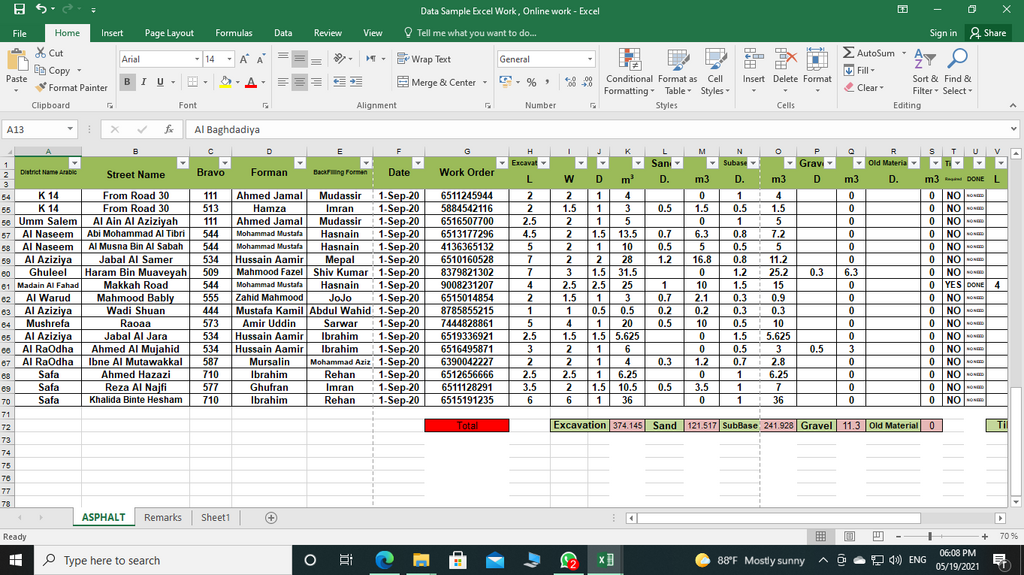
The Ribbon and Toolbars
At the very top of the window, you'll find the Ribbon. This is your main toolkit. It organizes all of Excel's commands into a series of tabs, like "Home," "Insert," and "Page Layout." Each tab is dedicated to a specific type of task.
Within each tab, related commands are bundled into groups. For example, on the "Home" tab, you'll find groups for "Font," "Alignment," and "Number." This structure keeps the tools you need for a job right where you'd expect them. Above the Ribbon is the Quick Access Toolbar, a small, customizable toolbar that stays visible no matter which tab you're on. It's perfect for your most-used commands.
The Worksheet Grid
The main part of your screen is the worksheet, which is a grid of cells. This is where you'll enter and work with your data. Each worksheet is made up of three basic building blocks:
| Component | Description |
|---|---|
| Columns | Run vertically and are identified by letters (A, B, C, etc.). |
| Rows | Run horizontally and are identified by numbers (1, 2, 3, etc.). |
| Cells | The individual boxes where rows and columns intersect. Each cell has a unique address, or reference, like A1, B2, or C3. |
When you click on a cell, it becomes the active cell, indicated by a dark border. Its address appears in the Name Box to the left of the formula bar. The Formula Bar, located just below the Ribbon, shows the contents of the active cell. You can enter or edit data directly in the cell or in the formula bar.
A Personal Touch
Excel allows for some simple customization to make your workflow smoother. The most useful one for beginners is customizing the Quick Access Toolbar. This is the small collection of icons at the very top left of your window, above the Ribbon.
By default, it holds commands like Save, Undo, and Redo. You can add any command you use frequently. To do this, simply right-click on any command in the Ribbon and select "Add to Quick Access Toolbar."
Adding your favorite tools to the Quick Access Toolbar saves you from hunting through tabs and makes your most common actions just a single click away.
Now that you're familiar with the layout, let's test your knowledge.