Excel Fundamentals for Data Management
Excel Interface
Finding Your Way Around Excel
Opening Excel for the first time reveals a grid of cells, which might seem a bit intimidating. But once you know the layout, it becomes a powerful tool. The Excel window is divided into three main areas: the Ribbon at the top, the Quick Access Toolbar just above it, and the worksheet area, which is the main grid where you'll do your work.
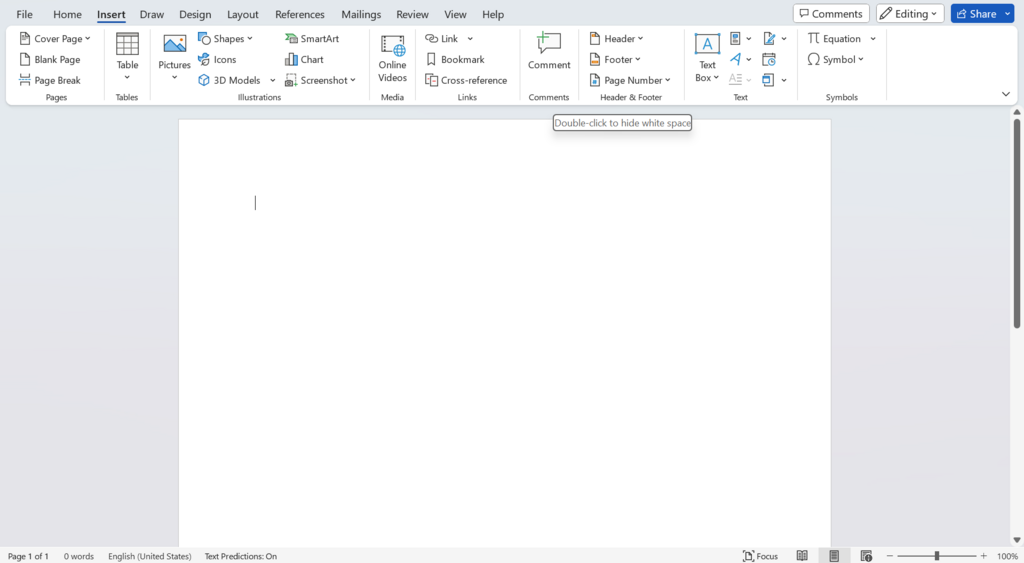
The Ribbon
The Ribbon is the command center of Excel. It stretches across the top of the window and contains nearly all the commands you'll need. It's organized into a series of tabs, like 'Home,' 'Insert,' 'Page Layout,' and 'Data.'
Each tab is dedicated to a specific type of task. For instance, the 'Home' tab has common formatting tools, while the 'Insert' tab lets you add things like charts, tables, and pictures. Within each tab, related commands are clustered into groups. In the 'Home' tab, you'll find groups for 'Font,' 'Alignment,' and 'Number,' making it easy to find the tool you need.
Think of the Ribbon as a well-organized toolbox. Tabs are the drawers, and groups are the compartments inside each drawer.
The Quick Access Toolbar
Located at the very top left of the Excel window, the Quick Access Toolbar is a small, customizable space for your most-used commands. By default, it holds buttons for Save, Undo, and Redo. It’s always visible, no matter which tab on the Ribbon you have selected.
You can easily add your favorite commands to it. Just click the small downward-pointing arrow at the end of the toolbar to see a list of common commands to add. You can also right-click any command on the Ribbon and select 'Add to Quick Access Toolbar.' This is great for tools you use constantly, saving you from hunting through the tabs.
The Worksheet Area
The heart of Excel is the worksheet, a grid of columns and rows. Columns are labeled with letters (A, B, C...) across the top, and rows are labeled with numbers (1, 2, 3...) down the side.
The intersection of a column and a row is called a cell. Each cell has a unique address, or reference, based on its column letter and row number. For example, the cell in the top-left corner is A1. This is where you enter your data—text, numbers, or formulas.
Above the grid, you'll see the Formula Bar. This bar shows the contents of the currently selected cell and is where you can enter or edit data and formulas. To the left of the Formula Bar is the Name Box, which displays the address of the selected cell (like B2).
You can move around the worksheet by clicking any cell with your mouse or using the arrow keys on your keyboard. For larger spreadsheets, the scroll bars on the right and bottom help you navigate quickly.
What is the main command center of Excel, located at the top of the window and organized into tabs like 'Home' and 'Insert'?
What is the unique address of the cell located at the intersection of column D and row 10?
Understanding this basic layout is the first step to becoming comfortable with Excel. With these fundamentals, you're ready to start entering and organizing data.