Excel Fundamentals for Beginners
Excel Interface
The Excel Workspace
When you open Excel, you're looking at a digital spreadsheet. It's organized into three main areas: the Ribbon at the top, the worksheet grid that fills most of the screen, and the Quick Access Toolbar in the top-left corner. Think of the Ribbon as your command center, and the worksheet as your canvas.
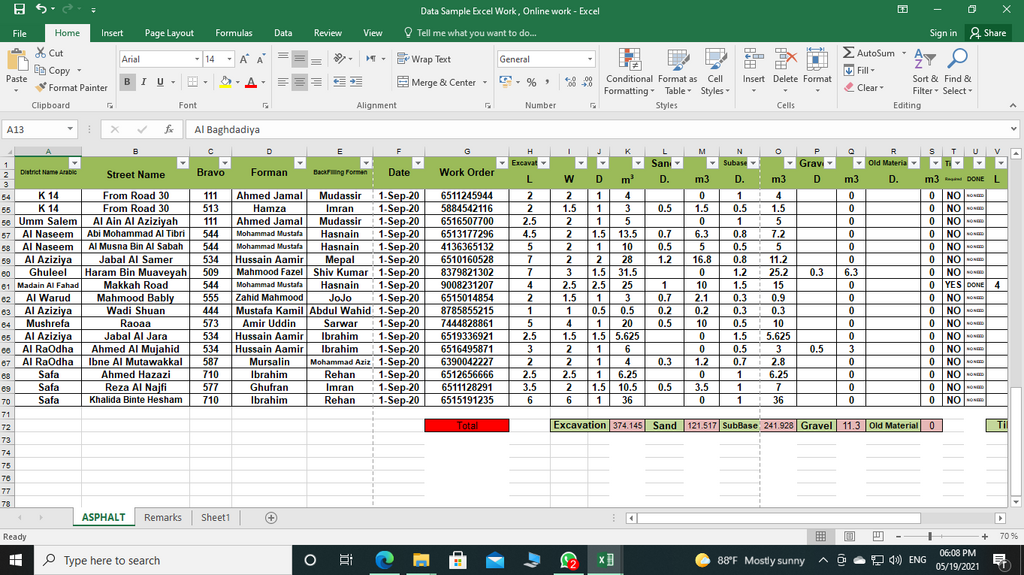
This layout is designed to keep the tools you need visible and organized, so you can focus on your data. Let's break down each part.
The All-Powerful Ribbon
The Ribbon is the wide band of buttons and icons at the top of the Excel window. It replaces traditional menus and toolbars. The Ribbon is organized into a series of tabs, each focused on a specific type of task.
For example, the Home tab contains the most frequently used commands, like copying, pasting, and text styling. The Insert tab is for adding elements to your sheet, such as charts or pictures. The Page Layout tab helps you prepare your spreadsheet for printing.
Within each tab, related commands are clustered into groups. On the Home tab, you'll find groups like 'Font', 'Alignment', and 'Number'. This structure makes it easier to find the tool you're looking for without having to search through long menus.
Understanding the Grid
The main part of the screen is the worksheet, which is a grid of cells. This is where you'll do all your work. The grid is made up of three basic building blocks:
Columns run vertically and are identified by letters (A, B, C, ...).
Rows run horizontally and are identified by numbers (1, 2, 3, ...).
Cells are the individual rectangles where a row and column intersect. Each cell has a unique address, or reference, formed by its column letter and row number. For example, the cell in the top-left corner is A1.
A single Excel file is called a workbook. A workbook can contain multiple worksheets, almost like a notebook with many pages. You can switch between worksheets by clicking the tabs at the bottom-left of the window. You can also add new sheets or rename existing ones to keep your projects organized.
Personalizing Your Workspace
Excel allows for some simple customizations to make your workflow smoother. The Quick Access Toolbar is a small set of icons located at the very top of the window, usually above the Ribbon. By default, it includes Save, Undo, and Redo.
You can add any command from the Ribbon to this toolbar. If you find yourself constantly navigating to the 'Data' tab to use the 'Sort' feature, you can right-click the 'Sort' button and select 'Add to Quick Access Toolbar'. Now, that command is always just one click away, no matter which Ribbon tab is active.
You can also customize the Ribbon itself. You can add your own tabs with your favorite groups of commands, or hide tabs you rarely use. To do this, right-click anywhere on the Ribbon and choose 'Customize the Ribbon'. This opens a dialog box where you can fine-tune your setup.
Understanding these core components of the interface is the first step to becoming comfortable and efficient in Excel.