Excel Fundamentals Explained
Excel Interface Basics
The Excel Workspace
Think of an Excel file, called a workbook, as a digital notebook. Each workbook can contain one or more pages, called worksheets (or just "sheets"). You might use one sheet for your monthly budget, another for tracking investments, and a third for a list of contacts, all neatly organized within a single workbook file.
Core Components
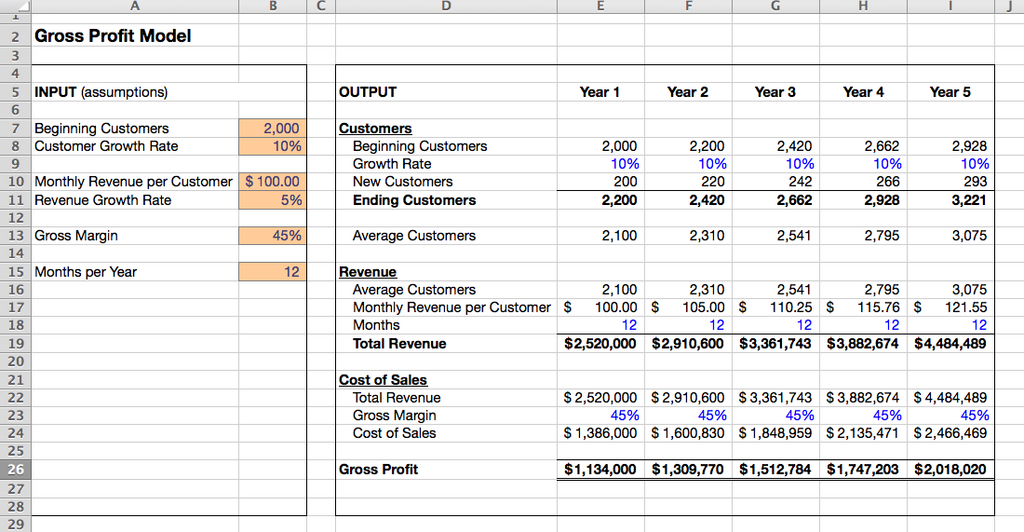
Every worksheet is a grid made of columns (labeled with letters: A, B, C...) and rows (labeled with numbers: 1, 2, 3...). The intersection of a column and a row is a cell, which is where you enter your data. Each cell has a unique that combines its column letter and row number, like A1, B2, or F22.
The cell you've currently selected is the active cell, indicated by a bold border. Its address appears in the Name Box, located just above the column headers. To its right is the Formula Bar, which displays the full contents of the active cell. This is especially useful because a cell might show a calculated result (like "100"), while the Formula Bar shows the underlying formula that produced it (like =50*2).
Above everything is the Ribbon and the Quick Access Toolbar. The Ribbon organizes commands into tabs like Home, Insert, and Formulas. The Quick Access Toolbar is a small, customizable bar (usually at the very top) for your most-used commands, like Save and Undo. Finally, at the bottom, the Status Bar provides quick information, and the Sheet Tabs let you switch between worksheets.
Efficient Navigation and Selection
Moving around efficiently is key. While you can always click a cell to make it active, keyboard shortcuts are much faster for navigating large datasets. Mastering a few basic commands will dramatically speed up your workflow.
| Key | Action |
|---|---|
| Arrow Keys | Move one cell in any direction |
Ctrl + Arrow Keys | Jump to the edge of the current data region |
Home | Move to the beginning of the current row |
Ctrl + Home | Jump to cell A1 |
Ctrl + End | Jump to the last cell with content |
Page Up / Page Down | Move one screen up or down |
Selecting data is just as important as navigating it. You can select a single cell by clicking it. To select a range of cells, click the first cell, hold down the Shift key, and click the last cell. You can also click and drag your mouse over the desired cells.
To select an entire column or row, simply click on its corresponding letter or number header. If you need to select the entire worksheet, click the button at the intersection of the row and column headers (the small gray triangle just above row 1 and to the left of column A).
In Excel, the entire file that contains one or more sheets is called a ________.
What is the unique identifier for a cell, formed by combining its column letter and row number (e.g., B4)?
With a solid grasp of the interface and navigation, you're ready to start working with data.