Excel Fundamentals and Functionality
Excel Interface
The Command Center
When you open Excel, you're looking at a powerful workspace designed for data. The main navigation system at the top is called the Ribbon. Think of it as a dynamic toolkit where commands are organized into tabs based on their function. You have tabs like Home for basic formatting, Insert for adding charts or tables, and Data for sorting and filtering.
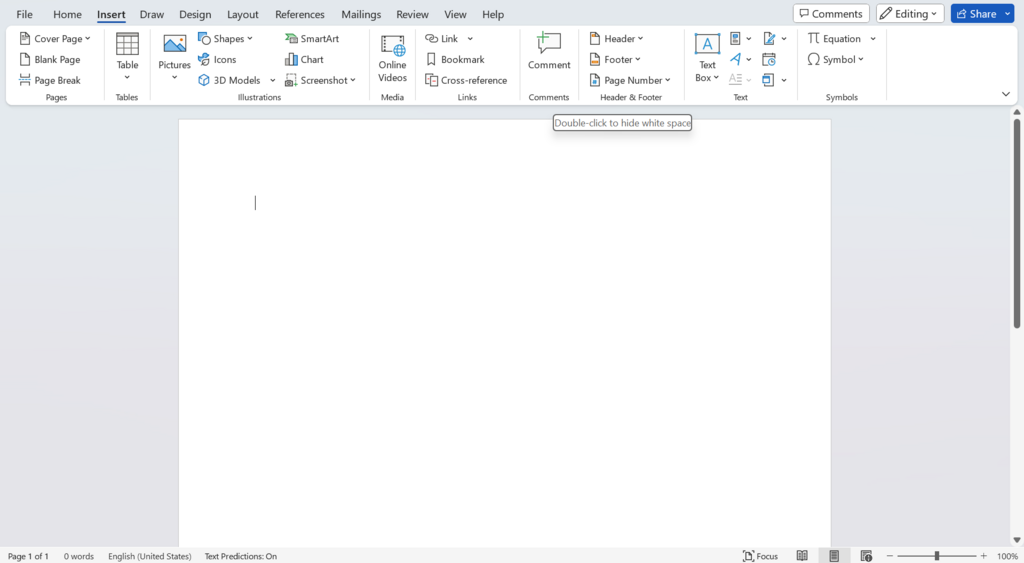
Within each tab, commands are sorted into logical groups. For example, the Home tab has groups for Font, Alignment, and Number. This structure keeps the interface from feeling cluttered, placing the tools you need for a specific task right where you'd expect to find them.
Above the Ribbon, you'll find the (QAT). This is your personal, customizable shortcut bar. By default, it holds Save, Undo, and Redo, but you can add any command you use frequently for one-click access, regardless of which Ribbon tab is currently active.
The Working Area
Just below the Ribbon are two critical components: the Name Box and the Formula Bar. The on the left displays the address of the active cell, like A1 or F38. It’s a quick way to know exactly where you are in the worksheet.
The Formula Bar, to its right, shows the actual content of the selected cell. If the cell contains a simple number or text, you'll see that. But if it contains a formula, like =SUM(B2:B10), the Formula Bar displays the formula itself, while the cell shows the calculated result. This is where you'll build and edit all your calculations.
At the very bottom of the window is the Status Bar. It provides at-a-glance information about your current selection. For instance, if you highlight a group of cells containing numbers, the Status Bar can instantly show you their sum, count, and average without you having to write a formula. You can right-click it to customize what information it displays.
Finally, you have the at the bottom-left, typically labeled 'Sheet1', 'Sheet2', etc. An Excel file, or workbook, can contain multiple worksheets. You can click these tabs to switch between sheets, double-click to rename them, or right-click for more options like changing their color or hiding them.
Familiarizing yourself with these components is the first step toward using Excel efficiently. Now, let's test your knowledge.
What is the primary function of the Ribbon in Excel?
If you select a cell and see the text =SUM(A1:A10) displayed just below the Ribbon, where are you looking?
With a solid grasp of the interface, you're ready to start manipulating data.