Excel Fundamentals
Excel Interface
Getting Around in Excel
Opening a blank Excel sheet for the first time can feel like staring at a giant, empty grid. But once you know your way around, you'll see it's a powerful and organized workspace. Let's break down the main parts of the Excel interface.
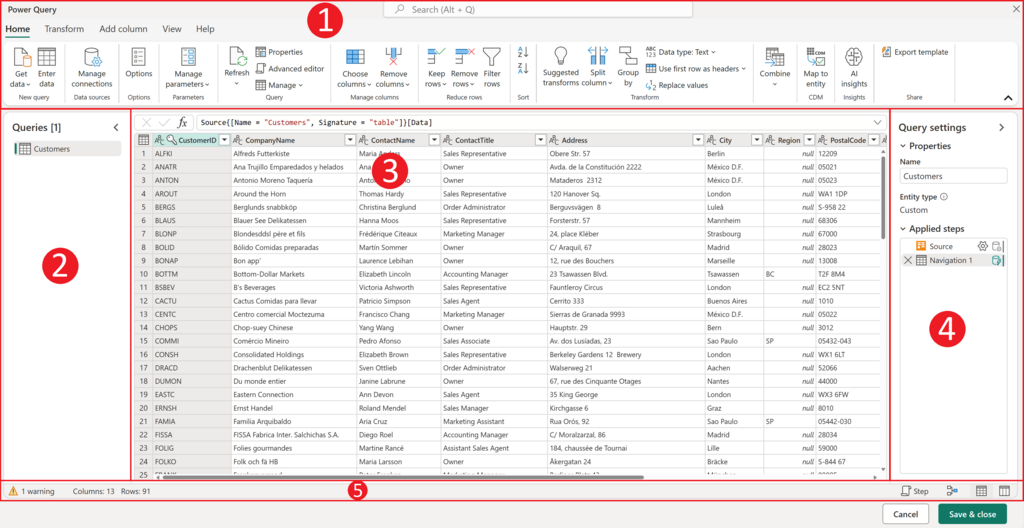
The Ribbon Your Command Center
At the top of the screen is the Ribbon, which holds nearly all the commands you'll need. It’s organized into a series of tabs, like 'Home', 'Insert', and 'Page Layout'. Clicking a tab reveals a new set of tools.
Each tab is further divided into groups of related commands. For example, the 'Home' tab has a 'Font' group for changing text appearance and an 'Alignment' group for positioning text within a cell. This setup keeps your tools tidy and easy to find.
The Quick Access Toolbar
Above the Ribbon, you'll find the Quick Access Toolbar. Think of it as a small shelf for your favorite, most-used tools. By default, it holds buttons for Save, Undo, and Redo. It's always visible, no matter which tab on the Ribbon is active, giving you one-click access to essential commands.
Anatomy of a Workbook
The main part of the screen is your workbook. An Excel file is called a workbook, and it contains one or more worksheets, which you can switch between using the tabs at the bottom-left.
Each worksheet is a grid made of columns (labeled with letters A, B, C...) and rows (labeled with numbers 1, 2, 3...). The intersection of a column and a row is a cell. This is where you enter your data, like text, numbers, or formulas. Every cell has a unique address, like A1, B2, or C3, which you can see in the Name Box just below the Ribbon.
| Term | Definition |
|---|---|
| Workbook | The entire Excel file. |
| Worksheet | A single page or sheet within a workbook. |
| Column | A vertical set of cells (e.g., Column A). |
| Row | A horizontal set of cells (e.g., Row 1). |
| Cell | The box where a row and column intersect. |
You can make your workspace more efficient by customizing it. Both the Ribbon and the Quick Access Toolbar can be changed to better suit your workflow.
Customize the Excel interface by adding frequently used commands to the Ribbon or Quick Access Toolbar.
You can add new tabs to the Ribbon with your own custom groups of commands. For the Quick Access Toolbar, you can add any command you use often so it's always just a click away. This personalization helps you work faster by putting the tools you need right at your fingertips.
Now, let's test your knowledge of the Excel interface.
What is the main area at the top of the Excel screen containing tabs like 'Home', 'Insert', and 'Page Layout'?
An Excel file is called a __________, and it contains one or more __________.