Excel Fundamentals
Excel Basics
Getting to Know Excel
Microsoft Excel is a powerful tool for working with data. At its core, it's a spreadsheet application, which is like a digital ledger. It organizes information into a grid of rows and columns, making it easy to manage everything from a simple grocery list to complex financial models.
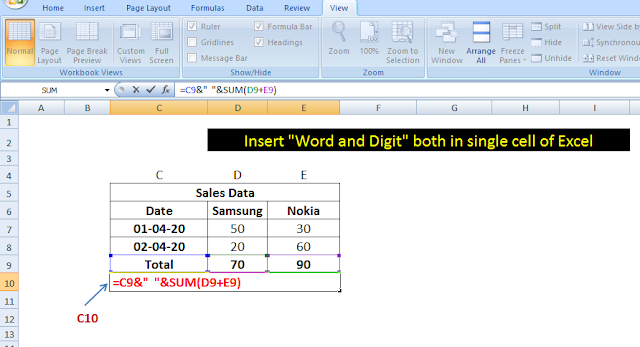
When you open Excel, you'll see a few key areas. The top section is called the Ribbon. It contains tabs like "Home," "Insert," and "Data," which group together all the commands you'll need. Just below the Ribbon is the Formula Bar, where you can see or edit the data in the selected cell. The main part of the screen is the worksheet, a grid of columns (labeled with letters) and rows (labeled with numbers).
cell
noun
The intersection of a row and a column in a worksheet. Each cell has a unique address, like A1 or C5, based on its column and row.
Your First Workbook
An Excel file is called a workbook, and it can hold one or more worksheets, which you can navigate using the tabs at the bottom. Think of a workbook as a notebook and each worksheet as a page in it.
Creating a new workbook is simple. When you launch Excel, you can choose to open a blank workbook. To save your work, go to the "File" tab and select "Save As." It's a good habit to save your work frequently.
Pro Tip: Use the keyboard shortcut
Ctrl+S(orCmd+Son a Mac) to save your workbook quickly without needing to go to the File menu each time.
You can manage your worksheets easily. Click the + button at the bottom to add a new sheet. To rename a sheet, just double-click its tab and type a new name. This helps keep your workbook organized, especially when you start working with more data.
Entering and Formatting Data
Getting data into Excel is straightforward. Just click a cell and start typing. When you're done, press Enter to move to the cell below, or Tab to move to the cell to the right.
Raw data isn't always easy to read, but Excel gives you plenty of formatting options to make it clearer. You can find these tools in the "Home" tab of the Ribbon.
| Formatting Tool | What It Does |
|---|---|
| Bold, Italic, Underline | Emphasizes text to make it stand out. |
| Font Size & Color | Changes the appearance of your text for readability. |
| Fill Color | Adds a background color to cells to highlight them. |
| Borders | Puts lines around cells to group data together. |
| Alignment | Adjusts how text is positioned within a cell (left, right, center). |
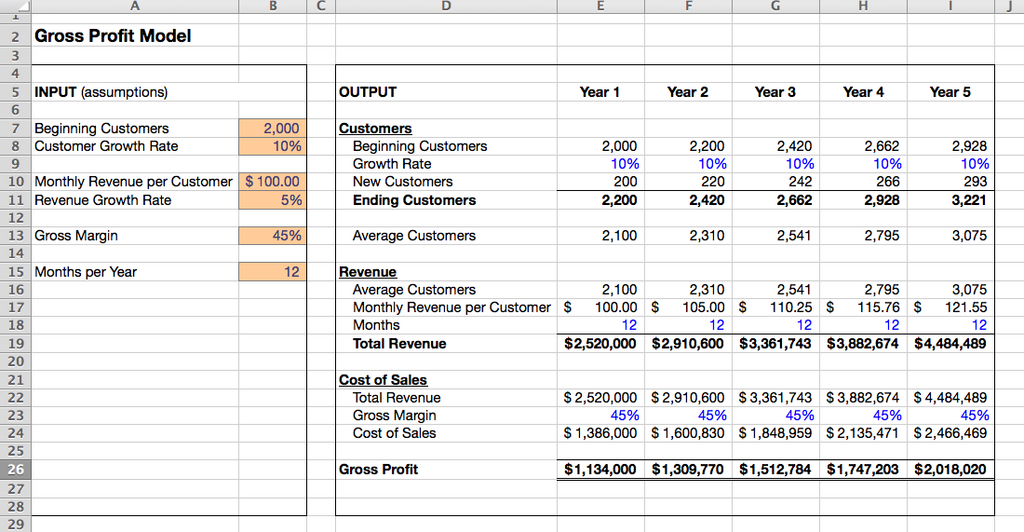
You can also format numbers. For instance, you can display a number as currency (like $12.50), a percentage (50%), or a date (01/15/2025). Select the cells you want to format and choose an option from the "Number" group on the Home tab.
Let's check your understanding of these fundamental concepts.
In Microsoft Excel, what is the relationship between a workbook and a worksheet?
Which part of the Excel interface contains tabs like "Home," "Insert," and "Data" to group commands?
Well done. Mastering these basics is the first step toward using Excel to its full potential.