Excel Fundamentals
Excel Interface
Getting Around in Excel
Opening Excel for the first time can feel like stepping into the cockpit of an airplane. There are buttons, grids, and bars everywhere. But once you know what the main controls do, you'll find it's a well-organized space designed to make your work easier. Let's take a tour of the main components.
The Ribbon: Your Command Center
At the top of the screen is the Ribbon. It’s where you’ll find almost every command you need in Excel. Think of it as your main toolkit.
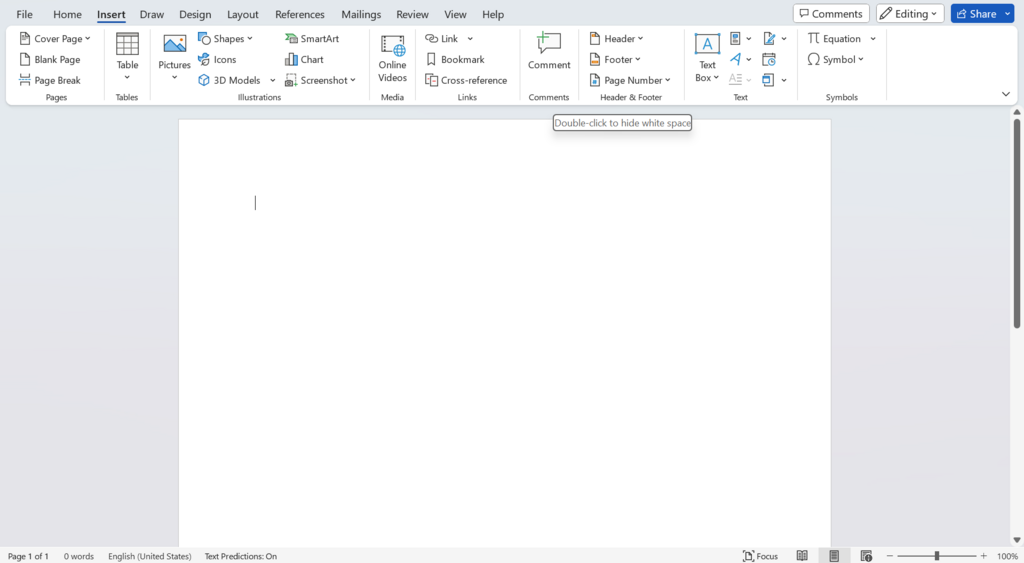
The Ribbon is organized into a few key parts:
- Tabs: Words across the top like
File,Home,Insert, andData. Each tab is dedicated to a specific type of task. TheHometab has your everyday tools for formatting text and numbers. TheInserttab is for adding things like charts, tables, and pictures. - Groups: Within each tab, commands are organized into groups. On the
Hometab, you'll see groups likeFont,Alignment, andNumber. This keeps related buttons together. - Commands: These are the individual buttons, menus, and boxes within each group that perform specific actions, like making text bold or changing a cell's color.
You can double-click any tab name to collapse the Ribbon, giving you more space to see your worksheet. Double-click it again to bring it back.
Your Workspace
Below the Ribbon, you'll find the main working area of Excel. This is where you'll spend most of your time, and it's made up of a few key parts.
Worksheet: This is the grid of cells that makes up the bulk of the screen. An Excel file is called a workbook, and a workbook can contain multiple worksheets. You can switch between them using the tabs at the very bottom-left of the window.
Cells, Rows, and Columns: The worksheet is a grid of columns (labeled with letters A, B, C...) and rows (labeled with numbers 1, 2, 3...). The box where a row and column intersect is called a cell. Each cell has a unique address, or reference, like A1, B2, or C20. The cell you have currently selected is the active cell, and it's marked with a border.
Formula Bar: Located just above the worksheet columns, this bar shows you the contents of the active cell. If you've typed text or a number, you'll see it here. If the cell contains a formula, like =SUM(A1:A5), the Formula Bar will display the formula, while the cell itself shows the result.
Name Box: To the left of the Formula Bar is the Name Box. It displays the address of the active cell, like B2.
Quick Access and Status Bar
Finally, there are two helpful toolbars at the very top and bottom of the Excel window.
Quick Access Toolbar: This small toolbar sits in the top-left corner of the window, above the Ribbon. By default, it holds buttons for Save, Undo, and Redo. The great thing about this toolbar is that you can customize it by adding your most-used commands. This saves you from hunting through the Ribbon tabs for a button you use all the time.
Status Bar: At the very bottom of the window is the Status Bar. This area provides useful information at a glance. For example, if you select a few cells containing numbers, the Status Bar will automatically show you their sum, count, and average without you having to write a formula. It also has view buttons to switch between Normal, Page Layout, and Page Break Preview, as well as a zoom slider to zoom in and out of your worksheet.
That's the basic layout of Excel. Knowing your way around these key areas is the first step to becoming comfortable and efficient with the software.