Excel Fundamentals
Excel Basics
Welcome to Excel
At its heart, Microsoft Excel is a spreadsheet program. Think of it as a vast digital grid made of columns and rows. You can put almost anything in the small boxes, called cells, where the columns and rows meet: text, numbers, dates, and even complex formulas.
For decades, people have used Excel to organize information, track finances, manage projects, and analyze data. It’s a powerful tool, and getting started is easier than you might think. Let's begin by looking at the main screen.
The Lay of the Land
When you first open Excel, you'll see a blank grid. This is your canvas. Let's break down the key parts of the interface so you know what you're looking at.
Here’s what each part does:
- Quick Access Toolbar: A small collection of icons at the very top left of the window. By default, it has buttons for Save, Undo, and Redo. You can customize it to add your most-used commands.
- The Ribbon: This is the main command center. It's organized into tabs like Home, Insert, Page Layout, and Data. Each tab contains groups of related tools. For example, the Home tab has tools for formatting text, like changing font size or color.
- Formula Bar: Located just above the grid, this bar shows the contents of the currently selected cell. When you start working with formulas, you'll see them here.
- Workbook Window: This is the main area where you work, filled with a grid of columns (labeled A, B, C...) and rows (labeled 1, 2, 3...). Each box in the grid is a cell, and each cell has a unique address, like A1, B2, or C15.
Your First Workbook
An Excel file is called a workbook. Each workbook can contain one or more pages, called worksheets or just sheets. You can see tabs for each sheet at the bottom left, usually named "Sheet1," "Sheet2," and so on. You can switch between them by clicking the tabs, and add a new one by clicking the plus (+) icon.
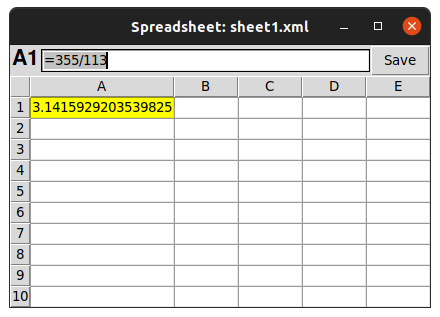
Let's create a simple grocery list. To enter data, just click on a cell and start typing.
- Click on cell A1 and type
Item. Press the Enter key. - Notice how the selection moves down to cell A2. Now type
Milkand press Enter. - Continue this for a few more items:
Breadin A3 andEggsin A4.
Now, let's add quantities.
- Click on cell B1 and type
Quantity. - Click on cell B2 and type the number
1. - In B3, type
1. In B4, type12.
You've just entered your first data! Excel automatically recognizes whether you've typed text or numbers. By default, text aligns to the left of the cell, and numbers align to the right.
To edit the contents of a cell, you can either double-click it or select it and then click inside the Formula Bar.
Once you've created something, you need to save it. Go to the File tab on the Ribbon and choose Save As. Give your workbook a name, like "Grocery List," choose where to save it on your computer, and click Save. Now your work is stored safely.
An Excel file, which can contain one or more pages, is called a...
Where in the Excel interface would you find the main command center, organized into tabs like Home, Insert, and Page Layout?
That covers the absolute basics of finding your way around Excel. You now know how to identify key parts of the interface, enter data, and save your work.