Excel Fundamentals
Excel Interface
The Lay of the Land
Opening a new Excel file presents you with a grid of boxes and a lot of buttons. It can feel a bit overwhelming, but the layout is quite logical. Think of it as a digital workspace with three main parts.
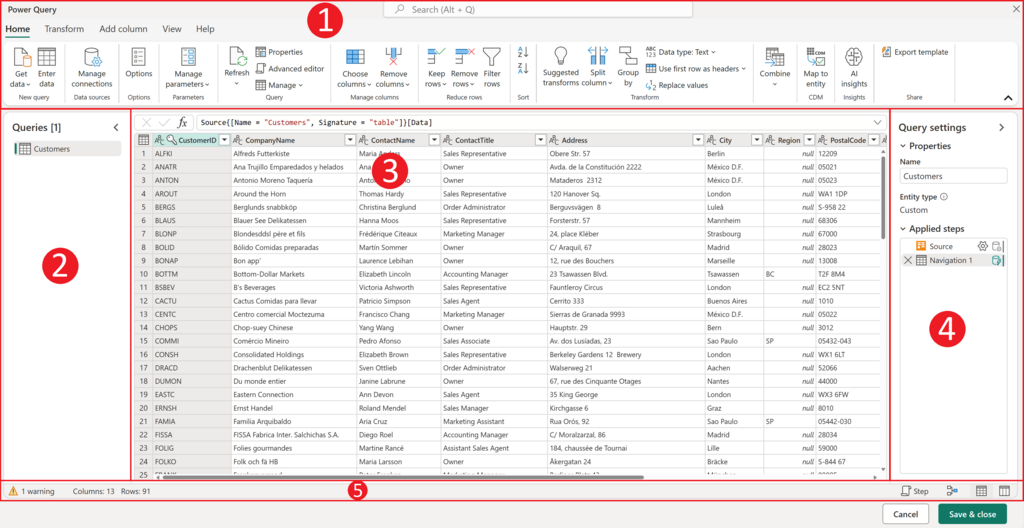
At the top, you have the Ribbon. This is your command center, containing all the tools and options you'll need. Below that is the Worksheet, which is the large grid area where you'll enter and work with your data. The entire file you're working in is called a Workbook, and it can contain multiple worksheets, accessible via tabs at the bottom.
Navigating the Ribbon
The Ribbon organizes Excel's features into a series of tabs, like 'Home', 'Insert', and 'Data'. Each tab is dedicated to a specific type of task. The 'Home' tab has common formatting tools, while the 'Insert' tab lets you add things like charts and tables.
Within each tab, commands are organized into logical groups. For example, on the 'Home' tab, you'll find the 'Font', 'Alignment', and 'Number' groups.
You can also customize the Ribbon to better suit your workflow. If you find yourself constantly digging for a specific tool, you can add it to a custom group or even create your own tab. This saves time and keeps your favorite commands at your fingertips.
To start customizing, just right-click anywhere on the Ribbon and select 'Customize the Ribbon...'. From there, you can create new tabs and groups, and drag commands into them from the list on the left.
Workbooks and Worksheets
An Excel file is officially called a Workbook. Think of it as a digital binder. Inside this binder, you have individual pages, which are called Worksheets (or just 'sheets'). You can see the sheets as tabs at the bottom-left of the window, usually named 'Sheet1', 'Sheet2', and so on.
Managing these sheets is simple. You can organize your data by putting different sets of information on different sheets, like having one sheet for monthly sales and another for inventory.
Here are the basic actions for managing worksheets:
| Action | How to Do It |
|---|---|
| Add a new sheet | Click the plus icon (+) next to the existing sheet tabs. |
| Rename a sheet | Double-click the sheet tab and type a new name. |
| Reorder sheets | Click and drag a sheet tab to a new position. |
| Delete a sheet | Right-click the sheet tab and select 'Delete'. |
Working with Cells
The worksheet grid is made up of individual boxes called cells. Each cell has a unique address, or reference, based on its column letter and row number. The cell in the top-left corner is A1, the one to its right is B1, and the one below it is A2.
The active cell, the one you're currently working in, is highlighted with a dark border. Its reference is always shown in the Name Box, located just above column A.
You can navigate between cells using your keyboard's arrow keys, or by simply clicking on the cell you want to select. To select multiple cells at once, you can click and drag your mouse to create a range. For example, a range from A1 to B3 would include cells A1, A2, A3, B1, B2, and B3.
Mastering these simple navigation and selection techniques is the first step toward using Excel efficiently.
In Excel, what is the entire file containing one or more sheets called?
The command center at the top of the Excel window, containing tools and options organized into tabs like 'Home' and 'Insert', is called the __________.