Excel Fundamentals
Excel Interface
Getting Around in Excel
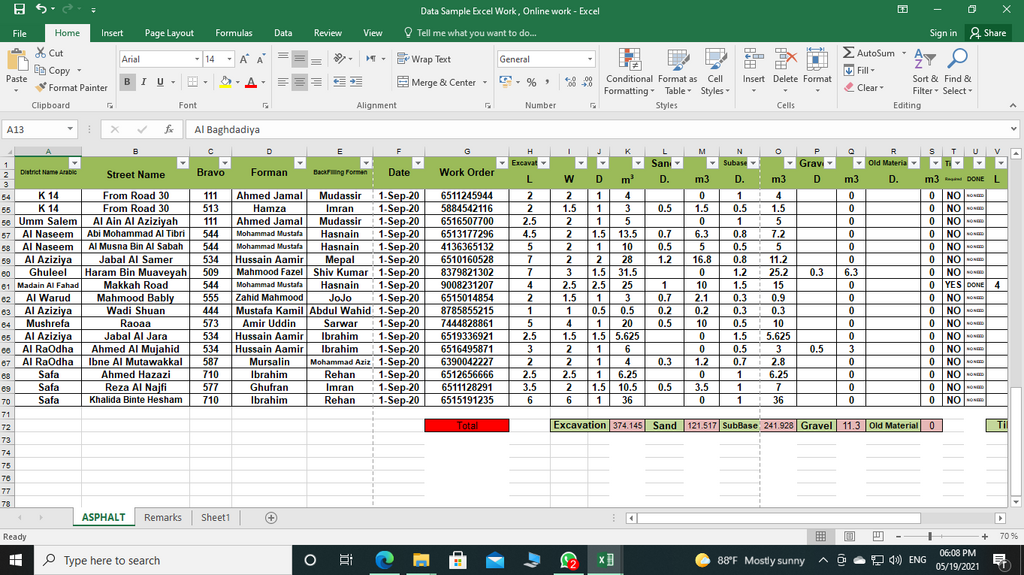
When you first open Microsoft Excel, you'll see a grid of cells. This is your workspace, but there are a few key areas to know. The main components of the Excel window are the Ribbon at the top, the Quick Access Toolbar just above it, and the worksheet area itself, which contains all your data.
The Ribbon
The Ribbon is the primary command center in Excel. It's organized into a series of tabs, like 'Home', 'Insert', 'Page Layout', and 'Data'. Each tab contains groups of related commands. For example, the 'Home' tab has groups for 'Font', 'Alignment', and 'Number', which hold all the common formatting tools.
Think of the tabs as categories for your tasks. If you want to add something new to your sheet, like a chart or a picture, you’ll head to the 'Insert' tab. If you need to manipulate your data by sorting or filtering, the 'Data' tab is the place to go.
Quick Access Toolbar
Above the Ribbon is the Quick Access Toolbar. By default, it holds just a few buttons: Save, Undo, and Redo. Its purpose is to give you one-click access to the commands you use most frequently, no matter which tab on the Ribbon is currently selected.
You can easily customize this toolbar. Click the small downward-pointing arrow at the end of the toolbar to open a menu of common commands. You can check items to add them or uncheck them to remove them. For more options, select 'More Commands' to open a window where you can add any command from Excel.
Customize the Excel interface by adding frequently used commands to the Ribbon or Quick Access Toolbar.
The Worksheet Area
The main part of the screen is the worksheet, a grid of columns and rows. The columns are labeled with letters (A, B, C...) and the rows with numbers (1, 2, 3...). The intersection of a column and a row is a cell, and each cell has a unique address, like A1 or C5.
Just above the worksheet grid, you'll find the Name Box on the left, which displays the address of the active cell, and the Formula Bar on the right, which shows the contents of that cell. The Formula Bar is where you'll enter or edit data, formulas, and functions.
A single Excel file is called a workbook. By default, a new workbook contains one or more worksheets, which are like individual pages in a notebook. You can see the tabs for each worksheet at the bottom-left of the window.
Managing these sheets is straightforward:
- To add a new sheet, click the plus (+) icon next to the existing sheet tabs.
- To rename a sheet, double-click its tab and type a new name.
- To delete a sheet, right-click its tab and select 'Delete'.
- To reorder sheets, just click and drag a tab to a new position.
You can also right-click a tab to change its color, which is helpful for organizing large workbooks.
What is the primary command center in Excel, organized into tabs like 'Home', 'Insert', and 'Data'?
Which component displays the address of the active cell, such as 'A1' or 'C5'?
Now that you're familiar with the layout, you're ready to start entering and working with data.