Excel Fundamentals
Excel Interface
Your Excel Dashboard
Opening a new Excel file can feel like stepping into the cockpit of an airplane. There are buttons, menus, and fields everywhere. But once you know what a few key instruments do, you'll be navigating with confidence.
Think of the Excel window not as a complex control panel, but as your personal dashboard for working with data. Let's break down the main parts you'll use every day.
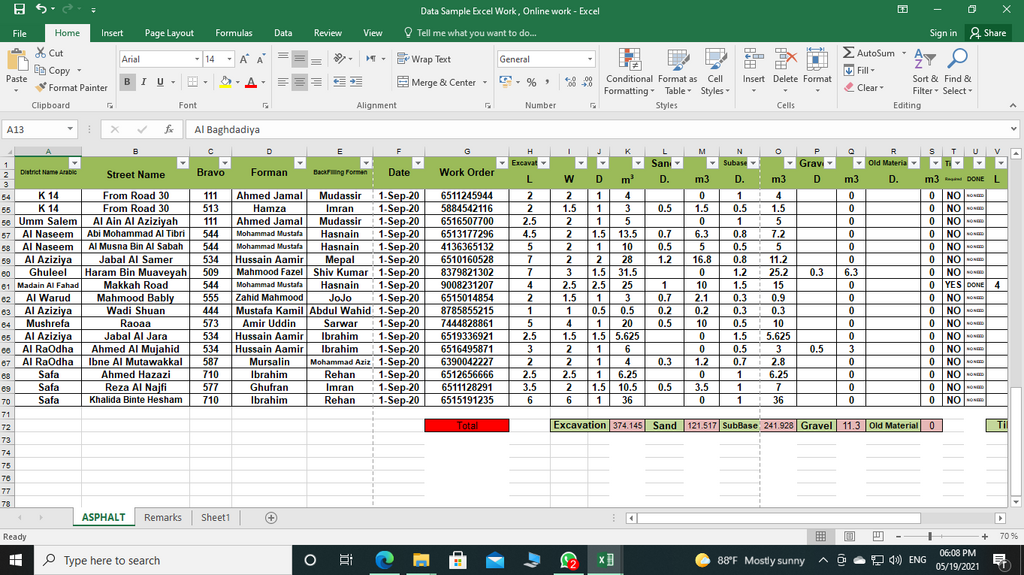
The Ribbon Command Center
The large area at the top with all the buttons and menus is called the Ribbon. This is your primary command center, organizing almost everything you can do in Excel into a series of tabs.
Each tab groups similar actions together:
- Home: Your go-to tab for basic formatting, like changing fonts, aligning text, and cutting or pasting data.
- Insert: Use this to add things to your spreadsheet, such as charts, pictures, or tables.
- Page Layout: This tab controls how your spreadsheet looks when printed, including margins, orientation, and themes.
- Formulas: Home to Excel's vast library of functions, though you don't need to be an expert to start using it.
- Data: Contains powerful tools for sorting, filtering, and managing large sets of information.
- Review: For proofreading tools like spell check and adding comments.
- View: Lets you change how you see your workbook, like zooming in or freezing panes so headers stay visible as you scroll.
Quick Tools and Formulas
Just above the Ribbon is the Quick Access Toolbar. It's a small, customizable row of icons for your most-used commands. By default, it holds Save, Undo, and Redo, but you can add any button you find yourself clicking often. Think of it as your personal toolkit, always within reach.
Below the Ribbon sits the Formula Bar. This bar is your window into the selected cell. It shows the actual content of a cell, whether it's simple text, a number, or a formula. It's also where you can type in or edit that content directly, which is especially useful for longer formulas.
Navigating Your Workbook
At the bottom left of your screen, you'll find the Worksheet Tabs. An Excel file, called a workbook, is like a binder. Each sheet is a separate page in that binder. You can click these tabs to flip between pages, double-click to rename them, and hit the plus sign (+) to add a new sheet.
Finally, the thin bar at the very bottom of the window is the Status Bar. This handy tool provides quick information about what you've selected. For example, if you highlight a few cells with numbers, the Status Bar will instantly show you their sum, count, and average without you having to write a formula. It’s a great way to get a quick pulse on your data.
You can customize both the Quick Access Toolbar and the Status Bar. Just right-click on them to see a menu of options you can add or remove.
What is the primary command center in Excel that organizes tools into a series of tabs like 'Home', 'Insert', and 'Data'?
Which tab would you use if you wanted to add a chart or a picture to your spreadsheet?
Getting comfortable with the layout is the first step to mastering Excel. Now you know where the essential tools are located and what they do.